How to Delete Apps on a Mac, Leftover Files Included
Delete apps on a Mac from Finder, Launchpad or their own uninstaller, then find the files they leave in Library and remove them safely, with a way back.
- Quit the app, then move it to the Trash from Applications in Finder: that is all most apps need.
- Use the app's own uninstaller when it comes with one, so its login items and helpers go too.
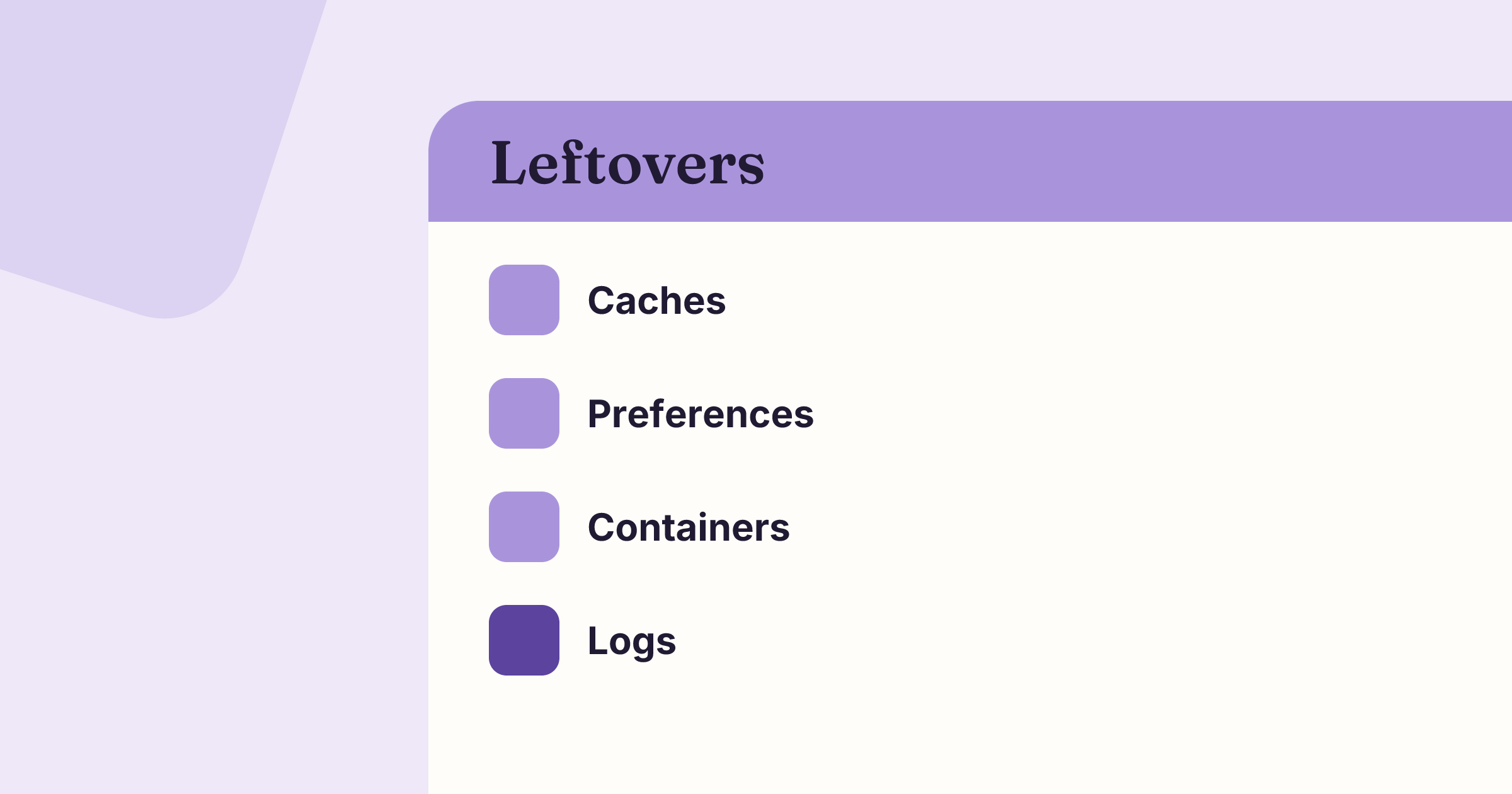
- Leftovers live in your Library folder, filed under the app's bundle ID; match on that, not on the name.
- Keep everything in the Trash for a few days before emptying it, so you can still put it back.
To delete an app on a Mac, quit it, open Applications in Finder and drag the app to the Trash (or select it and choose File › Move to Trash). The space comes back when you empty the Trash. The settings, caches and helpers the app made stay in your Library folder until you remove them too.
Below: the ways to delete the app itself, where its leftovers hide, how to tell which files really belong to it, and how to get things back if you change your mind.
Deleting an app from Finder or Launchpad
From Finder (works for every app you installed):
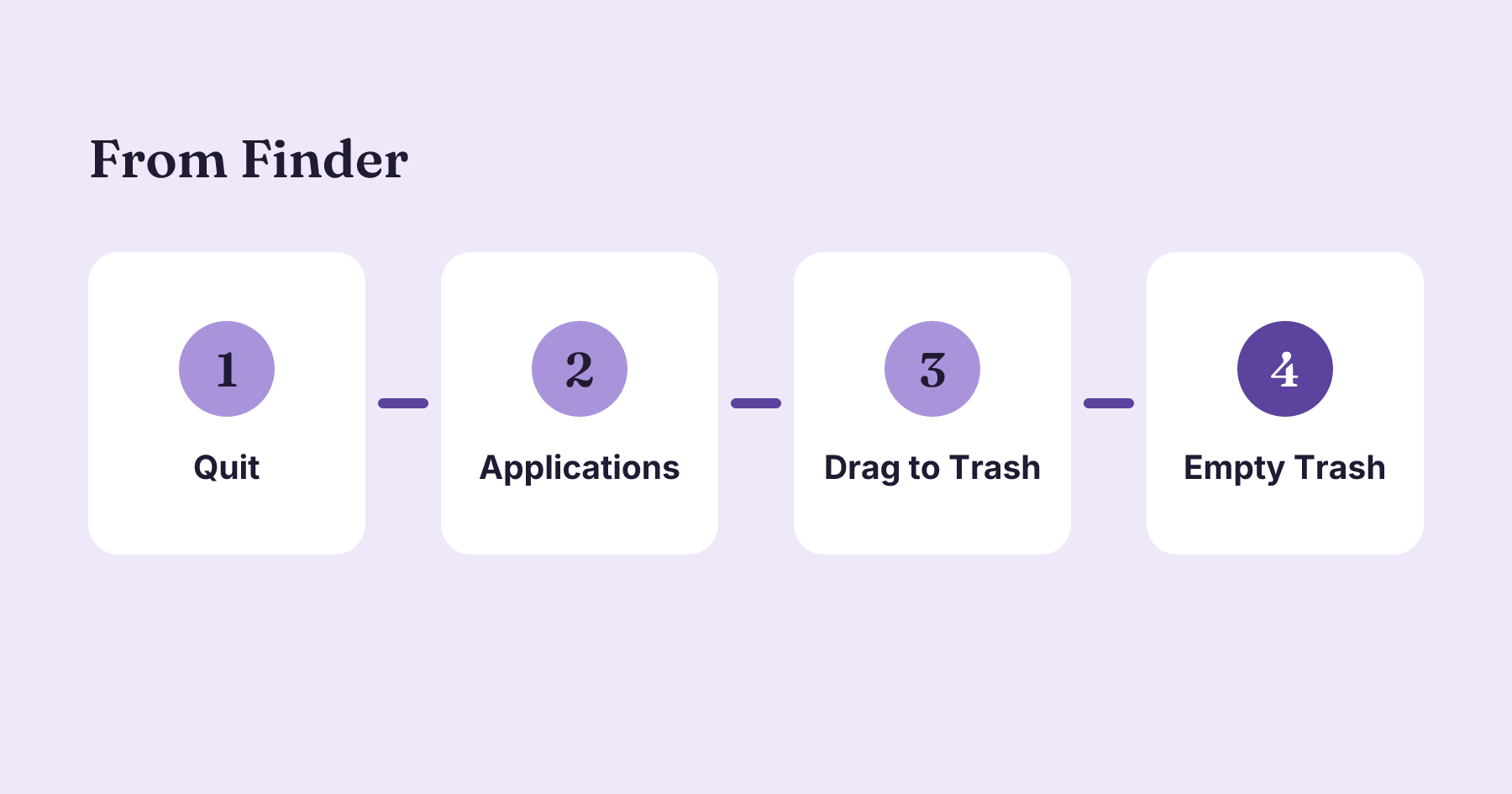
- Quit the app. Apple recommends this before deleting anything, and an app that is still running often can't be moved (Apple Support).
- Open Finder and click Applications in the sidebar. Some apps install into the Applications folder inside your home folder instead: choose Go › Home to look there too.
- Drag the app to the Trash, or select it and press Command-Delete.
- If macOS asks for an administrator name and password, it is usually the one you use to log in to your Mac.
- Choose Finder › Empty Trash when you are sure. Until then the app still takes its space.
From Launchpad (on macOS versions that have it): hold the Option key until the icons jiggle, then click the small X on the app. The X only appears on apps that came from the App Store. Anything else has to go through Finder.
Some apps can't be deleted at all. Safari, Mail, Photos and the other apps that come with macOS sit on a protected part of the system. Finder will tell you the app can't be moved or deleted because macOS requires it. That is expected.
Apps that need their own uninstaller
Larger apps often add things outside their own icon: a background helper, a login item, a system extension, a driver. Dragging the app to the Trash leaves all of that behind. Apple's advice is that an app's own uninstaller is the best way to remove its login items, extensions and the data it keeps elsewhere (Apple Support).
Look for one before you drag anything:
- In the app's folder in Applications, usually named Uninstall [App] or [App] Uninstaller (Mac User Guide).
- In the app's own menus or settings, under something like Remove or Reset.
- In the installer you downloaded, which sometimes has an uninstall option.
- If you installed the app with Homebrew, remove it the same way:
brew uninstall --caskfollowed by the app's name.
Two things to do first with paid apps:
- Deactivate the licence inside the app if it has that option, so the seat frees up for another Mac.
- Cancel any subscription with whoever bills you. Deleting the app does not cancel it.
After uninstalling, open System Settings › General › Login Items & Extensions (just Login Items on some earlier versions). Check that nothing from the app is still listed under Open at Login or Allow in the Background, and switch off anything that is.
Where apps leave files behind in Library
Moving an app to the Trash removes the app itself. What it wrote while you used it lives in the Library folder in your home folder, which Finder hides. To open it, choose Go › Go to Folder and type:
~/LibraryThese are the folders where an app's files end up, and what each holds:
| Folder | What's in it | Worth removing? |
|---|---|---|
| Application Support | The app's own data, often the biggest part | Yes, if you're done with the app |
| Caches | Files the app can rebuild | Yes, and they can be large |
| Containers / Group Containers | All the data of sandboxed apps | Yes, with care: check the name |
| Preferences | Small .plist settings files | Harmless, a few KB each |
| Saved Application State | Window positions | Harmless |
| Logs | Logs and crash reports | Yes, usually small |
| HTTPStorages, WebKit | Web data the app stored | Yes |
| LaunchAgents | Helpers that start at login | Yes: these keep running |
Files are usually named after the app's bundle ID, a reverse-domain name such as com.example.Notes. An app called Notes by that developer might leave:
~/Library/Application Support/com.example.Notes
~/Library/Caches/com.example.Notes
~/Library/Preferences/com.example.Notes.plist
~/Library/Containers/com.example.Notes
~/Library/LaunchAgents/com.example.Notes.helper.plist
Not every leftover is worth chasing. A preference file is a few kilobytes and does nothing once the app is gone. The ones that matter are big caches and Application Support folders. LaunchAgents matter too, because they can keep starting a helper for an app you no longer have.
Finding and removing app leftovers safely
The risk with cleaning Library by hand is deleting something another app still needs. A few rules keep it safe:

- Match the bundle ID, not the name. A folder called "Notes" could belong to any app with that word in its name. A folder called
com.example.Notesbelongs to that one app. To find an app's bundle ID before you delete it, right-click it, choose Show Package Contents, and look forCFBundleIdentifierin Contents/Info.plist. - Skip anything shared. A developer's other apps often use the same folder or group container. If you still use one of them, leave it.
- Move to the Trash, never delete outright. Removing files in Terminal with
rm -rfskips the Trash completely, so a typo can't be undone. - Leave Apple's folders alone. Anything starting with
com.apple.belongs to macOS.
Doing this for one app takes a few minutes. For an app you deleted a year ago and no longer remember, it takes guesswork. That is the job Winnow does. Pick an app on its Apps page and it lists every file the app put in your Library: settings, caches, containers, saved state, logs and login helpers. Each file comes with the reason Winnow thinks it belongs to the app:
- Sure when the file carries the app's bundle ID, or it's a group container from the same signing team. These are ticked for you.
- Likely when only the developer's ID or the app's name matches. These are left for you to decide.
Each file goes to the one app it matches best, so an app called Notion doesn't take Notion Calendar's files. Winnow won't uninstall an app that's still open. Folders holding things it keeps for you, such as Docker's disk or device backups, are never ticked for you. Apps you deleted long ago show up under Left behind when no app on your Mac answers to their files.
Winnow runs on macOS 15 or later. Every feature is free for 7 days, then it's $9.99 once. More on how it decides is in Winnow's support page.
If you're deleting apps to free space, our step-by-step guide to freeing up disk space covers the caches, downloads and developer files that usually take more room than the apps do.
Getting a deleted app's files back if you need them
Until you empty the Trash, nothing is gone. Open the Trash, select the app or file, and choose File › Put Back to return it to where it was (Mac User Guide). Once the Trash is emptied, the app is removed for good, and documents made with it may no longer open.
That is why it pays to wait a few days before emptying. Winnow is built around the same idea: everything it removes goes to the Trash first, with a record of where each file lived. History lists every clean-up, and Restore puts the files back exactly where they were, all at once or one by one. It empties only its own items, after 7 days by default, and never anything else you put in the Trash.
If you reinstall the app instead, its leftovers in Library are what bring your settings back. That is one good reason not to clear them straight away.
FAQ
Does dragging an app to the Trash fully uninstall it?
It removes the app, not what the app made. Settings, caches, containers and login helpers stay in your Library folder until you remove them, or until the app's own uninstaller does.
Why can't I delete an app on my Mac?
Usually because it is still running. Quit it, or force quit it from the Apple menu, and try again. Apps that come with macOS can't be deleted at all, and some apps need an administrator password.
Is it safe to delete files in ~/Library?
Files that belong to an app you have removed are safe to delete; check the bundle ID in the name first. Leave anything starting with com.apple., and anything a developer's other apps may still share.
How do I delete an app's login item or background helper?
Open System Settings › General › Login Items & Extensions and turn it off there. Then remove its file from ~/Library/LaunchAgents. An app's own uninstaller usually does both.
Can I get a deleted app back?
Yes, while it is still in the Trash: select it and choose File › Put Back. After the Trash is emptied, download it again from the App Store or the developer's site.
Keep reading
Mac Cache Cleaner: How to Clear Caches Safely
Which Mac caches are safe to clear, how to clear them by hand in Finder, browsers and developer tools, and how to use a cache cleaner you can undo.
How to Free Up Disk Space on a Mac, Step by Step
Free up disk space on a Mac in a safe order: check Storage settings, clear Downloads, caches, Xcode data and app leftovers, then empty the Trash last.

Mac Keeps Freezing? How to Unfreeze It and Find the Cause
Mac frozen? Force quit the app or force a restart, then use Activity Monitor, Safe Mode and Diagnostics to find out why it keeps freezing.