Spectacle for macOS Is Archived: Snap Windows With Roost
Spectacle, the free Mac window snapper, was archived in 2019. Here's what that means now, macOS's own tiling, and moving your shortcuts to Roost.
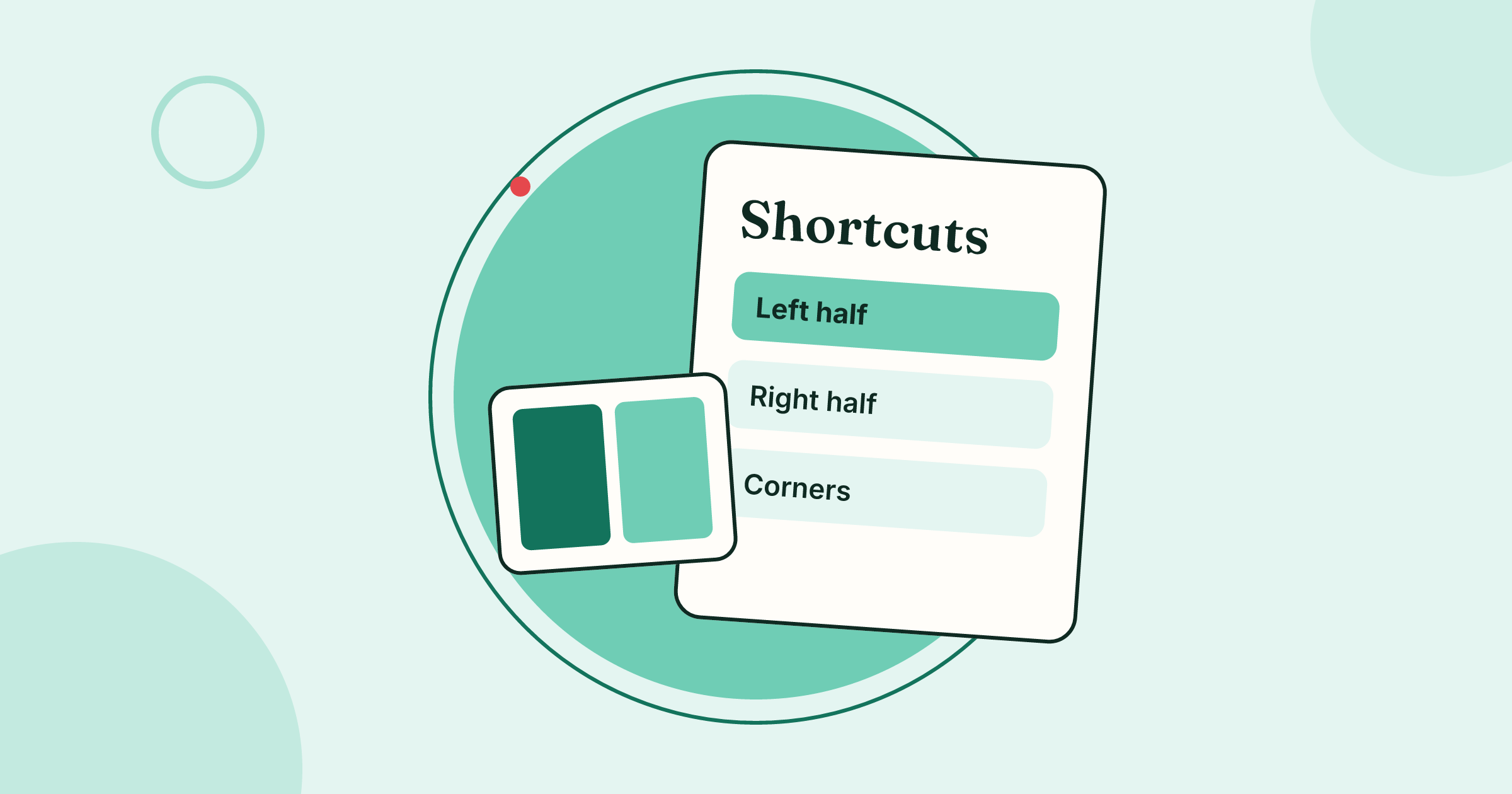
- Spectacle no longer gets updates. The project was archived in 2019, so no fixes come if a new macOS release breaks it.
- Try macOS's own tiling first. macOS 15 Sequoia added basic window tiling, and it may be enough if you only arrange a few windows now and then.
- Roost keeps the keyboard snapping and adds more. It snaps to halves, thirds and quarters, and it puts every window back when you dock, undock or wake. It costs $7.99 once after a 7-day trial.
- Your old shortcuts carry over. Write down your Spectacle keys, quit Spectacle, then set the same keys on Roost's Shortcuts page.
If Spectacle still does what you need on your Mac and you only use one screen, you can keep using it, or switch to the tiling built into macOS 15. If you want snapping that is still maintained and you move a MacBook on and off a monitor, Roost is the better fit: it snaps from the keyboard and puts your windows back after every dock, undock or wake.
Below is a short comparison, what each option is good at, and how to move your shortcuts over without relearning them.
Spectacle vs Roost at a glance
Prices are as of November 2026.
| Spectacle | Roost | |
|---|---|---|
| Price | Free | Free for 7 days, then $7.99 once (one Mac) or $14.99 (up to three Macs) |
| Still updated | No, archived in 2019 | Yes, every update included |
| Keyboard snapping | Yes | Yes: halves, thirds, two-thirds, quarters, centre, fill |
| macOS needed | Not stated | macOS 15 or later, Apple silicon and Intel |
| Puts windows back after dock, undock or wake | Not stated | Yes, with Undo for 30 seconds |
| Account needed | Not stated | No |
| How you get it | Not stated | Direct download from Papermint, notarized by Apple, with a licence key |
Spectacle: what it was built for
Spectacle is a free, keyboard-driven window management utility for macOS, created by Eric Czarny. Its own description says it lets you organize your windows without using a mouse. It moves and resizes other apps' windows through the macOS accessibility APIs, which is why it asks for Accessibility permission.
The important part for anyone searching for it today: the original project was archived in 2019, so it no longer gets updates. That doesn't mean it stops working on the day of a macOS release. It means that if a release does break something, nobody will fix it.
Keep Spectacle if it still works on your Mac, you're happy with it, and you don't need anything beyond snapping. It costs nothing, and replacing a tool that works is optional.
If you're downloading it fresh, be careful about where it comes from. An archived app has no official channel issuing new builds, so copies turn up in many places. Get it from the project's own pages, and think twice before you give Accessibility permission to a copy whose origin you can't check. That permission lets an app control other apps' windows.
What macOS does on its own now
Before you install anything, look at what's already on your Mac. macOS 15 Sequoia added basic window tiling: drag a window to the edge of the screen to tile it, or use Window › Move & Resize in most apps.
For someone who arranges two windows side by side a few times a day, that may be all you need. Built-in tiling has limits, though. It won't remember where your windows were on each set of screens, and it won't put them back after you unplug a monitor.
Roost: snapping, plus every window back in place
Roost does what you used Spectacle for: you press ⌃⌥ and a key, and the window you're using snaps into place. We built it mainly for a different problem, though. When a display goes away, macOS moves its windows onto the screens that are left, and it doesn't reliably move them back when the display returns. Roost remembers where every window was for each set of screens and restores them.
Keyboard shortcuts for halves, thirds and corners
Roost's defaults for the window you're using:
| Action | Roost default |
|---|---|
| Left / right / top / bottom half | ⌃⌥ ← / → / ↑ / ↓ |
| Fill the screen | ⌃⌥ ↩ |
| Centre | ⌃⌥ C |
| Thirds | ⌃⌥ D, F, G |
| Two-thirds | ⌃⌥ E, T |
| Quarters (corners) | ⌃⌥ U, I, J, K |
| Focus (fill, then back) | ⌃⌥ Z |
| Swap with the window beside it | ⌃⌥⇧ + arrow |
| Next display | ⌃⌥ N |
| Arrange the whole screen | ⌃⌥ 1–4 |
| Bird's-eye (every window) | ⌃⌥ O |
Roost also has layouts for several windows at once: side by side, three columns, a centre window with two beside it, and 2 × 2 or 3 × 2 grids. You give these shortcuts on the Shortcuts page. If you like a little space around snapped windows, Gap between windows on the same page adds it.
Snapping with the mouse
Roost's screen-setup page draws your MacBook and monitors as they are, with every window on them. Drag a window on that drawing to a screen's left or right edge for a half, to a corner for a quarter, or to the top to fill the screen, and the real window follows. Double-click a window to fill the screen, and double-click again to put it back. In Bird's-eye, you can drop one window on another's edge so the two share its space.
Multiple displays and Spaces
This is where Roost differs most from a pure snapping tool:
- Next display. ⌃⌥N carries the window to your other display, in the same place and at the same size in proportion. If a window is already in the left half, pressing ⌃⌥← sends it to the display on the left, as that display's right half.
- Back in place after docking. Roost restores windows when you dock or undock, when you rearrange screens in System Settings, and when the Mac or its displays wake. A small card shows what moved, with Undo for 30 seconds.
- A layout for each set of screens, with nothing to save. It remembers the MacBook alone, your home desk and your office desk the first time it sees each one, and it keeps up as you move windows around.
- Identical monitors. It tells them apart by serial number where macOS reports one, and by their position in the arrangement where it doesn't.
- Spaces. Windows on your other desktops are put back without you going there. Each one stays on its own desktop, because macOS doesn't let an app move a window to a different desktop. Full-screen windows are left alone.
Bought once, sold directly
Roost is free for 7 days with every feature. After that it's $7.99 once for one Mac, or $14.99 for up to three, with every update included and no subscription. It needs macOS 15 or later and runs on Apple silicon and Intel.
It's sold directly from Papermint with a licence key rather than on the Mac App Store. The App Store sandbox doesn't let one app move another app's windows, and moving other apps' windows is the whole job.
No tracking, no account
You don't make an account to use Roost, and Papermint apps carry no ads and no tracking. Everything Roost does stays on your Mac. If you turn on window previews in Bird's-eye, macOS asks for Screen & System Audio Recording permission. The pictures are taken only while Bird's-eye is showing, and they stay on your Mac. Without that permission, each window shows its app's icon instead.
Switching from Spectacle to Roost
You can keep your muscle memory if you take a few minutes over the switch:
- Write down the Spectacle shortcuts you actually use. Open Spectacle's preferences and note them. Most people use only a handful.
- Quit Spectacle and remove it. If two apps listen for the same keys, they clash. Quit it, remove it from System Settings › General › Login Items, then drag it to the Trash. You can also switch it off under Privacy & Security › Accessibility.
- Install Roost. Open the DMG, drag Roost to Applications and open it.
- Allow Accessibility. The welcome screen opens System Settings › Privacy & Security › Accessibility for you. Turn Roost on there.
- Match your keys. On the Shortcuts page, click a shortcut and press the keys you're used to. Esc cancels and Delete clears. To change the modifier on every shortcut at once, use Start every shortcut with and pick ⌃⌥, ⌃⌥⌘, ⌥⌘ or ⌃⌘, whichever pair your fingers already know.
- Check for clashes. If macOS or another app already uses a key, Roost shows it in red, and the Setup check in Settings lists it.
- Practise. The welcome screen opens a practice window, so you can try the keys before you rely on them.
If snapping stops working later, often after a macOS update, check that Roost is still turned on under Privacy & Security › Accessibility. The Roost support page covers this and the other settings in detail.
How to decide
- Stay with Spectacle if it still works for you, you use one screen, and you're comfortable running an app that no longer gets updates.
- Use macOS's own tiling if you're on macOS 15 or later and only need halves and the occasional side-by-side.
- Pick Roost if you're on macOS 15 or later and want maintained keyboard snapping, especially if you dock a MacBook to one or more monitors and your windows end up in the wrong place after you unplug or the Mac sleeps.
If you're also weighing other snapping apps, we compared Roost with another popular one in Rectangle App vs Roost. For the free tools that come with macOS, see MacBook tools worth installing.
FAQ
Does Spectacle still work on current macOS?
It may, but the original project was archived in 2019, so it isn't tested against new macOS releases and won't get fixes if one breaks it. If it works for you today, nothing forces you to switch.
Which macOS version does Roost need?
macOS 15 or later. On an older version, Roost won't run.
Does Roost run on Apple silicon?
Yes. Roost runs on Apple silicon and Intel Macs.
Is there a free trial?
Yes. Every feature is free for 7 days. After that, Roost is $7.99 once for one Mac, or $14.99 for up to three, with every update included.
Can I run Spectacle and Roost at the same time?
It's better not to. Two apps listening for the same shortcuts will clash. Quit Spectacle first, then set your keys in Roost.
Why isn't Roost on the Mac App Store?
The App Store sandbox doesn't let one app move another app's windows. Roost is sold directly, notarized by Apple, with a licence key.
Keep reading
How to Add a Signature With a Date to a PDF on a Mac
Sign a PDF on your Mac and put the date beside it, in Preview or Sheaf. Which date format to use, how to line it up, and why nothing needs uploading.
How to Separate PDF Pages on a Mac (Without Uploading)
Split a PDF into separate pages on a Mac: one file per page, by range or in chunks, using Preview or Sheaf. No upload, no account, originals kept.
Rectangle App vs Roost: Which Mac Window Manager Fits You
Rectangle is free and great at snapping. Roost puts every window back when you dock, undock or wake. A fair comparison, with shortcuts and switching steps.