Roost
- Mac
Your windows, back where they belong.
Dock, undock or wake, and every window lands back in its place. Roost remembers each set of screens by itself, arranges your windows in one click, snaps them from the keyboard and opens whole workspaces. There is nothing to save.
- Back in place after dock or sleep
- A layout for each set of screens
- Arrange in one click
- Keyboard snapping
- Workspaces and history
Dock, undock, wake
Every window goes back where it belongs
Plug in at your desk and your windows are where you left them there. Unplug and they come home to the MacBook.
One layout for each set of screens
MacBook alone, at the home dock, at the office: Roost tells them apart, even two identical monitors.
Nothing to save
A new screen setup is remembered the first time Roost sees it, and it keeps up as you move windows.
Undo, always
A small card after windows go back, with Undo for 30 seconds and what didn't fit.
After sleep too
Wake on the same screens and windows go back to how you left them before sleep.
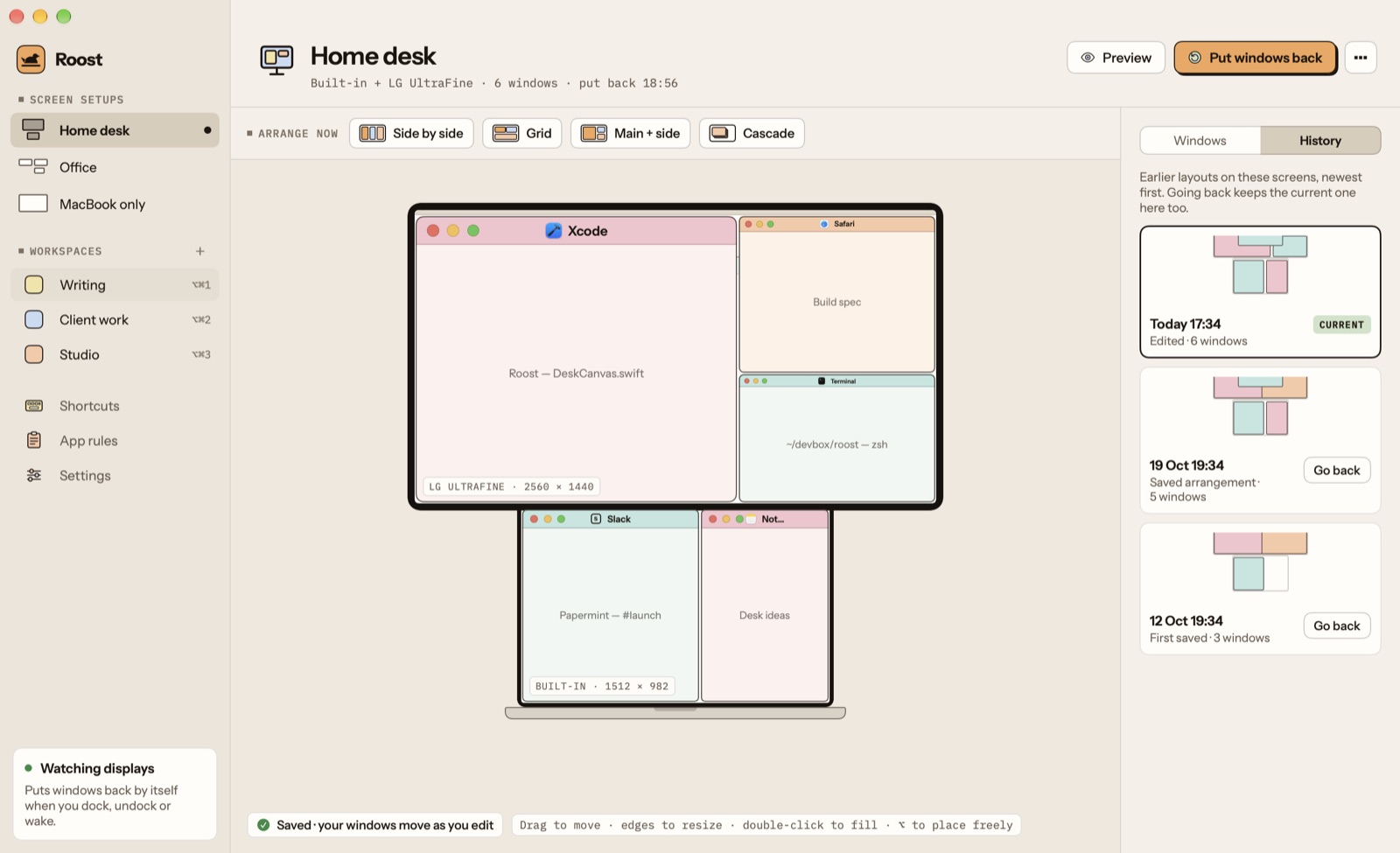
Your screens, drawn
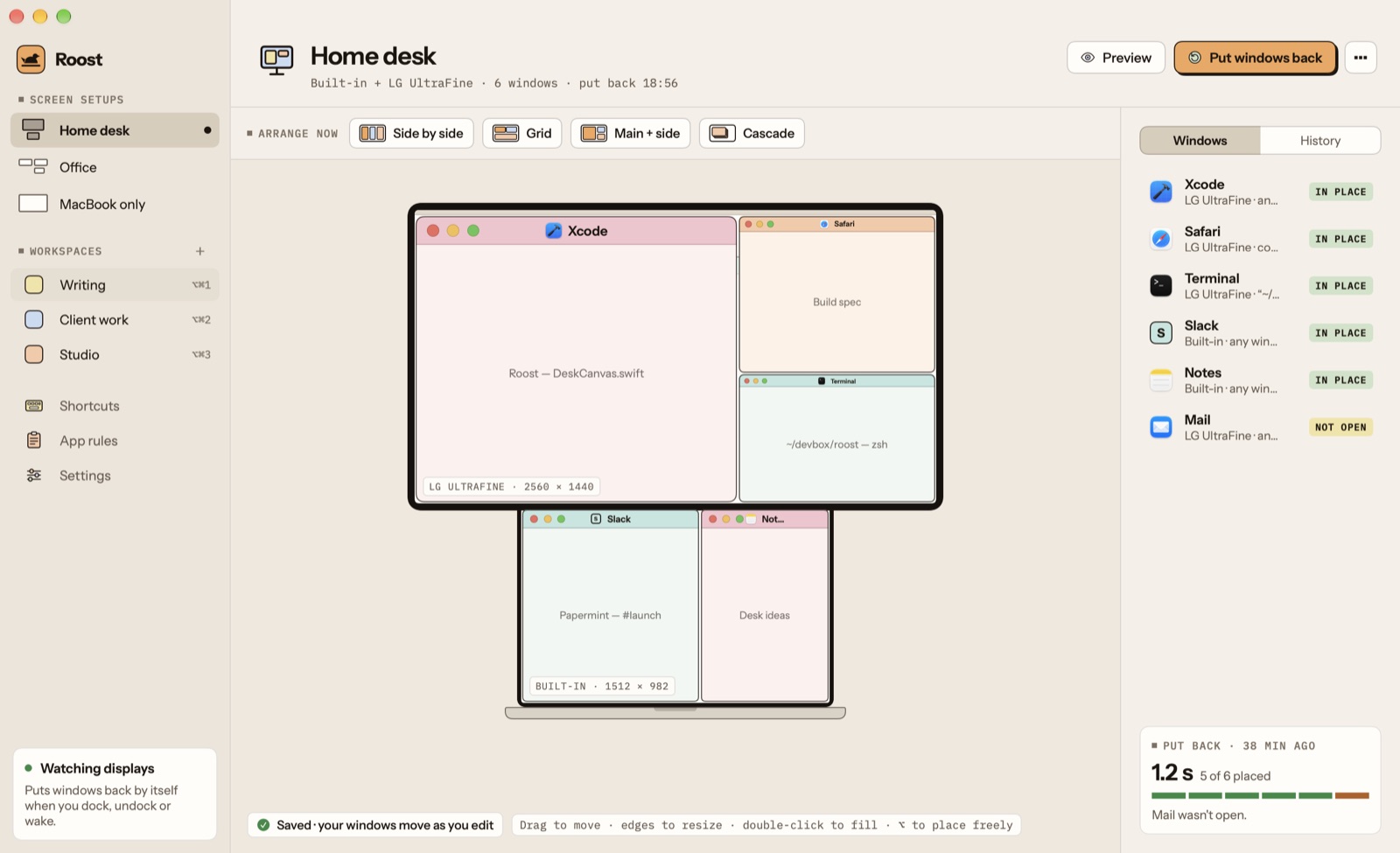
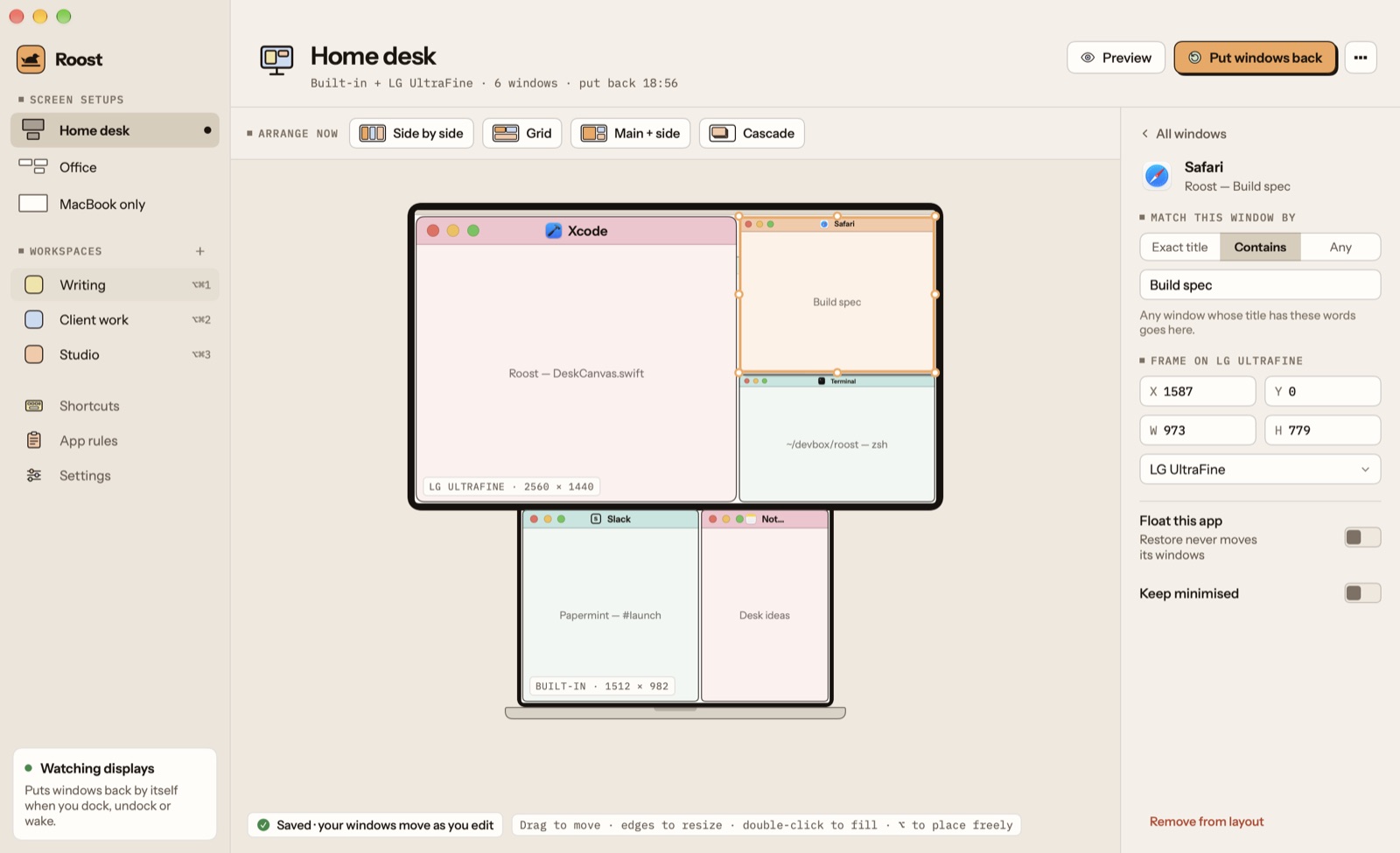
Move a window on the drawing and the real one follows
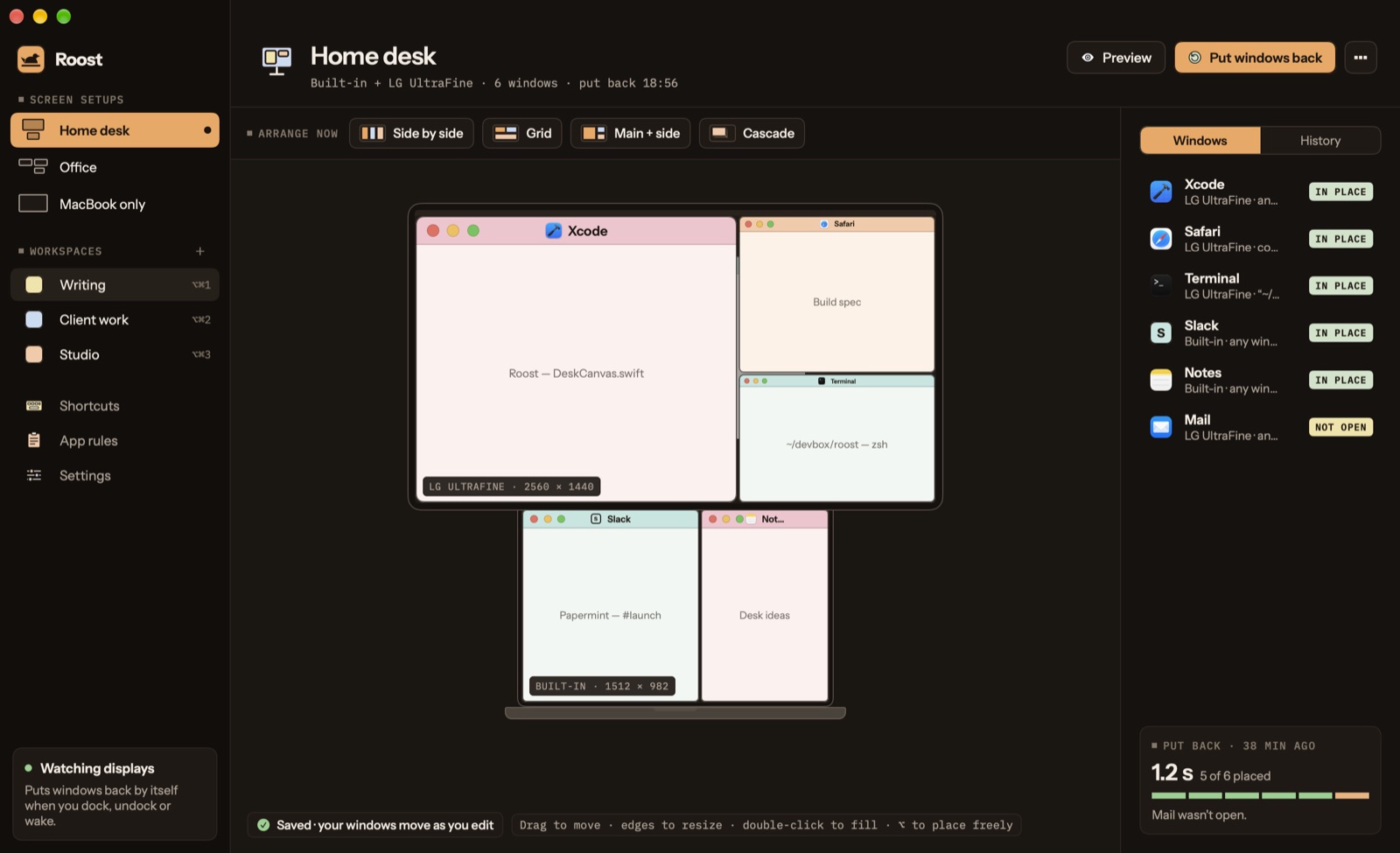
Your MacBook and monitors as they are, with every window like a macOS window.
Resize from any edge
Drag an edge or corner with the size showing, or set the exact frame in points.
Drop on an edge
Drag a window to a screen's side for a half, a corner for a quarter, the top to fill the screen.
Preview on screen
See what Put windows back would do over your real screens before it moves anything.
History
Every layout these screens had, newest first. Go back to any of them in one click.
Arrange now
Tidy every window in one click
Side by side, a grid, one main window with the rest beside it, or a cascade.
Front to back
The window you're using gets the first place, and the biggest in Main + side.
Each screen on its own
Windows are arranged on the screen they're on; apps you set to float are left alone.
Undo it
Every arrangement can be undone from its card or the menu bar.
Moves
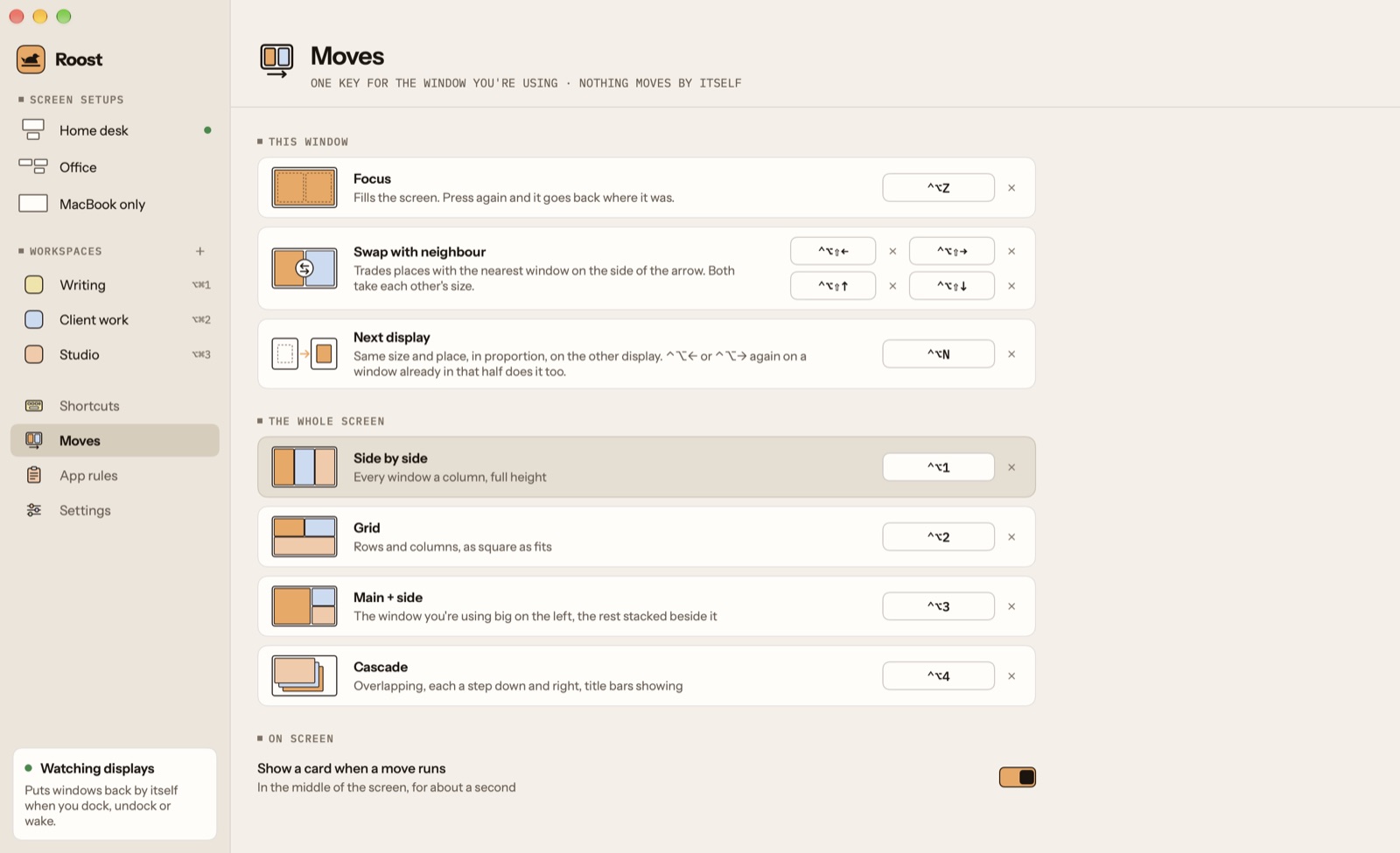
One key for the window you're using
Fill the screen and back, trade places with the window beside it, or send it to your other display. Nothing moves by itself.
Focus
⌃⌥Z fills the screen with the window you're using. Press it again and it goes back exactly where it was.
Swap
⌃⌥⇧ and an arrow trades places with the window on that side, each taking the other's size.
Next display
⌃⌥N carries the window to your other display, same place in proportion. ⌃⌥← again at the edge does it too.
Tidy from the keys
⌃⌥1 to ⌃⌥4 for Side by side, Grid, Main + side and Cascade.
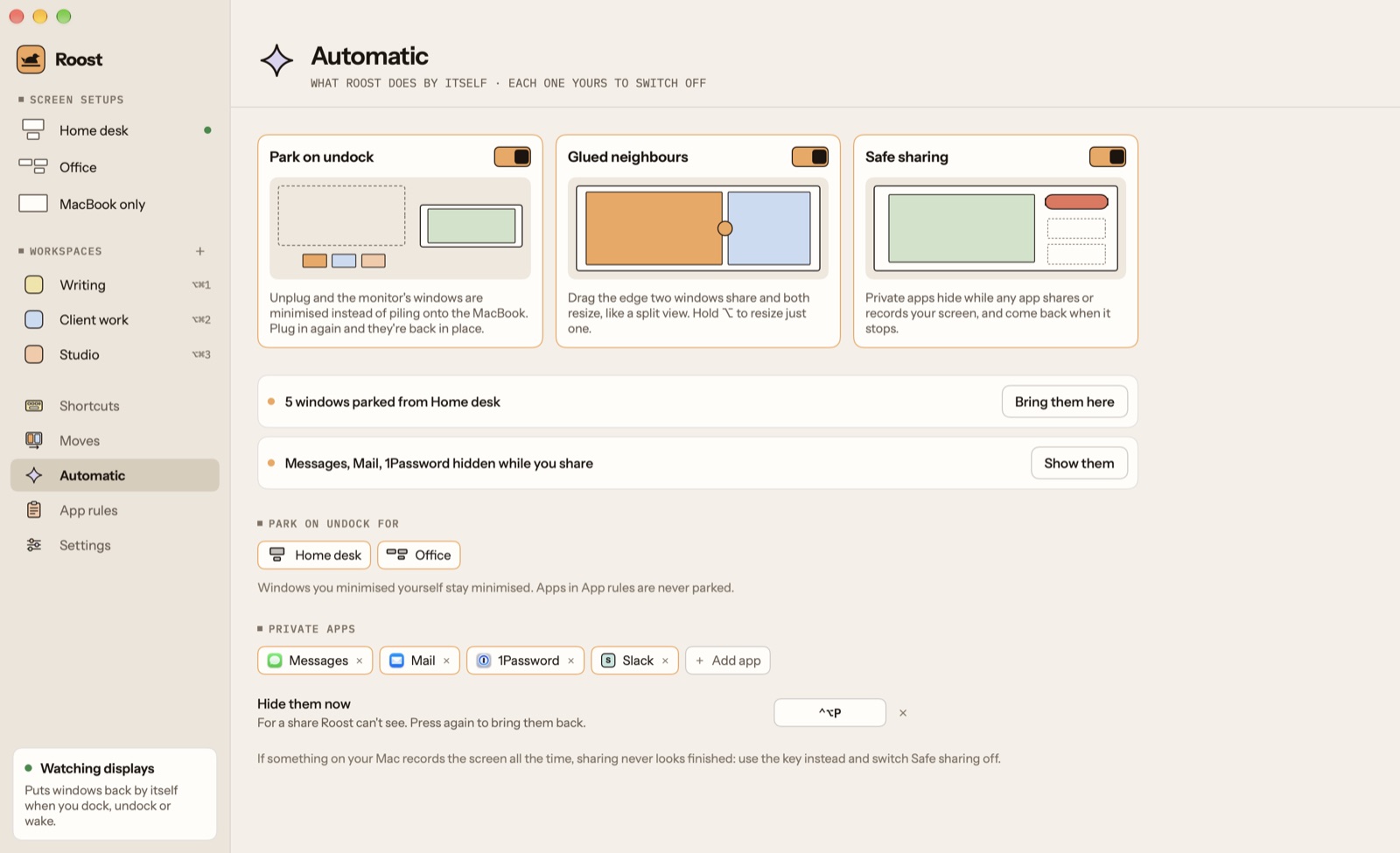
Automatic
It tidies up after your monitor, and before your screen share
Three things Roost can do by itself. Each is off until you switch it on.
Park on undock
Unplug and the monitor's windows are minimised instead of piling onto the MacBook. Plug in again and they're back in place.
Glued neighbours
Drag the edge two windows share and both resize, like a split view. Hold ⌥ to resize just one.
Safe sharing
Messages, Mail, 1Password or any app you pick hide while you share or record your screen, and come back after.
Or by hand
⌃⌥P hides your private apps before a share, and brings them back after.
Shortcuts and workspaces
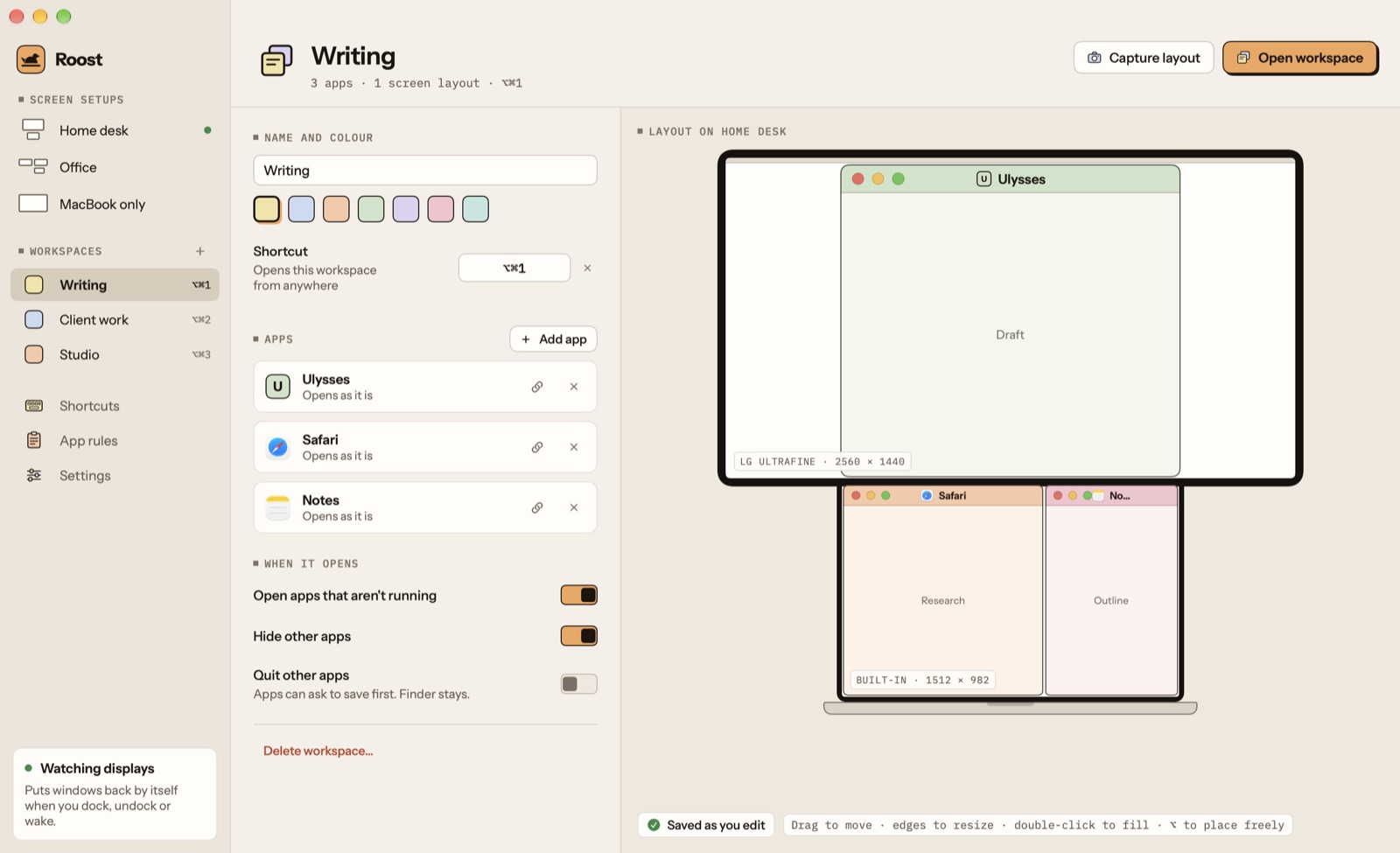
Snap a window, or open a whole workspace
Halves, thirds and quarters from the keyboard, and sets of apps that open where they belong.
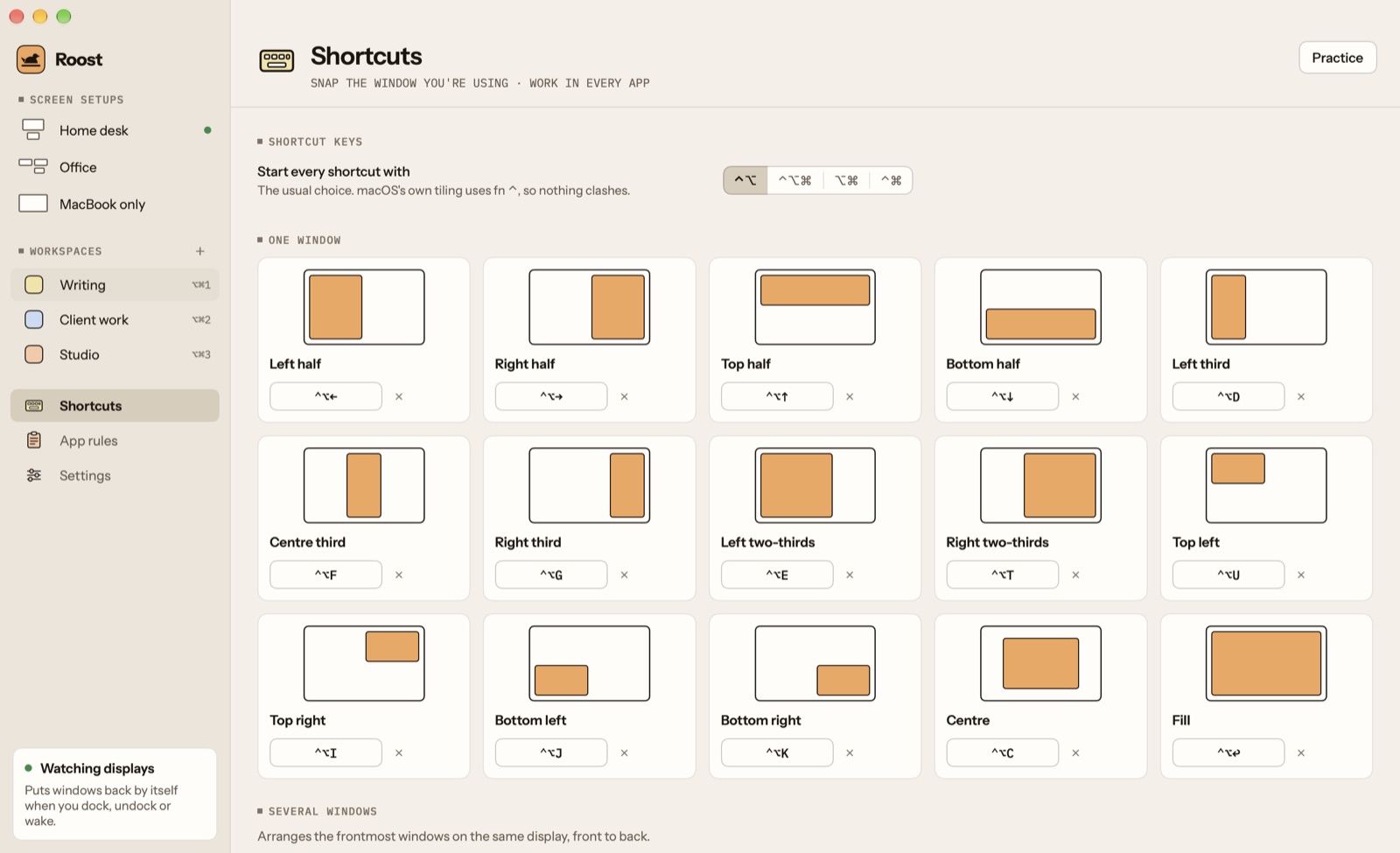
⌃⌥ and a key
Left half, right half, thirds, quarters, centre and fill for the window you're using, in any app.
Learn them in a minute
A practice window to snap around and throw, so the keys stick.
Workspaces
One shortcut opens a set of apps and lays them out, with a layout for each screen setup.
Your keys
Change any shortcut, or start them all with ⌃⌥, ⌥⌘, ⌃⌘ or ⌃⌥⌘.
And also
And the details
The small things that make it disappear into your Mac.
The menu bar
Put windows back, focus, arrange, open a workspace or pause, and see what's parked or hidden, from one small panel.
App rules
Float an app so Roost never moves it, or ignore it entirely.
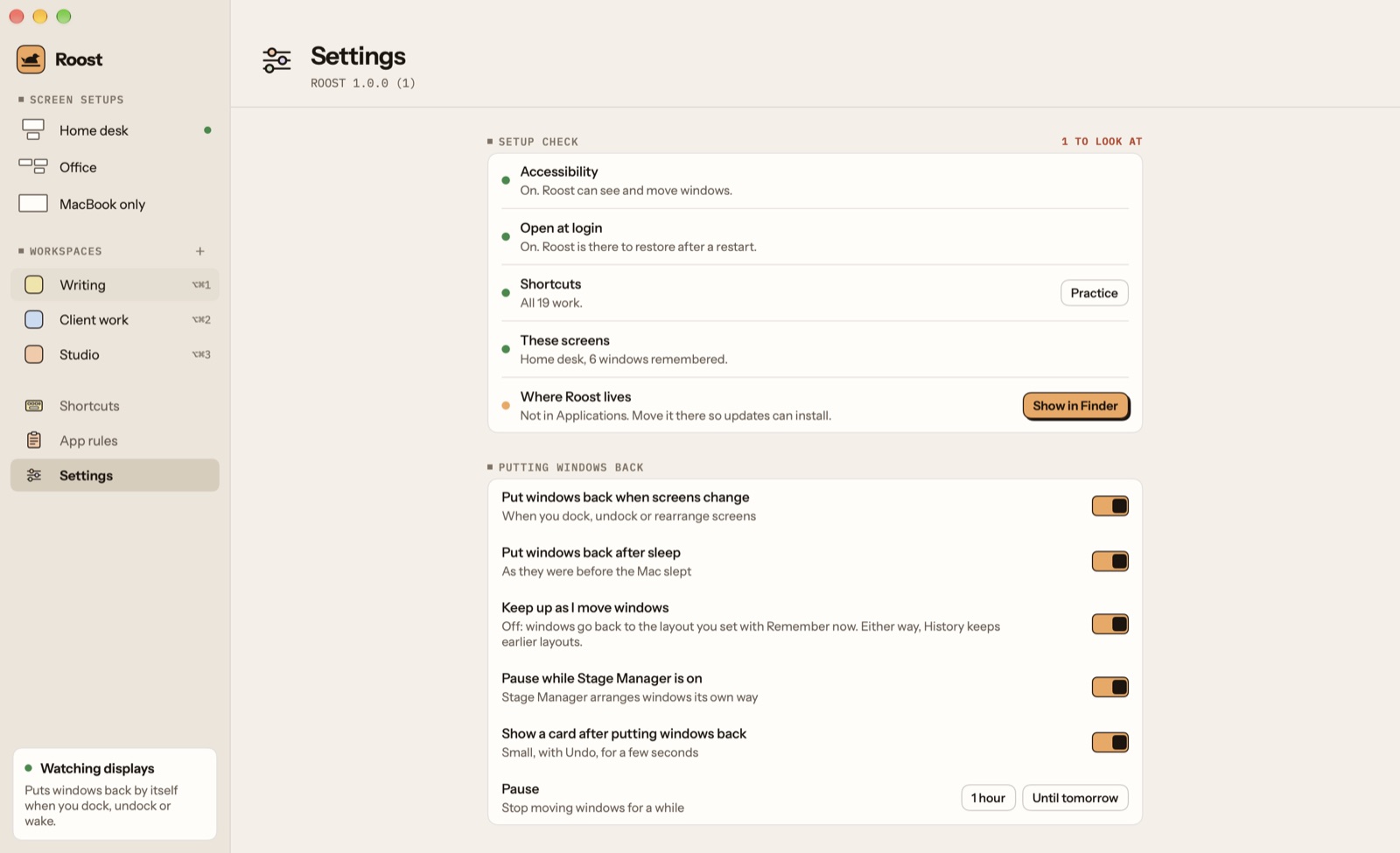
Setup check
One list of what Roost needs from your Mac, each with its fix.
Lost windows
Bring back any window that ended up off screen, in one click.
Windows that open late
An app that starts slowly after you dock still gets its window put in place.
Light on your Mac
It listens for macOS to say a window moved, with a light check every few seconds. Apple silicon and Intel.
How it works
Open it once.
Allow Accessibility, try the shortcuts, and that's it.
Let Roost move windows
macOS asks once for Accessibility; the welcome moves on by itself.
Use your Mac as usual
Roost remembers each set of screens and keeps up as you move things.
Dock, undock, wake
Every window lands back in its place, with Undo.
Private by design
Your windows, only on your Mac.
Works on your Mac
Roost reads where windows are from macOS and moves them there. Nothing passes through us.
Titles stay private
Window titles are kept in Roost's folder to match windows, and hidden in any diagnostics you send.
Layouts in one folder
Screen setups, history and workspaces are small files on your Mac, with backups.
No analytics, no account
It fetches only our update feed, and checks your licence with us.
Price
Try everything for 7 days. Then pay once.
Free trial
7days
- Every feature, nothing held back
- Long enough to dock and undock a few times
- No account
Roost
$7.99once
- One Mac, every future update
- $14.99 for up to three Macs
- No subscription
Questions
Asked before you download
Why do my windows move when I unplug my monitor?
When a display goes away, macOS moves its windows onto the screens that are left, and doesn't move them back when it returns. Roost remembers where each window was for that set of screens and puts it back when you plug in again.
Do I have to save layouts?
No. Roost remembers each set of screens the first time it sees it and keeps up as you move windows, so the layout is simply how you left it. History keeps earlier layouts if you want one back.
Does it work with two identical monitors?
Yes. Roost tells displays apart by their serial numbers where macOS reports them, and by where they sit in the arrangement when it doesn't.
What does it cost?
Every feature is free for 7 days. Then it's $7.99 once for one Mac, or $14.99 for up to three, with every future update included and no subscription. After the trial Roost stops moving windows until it's bought, and keeps everything you set up. Your keys and Macs are at console.papermint.studio.
Why isn't it on the Mac App Store?
Apps in the Mac App Store can't move other apps' windows: Apple's sandbox doesn't allow the Accessibility access that needs. Roost is downloaded from us instead, signed and notarized by Apple.
Will it fight with Stage Manager or full-screen apps?
No. Full-screen windows and windows on other Spaces are left where they are, and restores pause while Stage Manager is on unless you choose otherwise.
Your windows, back where they belong.
Free for 7 days, then $7.99 once. Apple silicon and Intel, macOS 15 or later.
DownloadmacOS 15+ · Apple silicon & IntelMore from Papermint
Other apps, same promise.
 WhittleVoice notes that write themselves
 KeepersA photo cleaner you swipe
 SketchyColoring pages for kids
 LumenA photo viewer for the Mac
 PennyBookA private expense tracker
 Porter.local names for dev servers
 AlmanacSee which app is behind it
 WinnowClear your Mac, keep a way back
 SheafEvery PDF tool, on your Mac