
The short answer
System Data is everything Storage settings doesn't put in another category: app caches and logs, apps' own data, iPhone and iPad backups, Time Machine local snapshots, purgeable space, swap, simulator runtimes and macOS itself. Caches, logs and developer build files are safe to clear because they come back when needed; backups and snapshots are better managed where they belong (Finder, Time Machine). Moving things to the Trash first, as Winnow does, keeps a way back.
Open System Settings › General › Storage and you get a coloured bar: Apps, Documents, Photos, Developer, and a long grey stretch called System Data. The other categories open into lists. System Data doesn’t. On a Mac that has been used for a year it is often the biggest part of the bar.
Below is what that grey bar holds, which parts you can clear without losing anything, and which to leave alone. Most of it you can do with Finder and a couple of Terminal commands. At the end is how we show it in Winnow, the Mac cleaner we made.
What System Data is
System Data isn’t one folder. It is what’s left after Storage settings has counted everything it can put a name on: your apps, documents, photos, music, mail, messages, iCloud Drive and developer tools. Whatever remains is grey. That includes macOS itself, but on most Macs the large parts are things you added without noticing: caches, backups and snapshots.
What’s usually inside
- App caches in
~/Library/Caches: copies apps keep so they start faster. Browsers, chat apps, design tools and package managers keep the most. - Logs and crash reports in
~/Library/Logs. - Apps’ own data in
~/Library/Application Supportand~/Library/Containers: settings, databases and downloads apps keep for themselves. It goes away when you uninstall the app properly. - iPhone and iPad backups, if you back up a device to the Mac.
- Time Machine local snapshots: hourly copies Time Machine keeps on the Mac’s own disk while it can’t reach its backup disk.
- Purgeable space and swap: space macOS can take back on its own, and memory written to disk while apps run.
- Developer files: Xcode build data, simulator runtimes, device support and package caches (npm, Yarn, Homebrew and others). Storage settings counts some of these as Developer and leaves the rest in System Data.
What’s safe to clear
The rule of thumb: clear what comes back by itself, and manage everything else where it belongs.
- Restart. It clears swap and temporary files. On a Mac that has been up for weeks this alone can free several gigabytes.
- App caches and logs. Quit the apps, then move the folders inside
~/Library/Cachesand~/Library/Logsthat belong to apps you recognise to the Trash. Apps rebuild them, a little slower the first time. Leave thecom.apple.folders to macOS. - iPhone and iPad backups. In Finder, select your device, click Manage Backups, and delete backups of devices you no longer have. Keep the latest backup of any device you still use, unless it backs up to iCloud.
- Time Machine snapshots. In Terminal,
tmutil listlocalsnapshots /lists them. macOS deletes them by itself when space runs low, and connecting your backup disk lets Time Machine clear them. You rarely need to remove them by hand. - Developer files. Xcode build data in
~/Library/Developer/Xcode/DerivedDatais rebuilt on the next build.xcrun simctl delete unavailableremoves simulators that can no longer run. Old folders iniOS DeviceSupportare only needed for devices still on those versions.
What to leave alone
Leave macOS’s own folders (/System, /private/var and the com.apple. caches), anything inside iCloud Drive, the Photos library, and Mail and Messages data. Be wary of apps that promise to “free RAM” or “speed up” your Mac: macOS manages memory well by itself, and clearing it mostly makes the next minute slower.
Seeing it all with Winnow
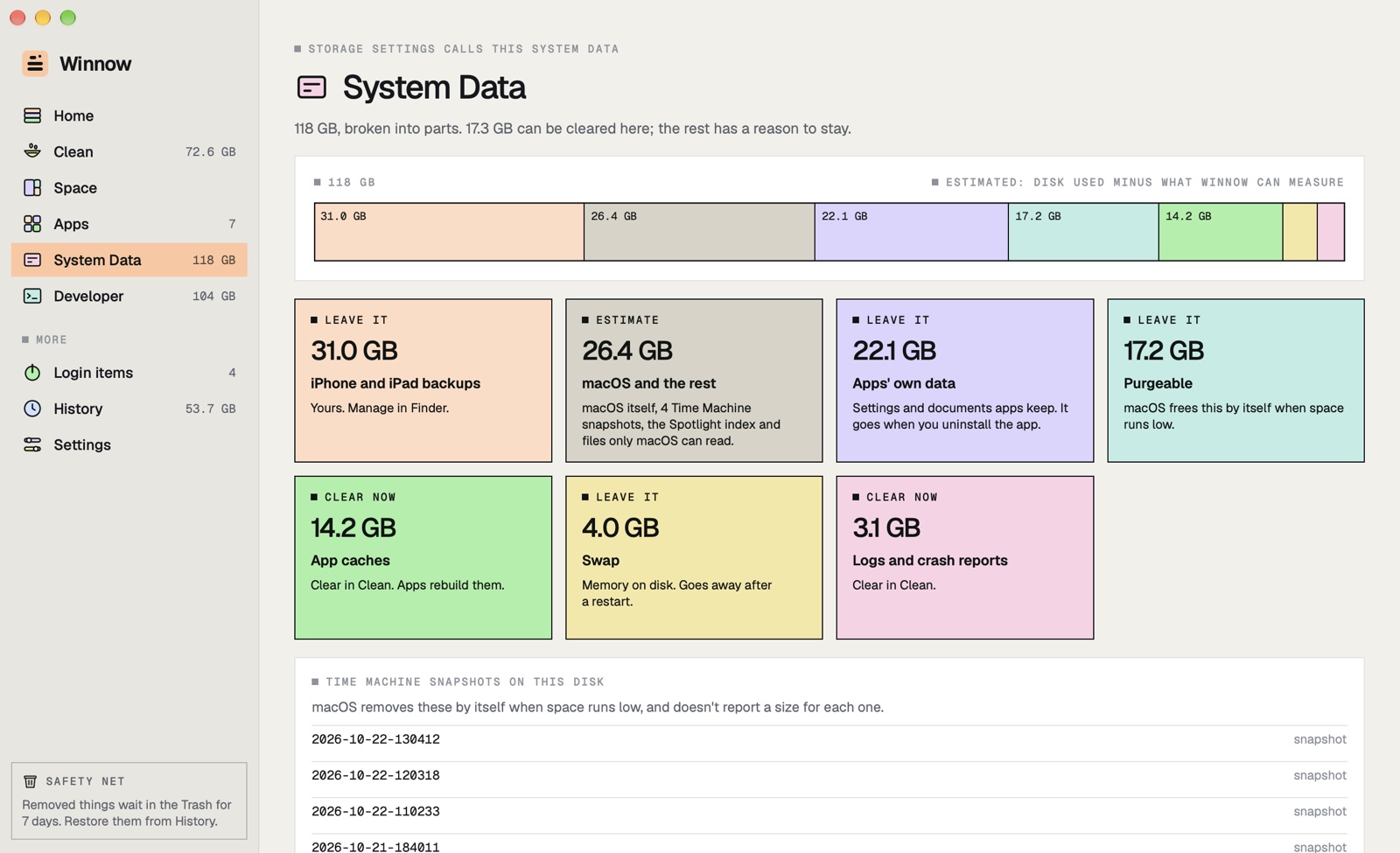
We made Winnow because the grey bar deserved an answer. Its System Data page splits it into parts: app caches, logs, apps’ own data, backups, purgeable space and swap, each with what you can do about it. Whatever is left is labelled as an estimate, because macOS doesn’t say how it works out its number.
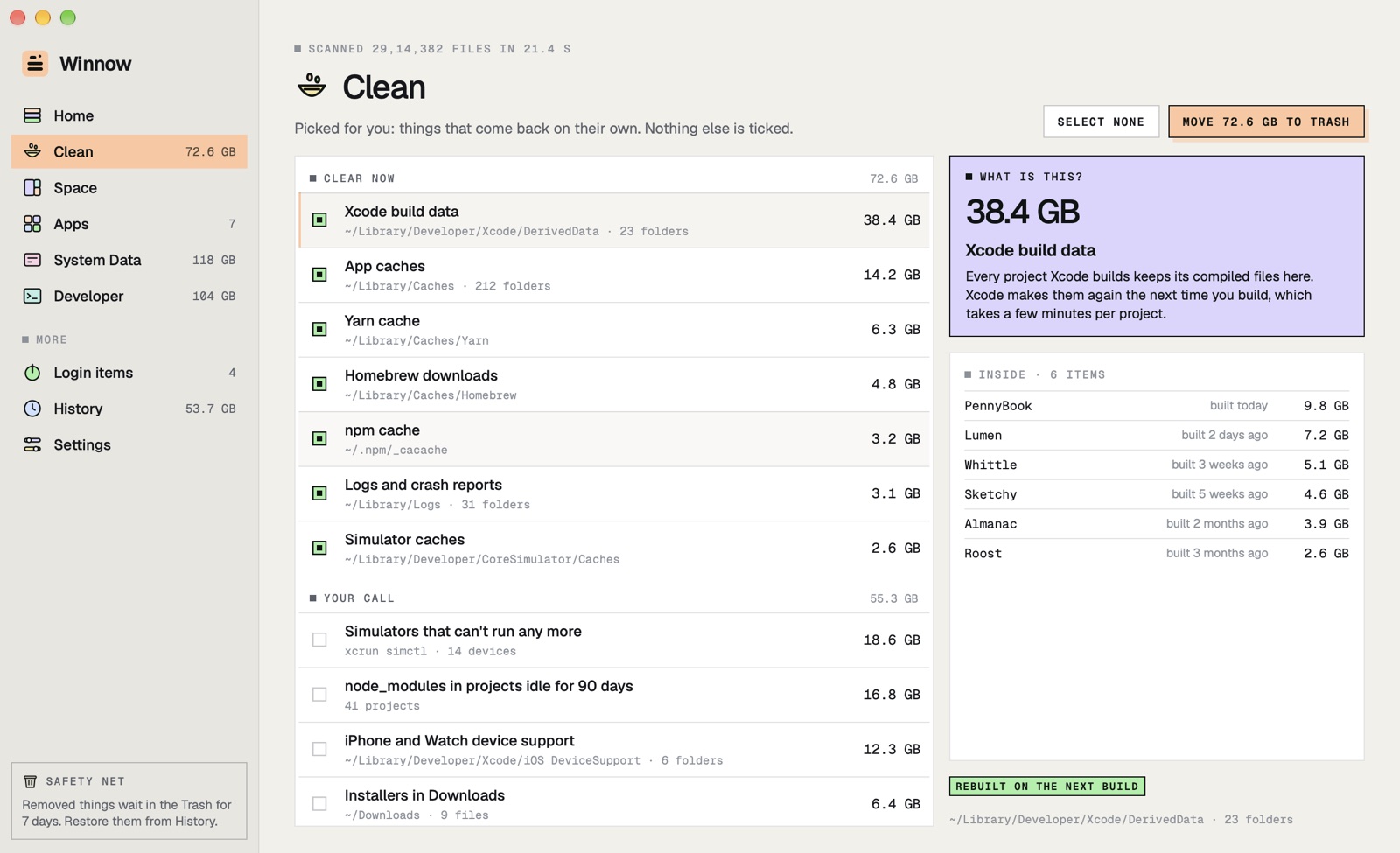
The Clean page sorts everything it finds into three groups. Clear now is what comes back by itself, and it’s the only group ticked for you. Your call is safe but costs something, like a download or an old version. Kept for you lists backups, Docker and AI models so you know where they are, and never removes them. Every row says what it is in plain words.
Everything Winnow removes goes to the Trash first, with a note of where it lived. History puts it back in one click for 7 days, then Winnow empties only its own items. Winnow is $9.99 once after a 7-day trial, and scanning stays free.
Questions
Why is System Data so big on my Mac?
Usually because of a few large things: iPhone or iPad backups, Time Machine snapshots kept while the backup disk is away, caches from busy apps, and, on developers' Macs, Xcode build data, simulators and package caches. Each of these can reach tens of gigabytes.
Is it safe to delete System Data?
Not as a whole: macOS itself is part of it. Caches, logs and developer build files are safe to clear, because apps and tools make them again. Backups and snapshots should be managed in Finder and Time Machine, and the rest left to macOS.
Does restarting reduce System Data?
A little. A restart clears swap files and some temporary files, which can be several gigabytes on a Mac that has been up for weeks. It doesn't touch caches, backups or snapshots.
Why doesn't Winnow's System Data number match Storage settings exactly?
macOS doesn't publish how it works out System Data. Winnow measures the disk's used space minus everything it can measure itself, so its number is an estimate, and it says so.
What does Winnow cost?
Every feature is free for 7 days. Then it's $9.99 once for one Mac or $19.99 for three, with every future update. Scanning, Space, System Data and Restore stay free after the trial. It needs macOS 15 or later and runs on Apple silicon and Intel.
 Roost
Roost
 Almanac
 Whittle