
Lumen app icon

Lumen

  • Mac

Open a folder, see everything.

A fast, quiet photo viewer for people who keep photos in folders. Go through a shoot in minutes, keep the best, and find any photo by what is in it. Nothing to import, and nothing leaves your Mac.

  • Pick, reject and star with one key
  • Similar shots and copies, gathered for you
  • Search what is in your photos, on your Mac
Lifetime · pay once$9.99onceEvery feature free for 7 days. Then pay once, yours forever.
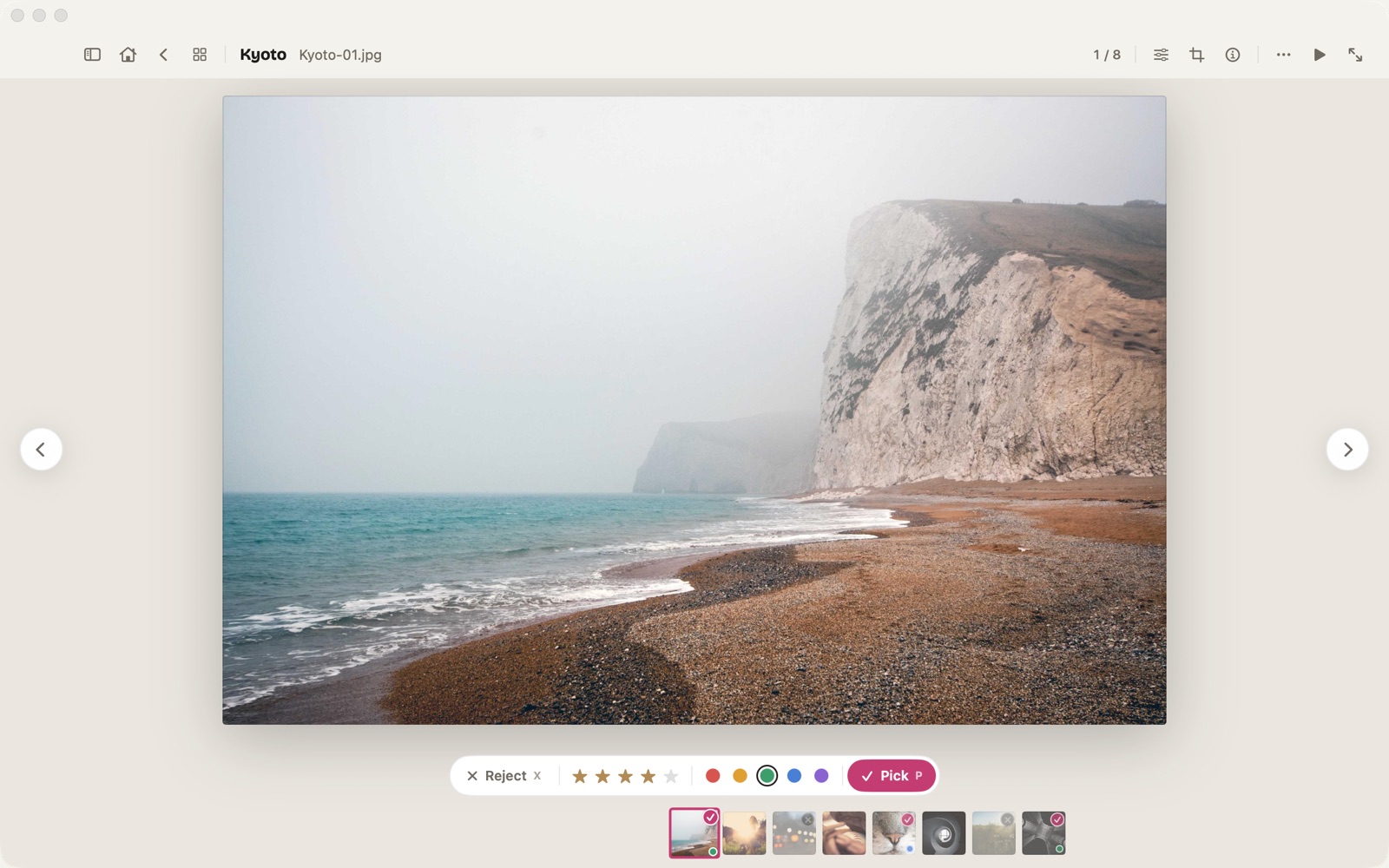
Lumen's home screen: the last folder shown as a row of prints, with your folders as stacks belowA photo in Lumen's viewer, picked with five stars, above the filmstrip

How it works

Open a folder. Lumen does the rest.

  1. Lumen's home screen: the last folder as a row of prints, your folders as stacks below

    Open a folder

    Click Open Folder, press ⌘O, or drop a folder on the window. Nothing is imported. Next time, home picks up at the photo you stopped on.

  2. A photo in Lumen's viewer with the mark bar: reject, stars, colour labels and pick

    Go through it

    Arrow keys, a swipe or the scroll wheel. Press P to pick, X to reject, 1 to 5 for stars. Your originals are never touched.

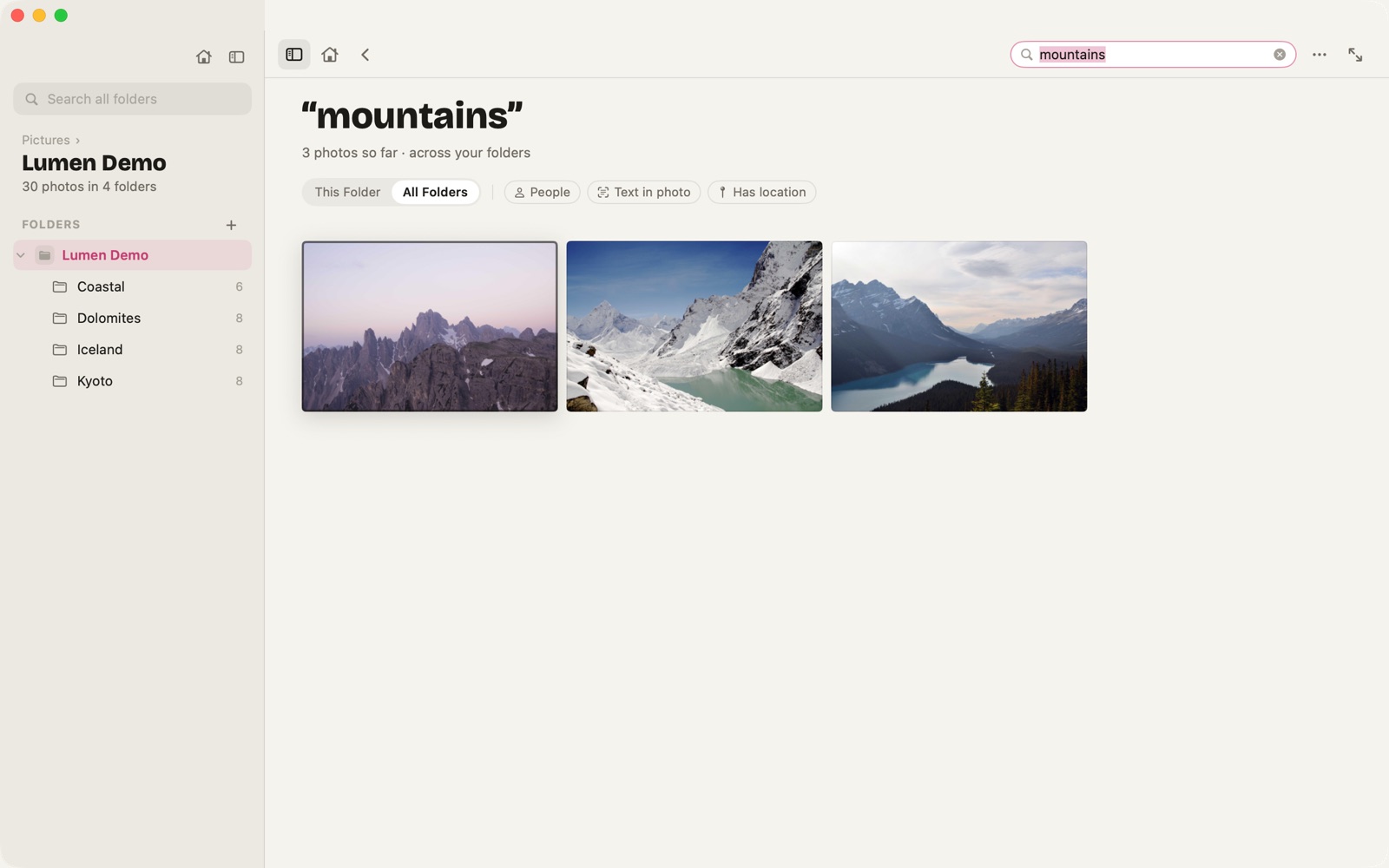
  3. Lumen search results for mountains, across every folder

    Find it again

    Type what you remember: “people on a beach”, a word on a sign, a city or a month. Smart search finds it across every folder, on your Mac.

What it does best

Keep the best, find the rest.

Go through a shoot in minutes

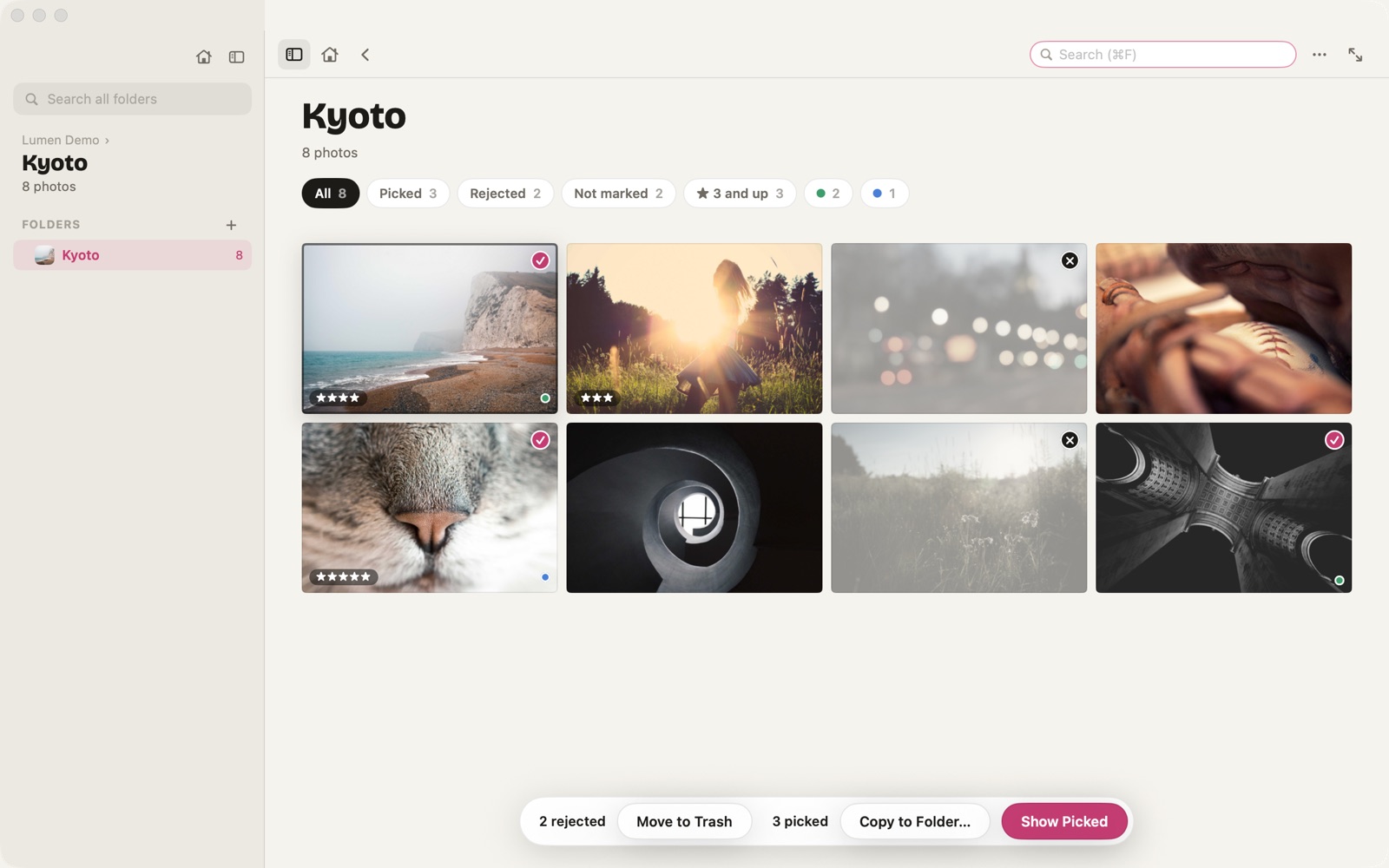
Pick with P, reject with X, star with 1 to 5, colour with 6 to 9, all from the keyboard. Rejects fade in the grid, filters show just the picks, and one click moves the rejects to the Trash or copies the picks to a folder. Marks are saved as XMP beside each photo, so Lightroom, Capture One and Bridge see them too.

  • Picks and rejects
  • Stars and colours
  • Saved as XMP
A Lumen grid with picks, rejects, stars and colour labels, filter chips above and Move to Trash below

Similar shots and copies, gathered

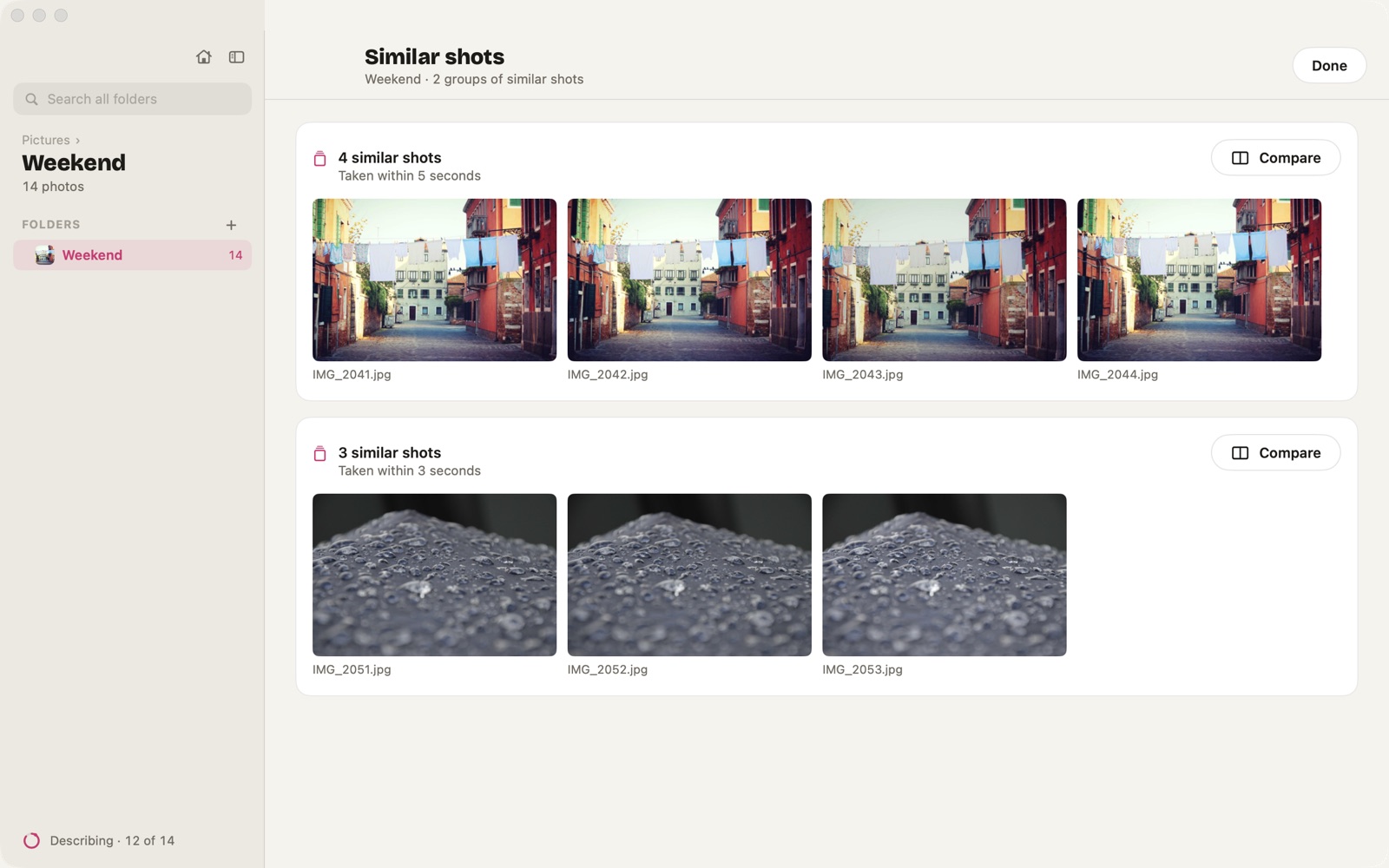
Lumen groups bursts taken moments apart and spots the same photo saved twice, even as a HEIC or a smaller copy. Press S to go through them: keep one and the rest are rejected, or send extra copies to the Trash. Nothing is deleted or chosen for you.

  • Bursts
  • Duplicates
  • You decide
Lumen's Similar shots review: two bursts and a photo saved twice

Compare, zoomed in step

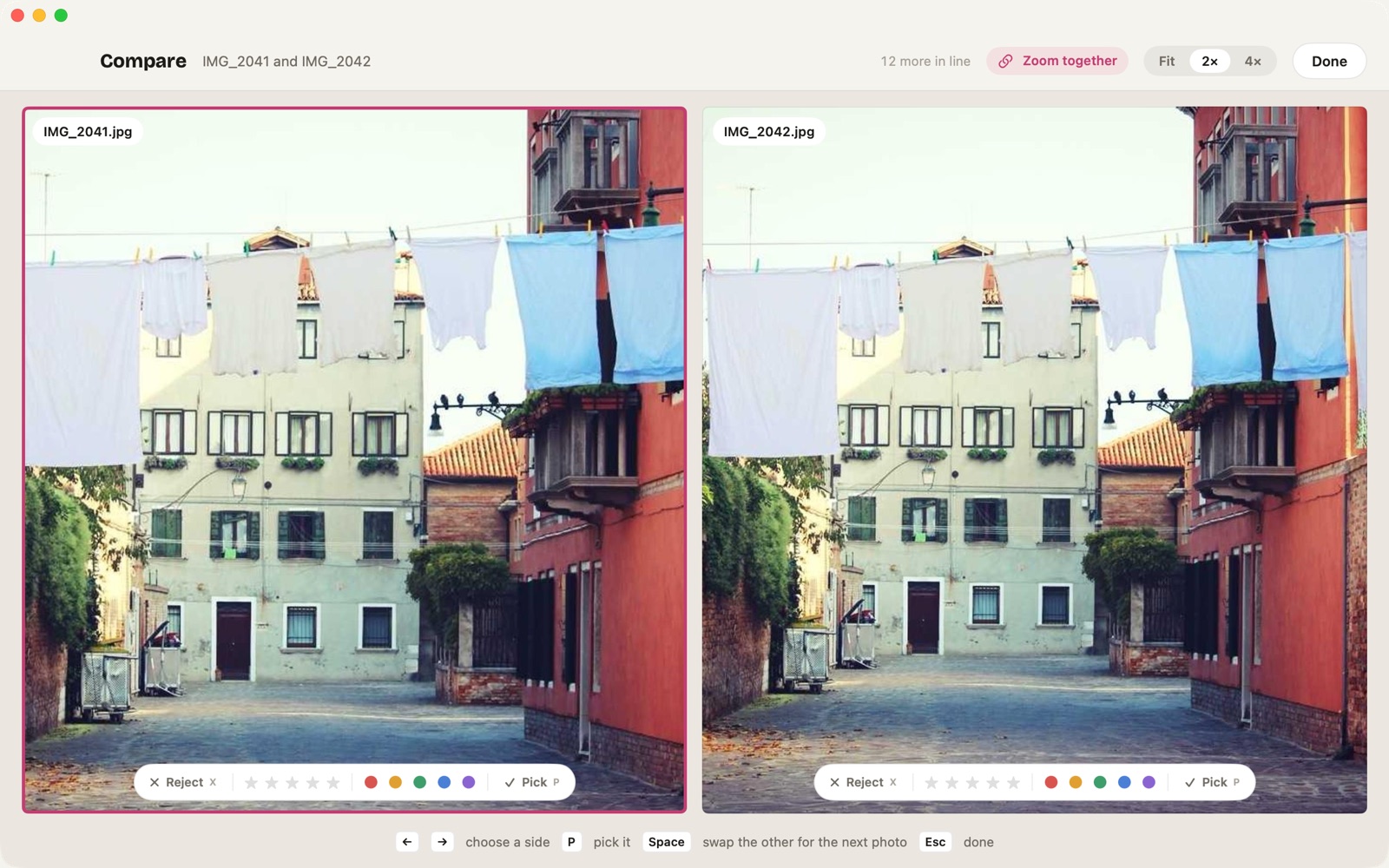
Put two photos side by side and zoom or drag either one: the other follows to the same spot, so you can tell which is sharper. Shutter speed and aperture sit on each. Space brings in the next shot of the burst.

  • Side by side
  • Zoom together
  • Camera settings
Two burst frames side by side in Lumen's Compare, zoomed to 2x together

Your folders, as they are

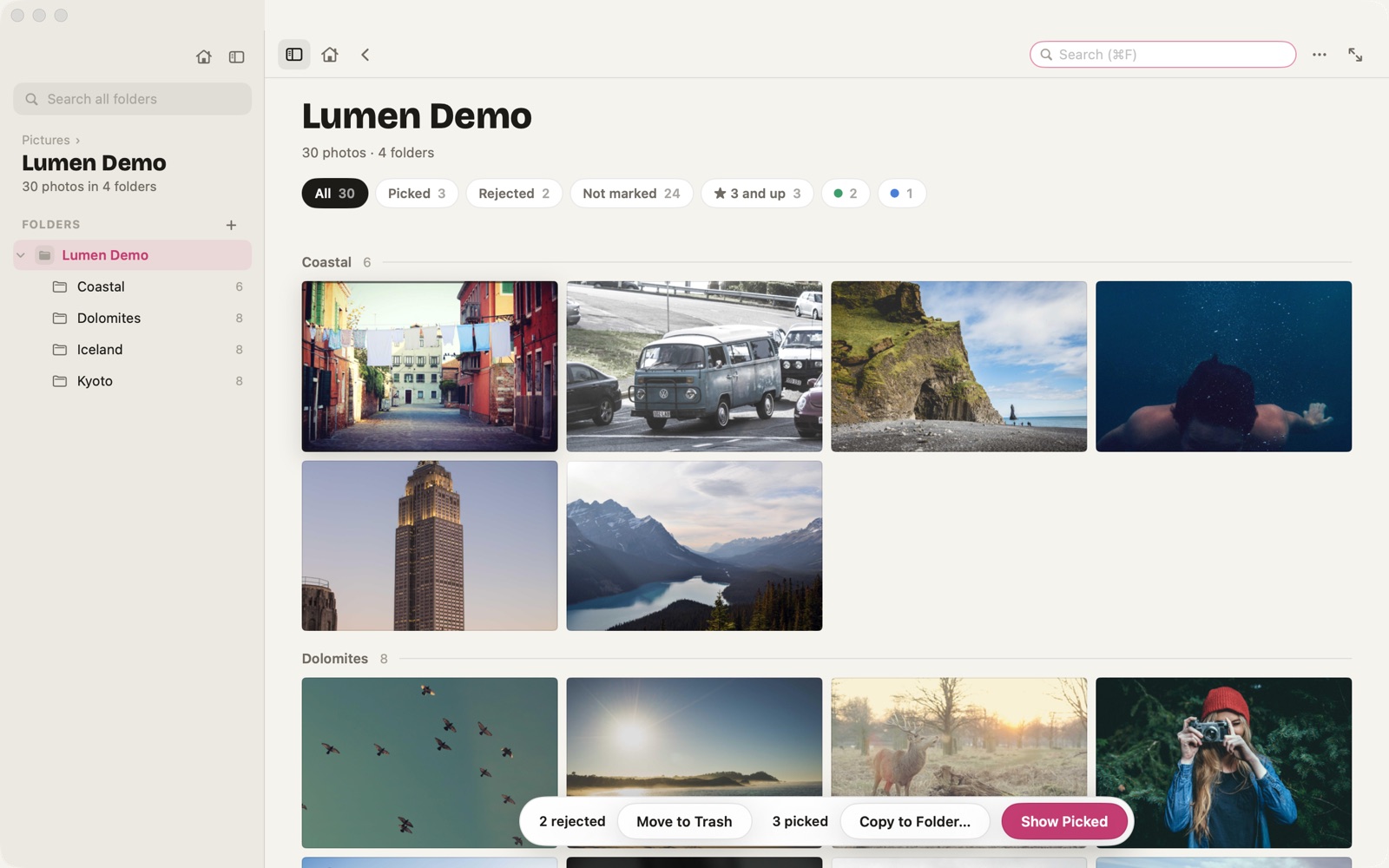
The sidebar shows your folders as a tree that opens to where you are, with the path above to step back up. A folder of folders shows every photo inside, grouped by folder. Photos you add or change in Finder show up right away.

  • Folder tree
  • No importing
  • Live updates
Lumen's folder tree beside a grid of every photo inside, grouped by folder

And also

The small things, done well.

  • Every format your camera makes

    JPEG, HEIC, WebP, AVIF, JPEG XL, PSD and RAW (DNG, CR2, NEF, ARW, RAF). No plugins.

  • Convert many at once

    Pick a format, quality and size for a whole selection. Remove metadata leaves out dates and GPS.

  • Adjust

    Exposure, Contrast and Saturation, or Auto, then Export Edited Copy. Your original is never overwritten.

  • Crop & Straighten

    Free, Original, 1:1, 4:5, 3:2 or 16:9, straighten up to 15°, then Save Copy.

  • Slideshow and Present mode

    Press Space for a slideshow with a gentle pan and zoom. Press T to show just the photo on a TV or second screen.

  • Info panel

    Camera settings, a histogram and a small map when the photo has a location.

  • Text in photos

    Right-click and choose Select Text in Photo to copy words from it.

  • A key for almost everything

    Press ? for the full list of keys and gestures.

Price

Try everything for 7 days. Then pay once.

Free trial7 days
  • Every feature: search, editing, converting, slideshows and Present mode
  • As many folders as you like
  • Nothing is charged, and the trial never renews
Lumen Pro$9.99once
  • Keep every feature, forever
  • Culling, Compare and Similar shots included
  • All future updates, no subscription
  • Photos opened from Finder always show, even without Pro
DownloadFree on the Mac App StoreNo subscription. Shown in your local currency. Restore Purchase follows your Apple Account.

Private by design

Your photos stay on your Mac.

  • Read on your Mac

    Smart search runs on an on-device model and Similar shots on Apple's on-device frameworks. The index stays on your Mac and nothing is uploaded.

  • No account

    No sign-up, no analytics, no ads and no tracking. We collect nothing.

  • No face recognition

    Lumen notices that people are in a photo, but never works out who anyone is.

  • Your files, untouched

    Lumen never writes into a photo. Marks go in a small .xmp file beside it, and files only change when you ask.

Read the Lumen privacy policy

Questions

Asked before you download.

How does the free trial work?

Every feature is free for 7 days, with as many folders as you like. After that, Lumen Pro is $9.99 once to keep opening folders, with no subscription. A photo opened from Finder always shows, with or without Pro.

Do my picks and stars show up in Lightroom?

Stars, rejects and colour labels are saved in standard XMP files next to your photos. Lightroom reads them for RAW files, and Capture One and Bridge read them for every format. Picks are kept in Lumen's own field, since XMP has no standard for them.

Will Lumen delete or change my photos?

Never on its own. It never writes into a photo, and similar shots are only gathered for you to decide. Photos go to the macOS Trash only when you choose Move to Trash, and Undo brings them back.

Are my photos uploaded anywhere?

No. Reading, smart search and grouping happen on your Mac, and place names come from a city list inside the app. Lumen goes online only to download the smart search model once (the request carries nothing about you or your photos), for the App Store to check your purchase, and for Apple Maps to draw the map in the info panel.

Which Macs does it work on?

Any Mac with Apple silicon on macOS 14 or later. Smart search is a one-time 656 MB download of an on-device model; without it, Search uses the subjects it recognises, text in photos, places, dates and names.

All Lumen answers in the help centre

Open a folder, see everything.

Free for 7 days, then $9.99 once. For Mac.

DownloadFree on the Mac App Store

More from Papermint

Other apps, same promise.