The short answer
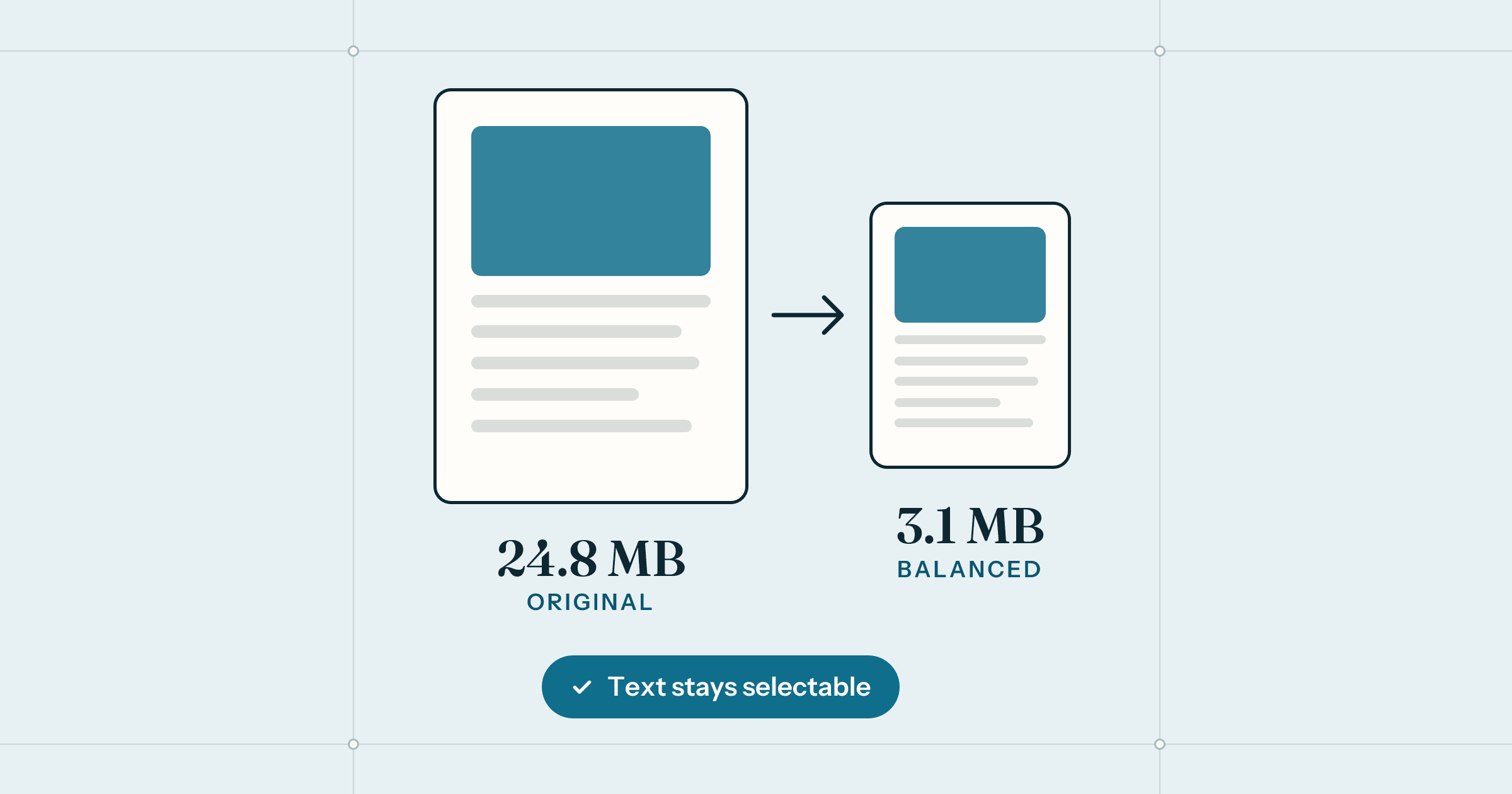
Open the PDF in Preview, choose File › Export, set Quartz Filter to Reduce File Size and save a copy. It is free but often makes photos blurry, because it shrinks every image the same way. For more control, make a custom filter in ColorSync Utility, or use an on-device PDF app such as Sheaf, which lets you pick Smallest, Balanced or Light, compare before and after up close, and keeps the text selectable. None of these upload the file.
The email bounces: attachment too large. The visa portal wants the file under 2 MB. The HR system will not accept your scanned passport. So you search for how to make a PDF smaller, and the first results all say the same thing: upload it here.
For a flyer, fine. For a bank statement, a signed lease or a medical letter, sending the file to a stranger’s server to save a few megabytes is a strange trade. Your Mac can do it on its own. Here are three ways, from free and blunt to precise. We are building Sheaf, the third.
What makes a PDF big
Text is tiny. A hundred pages of plain text is often well under a megabyte. What makes PDFs heavy is almost always pictures: scans made at a high resolution, phone photos dropped in at full size, or the same logo embedded on every page. Embedded fonts add a little; the images are the bulk.
That is why compression is mostly about images, and why it is a trade-off. Shrinking an image saves space and loses detail. The skill is shrinking each image only as much as its use allows: a photo meant for a screen needs far fewer pixels than a page that will be printed.
The free way: Preview’s Reduce File Size
- Open the PDF in Preview.
- Choose File › Export…
- Set Quartz Filter to Reduce File Size.
- Give it a new name, so you keep the original, and save.
This is free, built in, and often dramatic: a heavy scan can come out a fraction of its size. The catch is that the filter is blunt. It treats every image the same way, and photos and scanned text often come out soft or blocky. Fine for something you need to send once, less so for a document someone has to read carefully or print.
A gentler filter with ColorSync Utility
Preview’s filters live in ColorSync Utility, another app that comes with macOS, and you can make your own. Open ColorSync Utility, go to Filters, duplicate Reduce File Size, and change its image settings to a higher resolution and quality. Your new filter then appears in Preview’s export menu.
It works, but it is fiddly, you are adjusting numbers without seeing the result, and you only find out whether the text is still readable after saving.
Why not just use a website?
Online PDF tools are convenient, and many are run responsibly. But uploading means the file leaves your Mac, lands on a server you know nothing about, and stays there for as long as that service decides. Documents that need compressing are disproportionately the sensitive ones: scans of IDs, statements, payslips, contracts, medical records. If the file would worry you in someone else’s inbox, it is worth keeping on your own machine.
With an on-device PDF app
Sheaf is a Mac PDF toolkit that does all of its work on the Mac. Its Compress tool offers three levels, Smallest, Balanced and Light, and shows the new size of each before you save anything. You can drag a slider across the page, or switch to side by side, to compare the original and the compressed copy at 100 or 200 percent. Text stays selectable and searchable, and the result is always a new file; the original is left as it was.
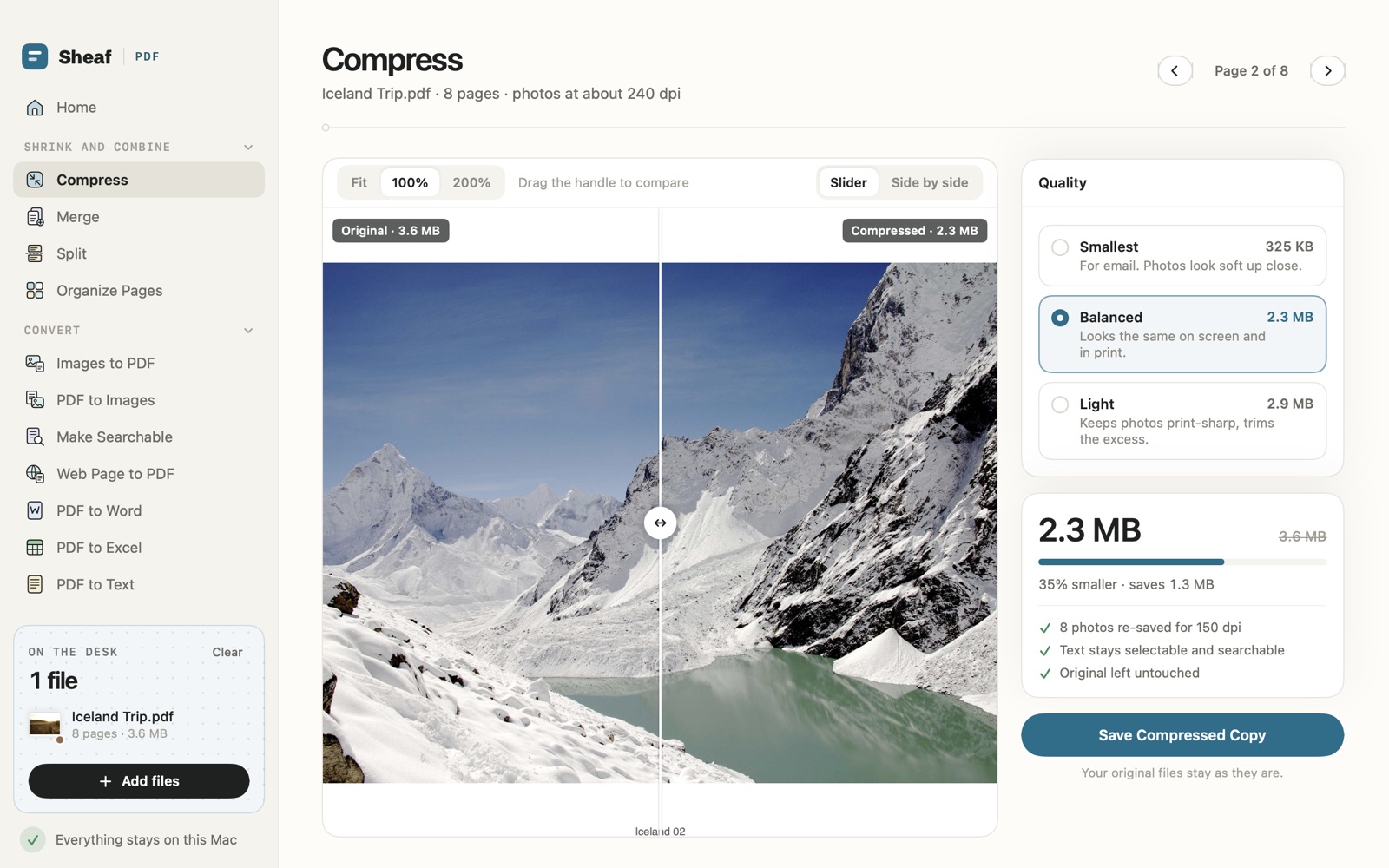
You can also select PDFs in Finder, right-click and choose Services › Compress with Sheaf. Sheaf has 20 other tools in the same window, from merging and splitting to PDF to Word, signing and redaction, with no account and no uploads. It is coming soon to the Mac App Store: free for 3 days with every tool, then $14.99 once.
Before you hit send
- Zoom in on the smallest text in the compressed copy, especially on scans. If you squint, the person receiving it will too.
- Search for a word to check the text layer survived.
- Keep the original. Compression cannot be undone, and you may need the full-quality version for printing later.
- Compress once. Running an already-compressed file through again mostly loses quality without saving much more space.
Questions
Why does Preview make my PDF blurry?
Its Reduce File Size filter scales and recompresses every image in the file the same way, regardless of how the image is used, so photos and scanned text can come out soft. Export a copy so the original is kept.
Can I compress a PDF on a Mac without any app?
Yes. Preview, which comes with macOS, has File › Export › Quartz Filter › Reduce File Size. ColorSync Utility, also built in, can make gentler custom filters.
Will compressing a PDF break text search or form fields?
It should not if images are the only thing being recompressed. Sheaf keeps text selectable and searchable and shows what it changed. Check a copy before sending.
Is Sheaf available now?
Sheaf is a Mac app coming soon to the Mac App Store: free for 3 days with every tool, then $14.99 once, with no subscription.
 Almanac
 Whittle
 PennyBook