
The short answer
Start with the easy wins built into Photos: merge the Duplicates album and clear old screenshots. Then sweep the junk (blurry shots, receipts, accidental videos) and keep one photo from each burst. Sort what is left a few minutes a day, swiping each photo to keep, delete or file it into an album, and empty Recently Deleted at the end to get the space back. Keepers does the sweeping and swiping on the device and costs $8.99 once.
The “Storage Almost Full” banner tends to arrive at the worst moment: at a school play, halfway through a video of the thing you will want to watch in ten years. That is usually when people decide to finally sort the photo library, and usually why they give up an hour later.
We make Keepers, a photo cleaner for iPhone, and the most useful thing we learned building it has nothing to do with the app. It is the order you do the work in. Get the cheap, certain wins first, and leave the hard decisions for small daily sittings.
Why big clean-ups stall
A library of 20,000 photos is not 20,000 decisions of equal weight. Thousands of them are not decisions at all: the third copy of a meme, a screenshot of a parking spot from 2023. A few hundred are genuinely hard: the slightly blurry photo of a grandparent, the twelfth shot of a sunset that are all nearly the same. If you scroll from the top, you meet these mixed together, and the hard ones drain you before the easy ones are done.
So split them. Let the phone handle the obvious, and keep your own attention for the photos that need a person.
Step 1: the easy wins already in Photos
Two things in the Photos app cost nothing and free real space.
- Duplicates. Open Photos and find the Duplicates album under Utilities. It lists exact and near-exact copies, such as the same photo saved from a chat twice. Tap Merge and Photos keeps the best-quality version with the details from all of them.
- Screenshots. Under Media Types there is a Screenshots album. Most screenshots stop mattering within a week. Select the old ones and delete them in one go; anything you still need is probably a boarding pass you can download again.
Step 2: sweep the junk
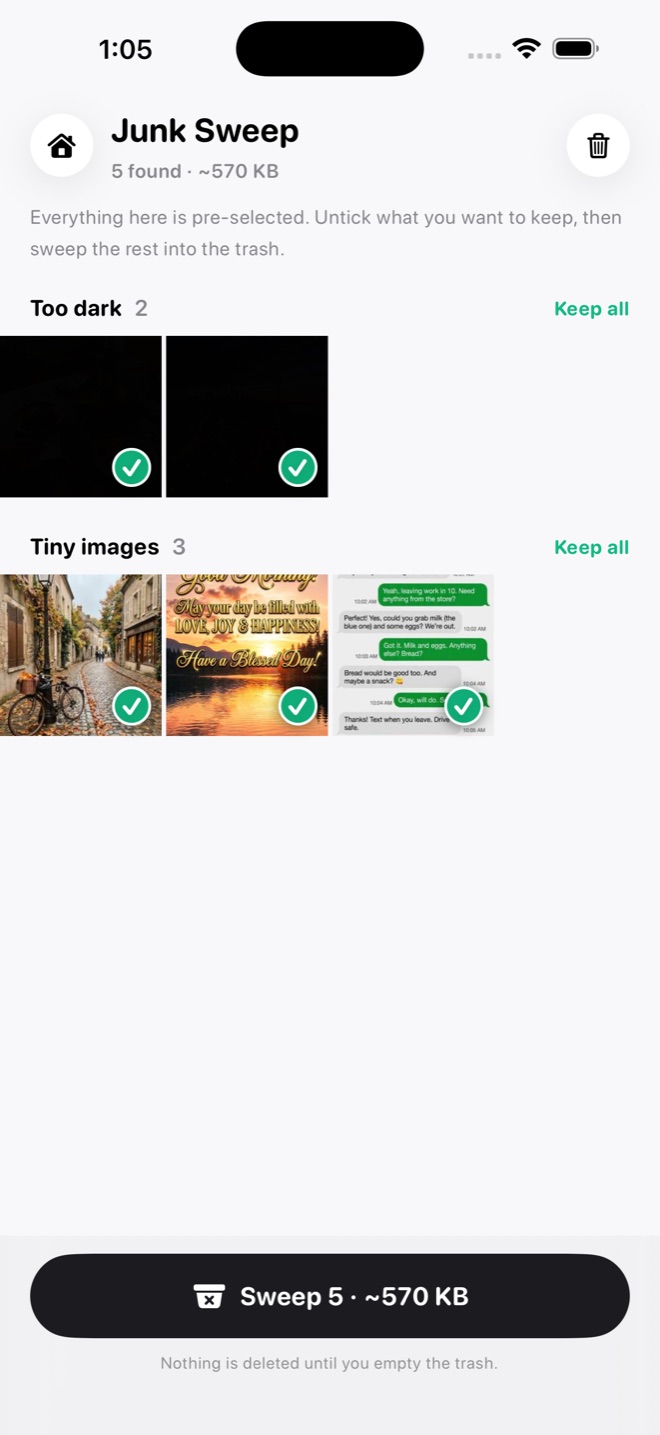
After duplicates and screenshots, the next layer is photos nobody meant to keep: accidental pocket videos, pictures of receipts you already filed, blurry shots taken while walking, near-black frames, and the stream of forwards that chat apps save to your library. Photos does not group these, which is why they survive every clean-up.
Keepers’ Junk Sweep scans your unsorted photos on the device and sorts what it finds into groups: accidental videos under two seconds, tiny images, too dark, blurry, documents and notes, screenshots older than 30 days, forwards and memes from chat-app albums, and photos of screens. Everything it finds arrives pre-selected, and you tap anything you want to keep. Photos you have marked as Favorites are never flagged.
Step 3: keep one of every burst
The biggest single source of near-copies is ourselves. We take five photos of the same moment to be sure one is good, then never go back to pick it. Multiply that by every birthday and holiday and it is often thousands of photos.
Similar Shots finds takes of the same moment taken within a minute of each other and picks the best one by sharpness, faces and open eyes. The best take wears a Best badge; the rest come pre-selected. If you have favorited one of them in Photos, it always wins. You still make the call, but you make it once per group instead of once per photo.
Step 4: swipe the rest, a few minutes a day
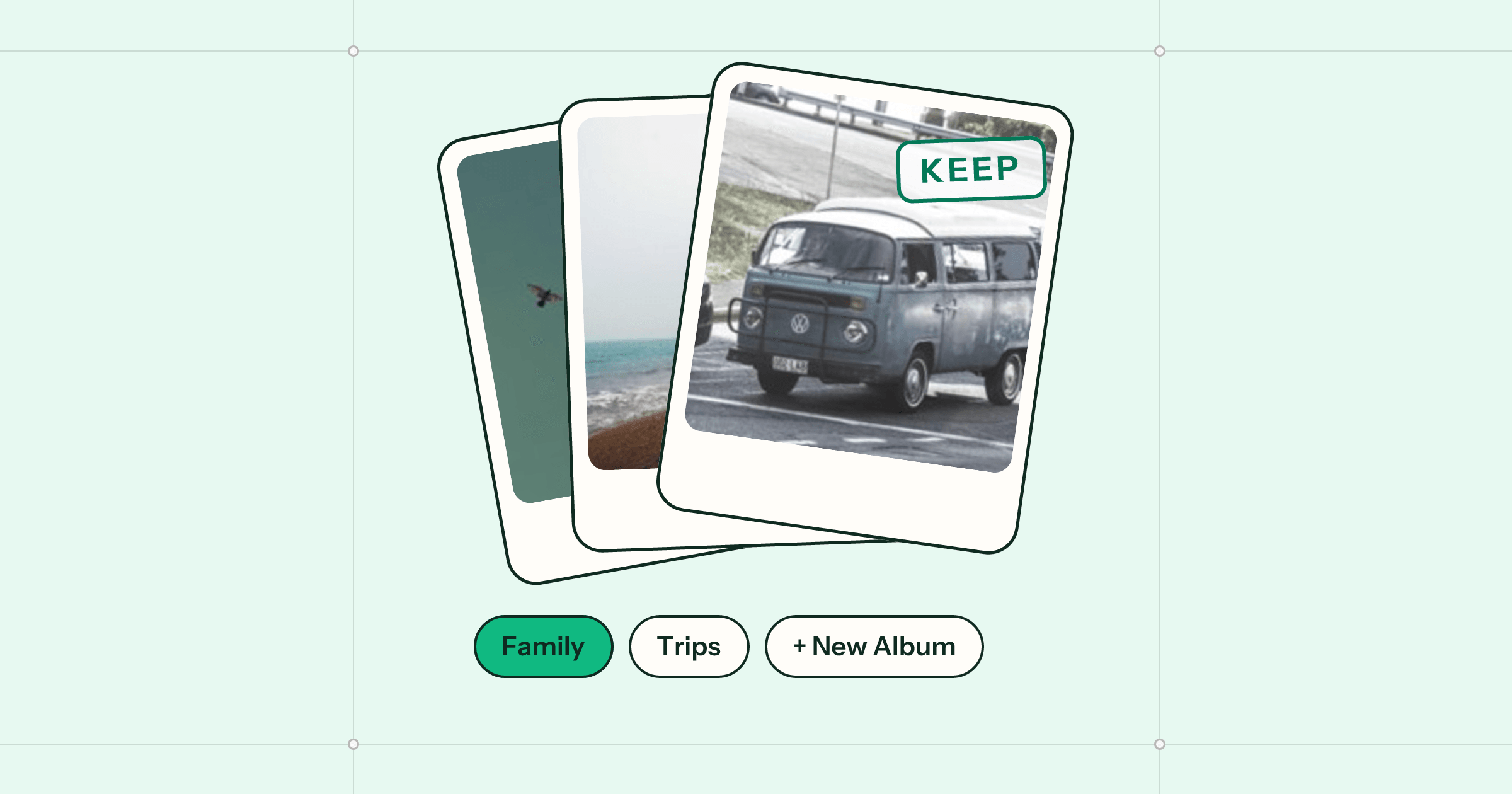
What is left are the real decisions, and these go faster one at a time than in a grid. In Keepers you tap Sort Photos and your unsorted photos are dealt like cards, newest first:
- Swipe left to keep it. It stays in your library and is not shown again.
- Swipe up to put it in the trash tray. Nothing is deleted yet.
- Tap an album under the photo to file it there, or New Album to make one.
Twenty-five photos takes about two minutes, which happens to be the free plan’s daily allowance. It is also a good rhythm whether you pay or not: a few minutes with coffee, every day, beats a lost Sunday. A photo filed into an album counts as sorted, so the library gets organised as it shrinks.
Getting the space back
Deleting is not quite the end. Keepers collects everything you trashed in one tray, and you delete the batch with one confirmation from iOS. Those photos then sit in Photos’ Recently Deleted album for 30 days. The storage only comes back when that album is emptied, so once you are sure, open Recently Deleted and delete them for good.
Keepers never sends your photos anywhere: the scans run on the iPhone, and it never downloads originals from iCloud to check them. It is free to sort 25 photos a day, and Premium is $8.99 once for unlimited sorting and the one-tap sweeps. If you came here because cleaners you tried wanted a weekly payment, our page on a photo cleaner with no subscription explains how ours is priced, and the help pages cover the rest.
Questions
Does deleting photos on my iPhone delete them from iCloud?
If iCloud Photos is on, yes: a deleted photo goes to Recently Deleted on every device signed in to that account. If you want a copy kept somewhere, export it before you delete.
Why didn't my storage go up after I deleted photos?
Deleted photos wait in the Recently Deleted album for 30 days. The space comes back when that album is emptied, or when the 30 days pass.
Is there a free way to find duplicate photos on iPhone?
Yes. Photos has a Duplicates album under Utilities that finds exact and near-exact copies and offers Merge, which keeps the best-quality version.
Does Keepers upload my photos?
No. Keepers has no servers. Junk Sweep and Similar Shots run on the iPhone and never download originals from iCloud to scan them.
How much does Keepers cost?
The free plan sorts 25 photos a day. Premium is $8.99 once for unlimited sorting and the one-tap sweeps. There is no subscription.
 Almanac
 Whittle
 PennyBook