
The short answer
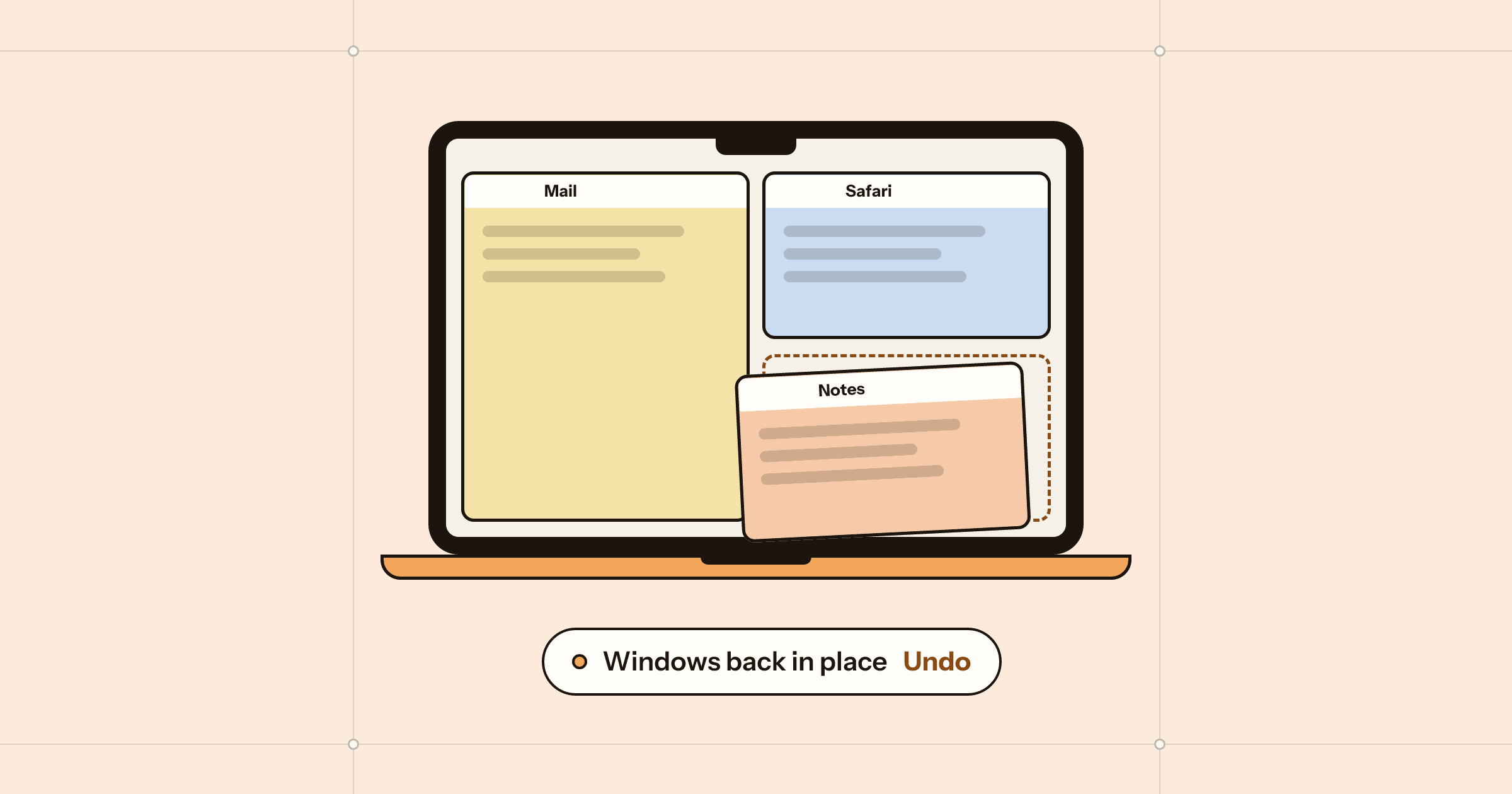
When a display disconnects, sleeps or reconnects, macOS moves every window that was on it onto a screen that is still there, and it does not reliably move them back. In System Settings › Displays, keep the arrangement fixed and leave "Displays have separate Spaces" on; assigning apps to a desktop from the Dock helps some apps return. To put every window back exactly, use an app that remembers positions per screen setup, such as Roost, which restores them when you dock, undock or wake, with Undo.
Your Mac is on the desk with a monitor beside it. Mail on the left, the browser across the big screen, notes and chat tucked into the laptop. You unplug for a meeting, come back, plug in, and everything is piled on the laptop screen. Or you do nothing at all: the Mac sleeps overnight, and in the morning half the windows have wandered.
You are not doing anything wrong, and it is not a fault in your Mac. It is how macOS handles screens coming and going. Below is why it happens, what you can change with macOS alone, and how we deal with it in Roost, a Mac app we made for exactly this.
Why macOS moves your windows
macOS will not leave a window on a screen that is not there. The moment a display goes away, every window on it is moved to a screen that is still connected, usually the built-in one, so you can reach it. That part is sensible. The trouble is the way back: when the display returns, macOS may move some windows back, some partly, and some not at all. It depends on the app and on how the display came back.
- Unplugging and plugging in. The obvious case. Every window on the external screen moves to the laptop, and stays there.
- Sleep and wake. Many monitors, and many docks and USB-C hubs, report themselves as disconnected when they sleep, or take a few seconds to show up on wake. To macOS that looks like an unplug, so the same shuffle happens while you were away.
- A different arrangement. If the Mac sees the screens in a different order, position or resolution from last time, a window’s old position may now sit on another screen or off the edge, and macOS nudges it somewhere visible.
- Two identical monitors. When two screens are the same model, the Mac can tell them apart less reliably, and after a reconnect the left and right can swap, taking their windows with them.
None of this is saved anywhere you can edit. macOS does not keep a layout for “at my desk” and another for “on the sofa”; it only reacts to the screens it can see right now.
What you can set in macOS
These will not stop the shuffle, but they make it smaller and more predictable.
- Open System Settings › Displays and click Arrange…. Drag the screens so they match where they sit on your desk, and choose which one is the main display. A stable arrangement means positions mean the same thing every time you plug in.
- In System Settings › Desktop & Dock, under Mission Control, leave Displays have separate Spaces on. Each screen then keeps its own desktops, which macOS tends to bring back with the screen. A change to this setting takes effect after you log out.
- In the same section, consider turning off Automatically rearrange Spaces based on most recent use, so your desktops stay in the order you made them.
- For apps that live on one screen or desktop, right-click the app in the Dock, choose Options, and under Assign To pick This Desktop. The app’s windows then open on that desktop. It helps most when an app is relaunched, less when a screen simply reconnects.
Habits that make it less painful
- Sleep the Mac before unplugging. Closing the lid or choosing Sleep first, then disconnecting, is gentler on some docks than pulling the cable from a running Mac.
- Use the same port. Plugging the monitor or dock into the same port each time helps the Mac recognise the setup as the same one.
- Check the monitor’s own settings. Some monitors have an option for deep sleep or power saving that makes them vanish from the Mac while asleep. Turning it off can stop the overnight shuffle.
- Keep the software up to date. Display and dock behaviour does change between macOS releases, and some docks have their own firmware updates.
That is about as far as macOS goes. To get every window back where it was, something has to remember where that was.
Putting every window back with Roost
Roost remembers where every window goes for each set of screens. We call a set of screens a screen setup: the MacBook on its own, the MacBook at the home desk, the MacBook at the office. When you dock, undock or wake, Roost recognises which setup it is looking at and puts each window back in its place. If you do not like the result, Undo is right there after every restore.
There is nothing to save. The first time Roost sees a new screen setup, it starts remembering it, and it keeps up as you move windows around, so the layout it restores is the one you last used, not one you set up weeks ago.
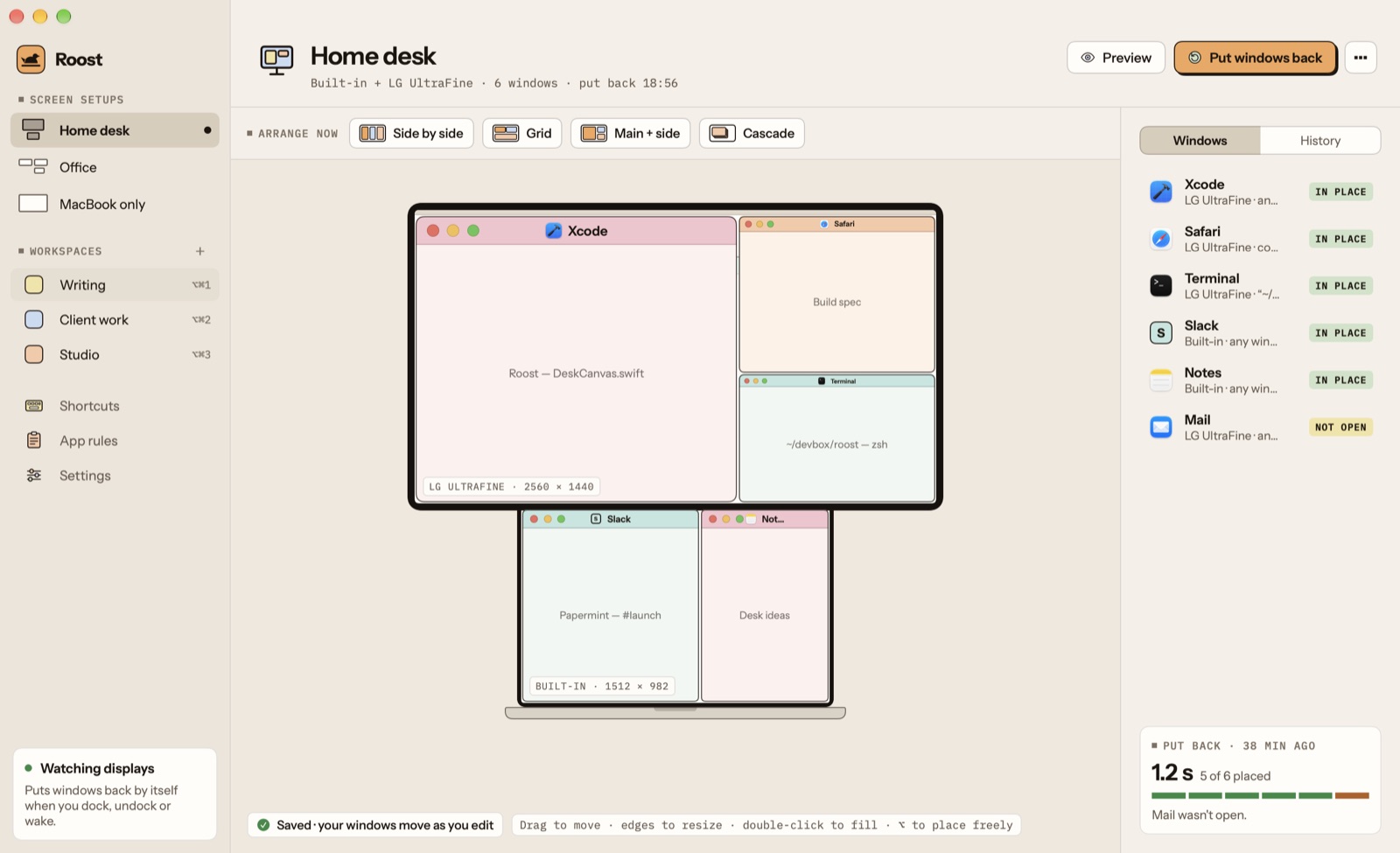
The screen-setup page draws your screens as what they are: a MacBook with its notch and base, monitors on their stands, and every window on them drawn like a small macOS window. Drag or resize a window in the drawing and the real one moves with it. Before you let Roost put anything back, Preview shows on your real screens what Put windows back would do.
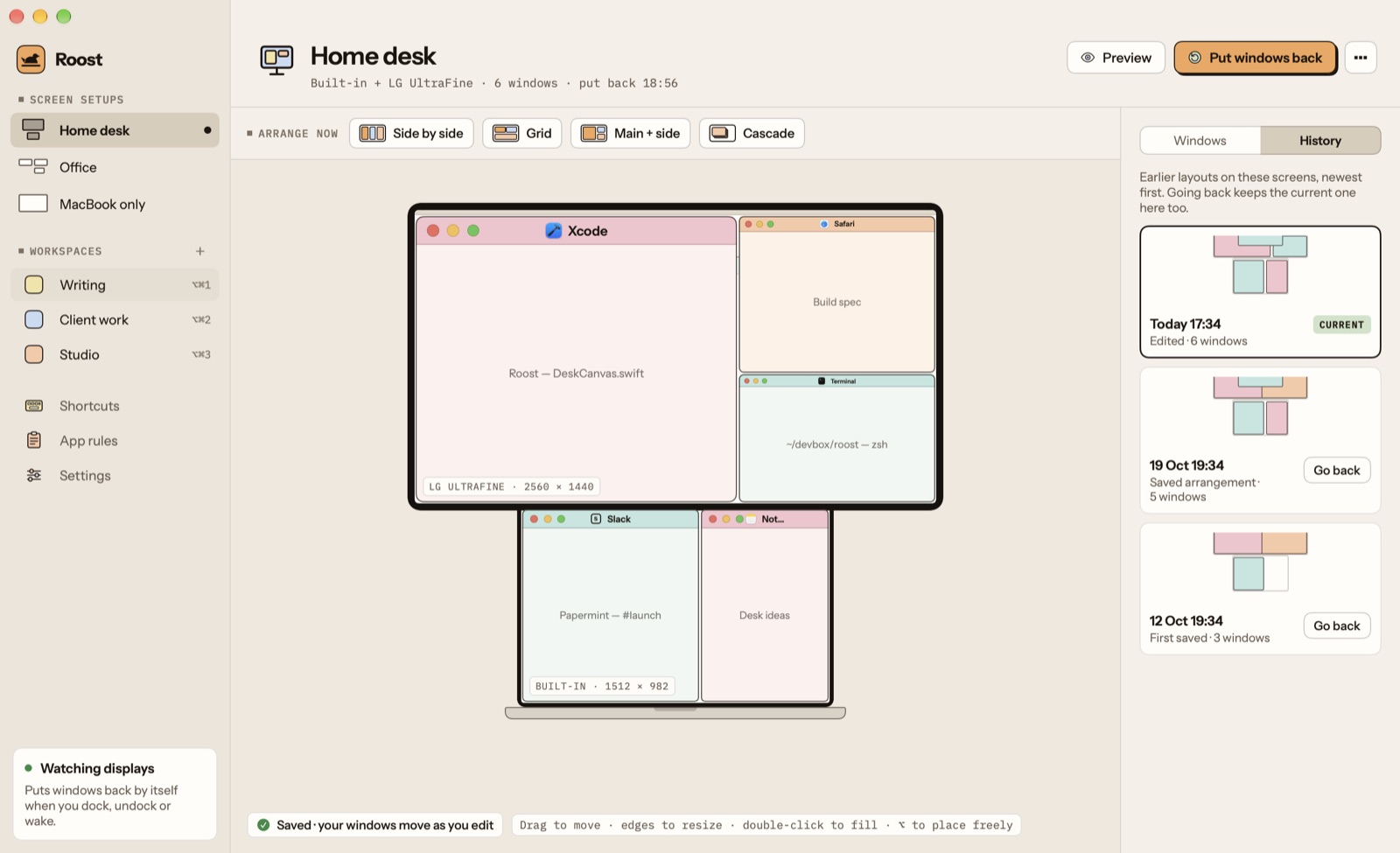
Because Roost keeps up with you, layouts change over time. History keeps the earlier layouts of each screen setup, so if a week of shuffling has left things worse, you can take that setup back to how it was.
Some windows should not be moved: a floating palette, a picture-in-picture video, a utility you like wherever it happens to be. App rules let you mark an app to float or to be ignored.
Arranging and snapping windows
Putting windows back is half the job. The other half is getting them somewhere sensible in the first place, without dragging every edge by hand.
- Arrange now. One click lays out the open windows side by side, in a grid, as one main window with others beside it, or as a cascade. Undo works here too.
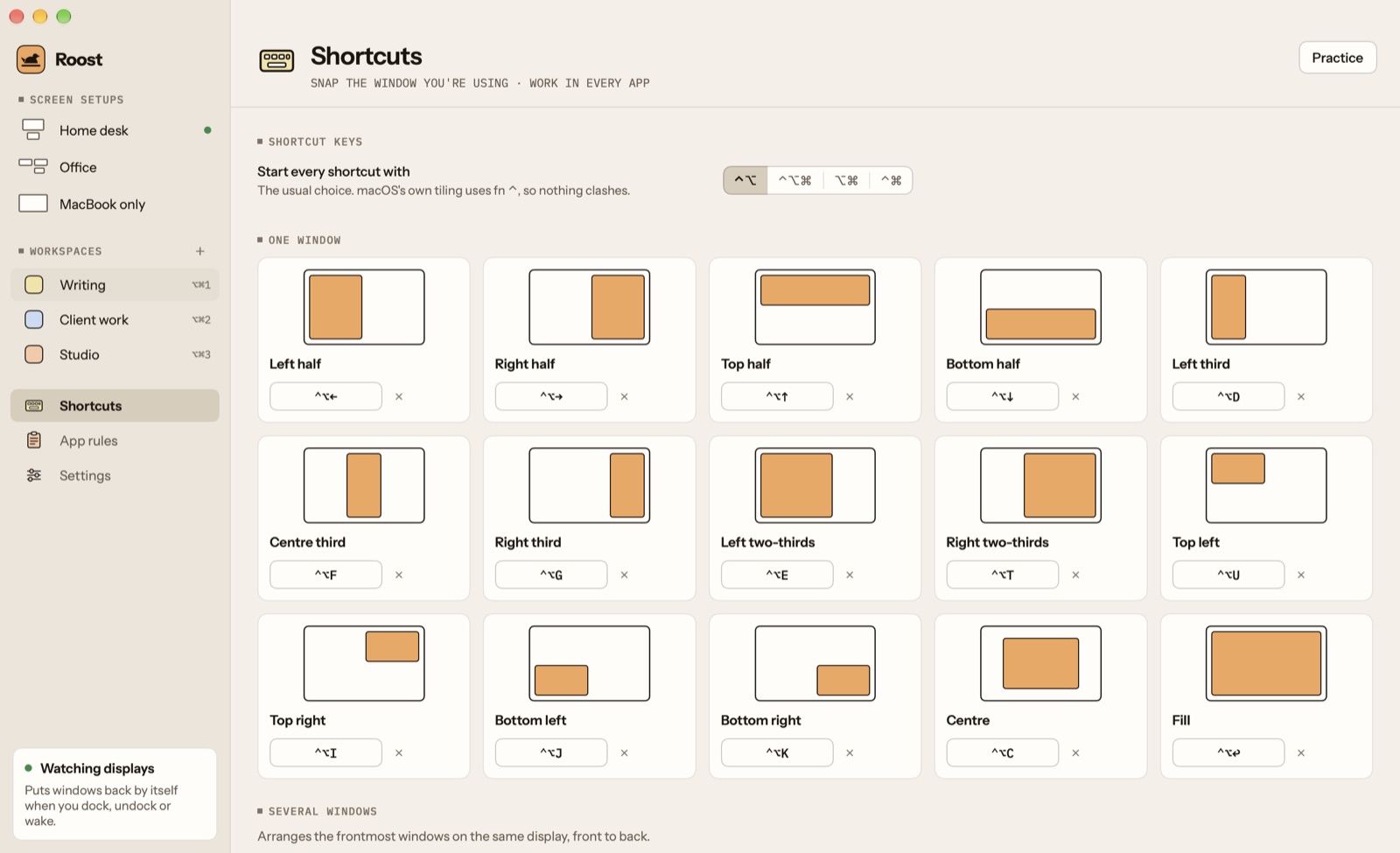
- Shortcuts. ⌃⌥ with the arrow keys or a letter snaps the window you are using to a half, a third, a quarter, the centre or the full screen. A practice window teaches them, so you do not have to memorise a table.
- Workspaces. One shortcut opens a set of apps and lays them out, for the way you start a writing session or a day of meetings.
Roost is free to try for 7 days, then $7.99 once, and needs macOS 15 or later, on Apple silicon or Intel. It is not on the Mac App Store, because the App Store’s sandbox does not allow one app to move another app’s windows, so you download it from us; it is notarized by Apple. Everything stays on your Mac: no account and no analytics. It asks for Accessibility access, which is the permission macOS requires before any app can move windows.
Questions
Why do my windows all move to my MacBook screen when the monitor sleeps?
Some monitors tell the Mac they have been disconnected when they go to sleep, or take a moment to report themselves on wake. macOS then treats the screen as gone and moves its windows to the built-in display, the same as if you had pulled the cable.
Can macOS remember window positions for each monitor on its own?
Partly. Many apps reopen their windows where they were, and macOS sometimes moves windows back when the same display returns, but there is no setting that saves a layout per screen setup and restores it every time.
Does Roost need to be told when I dock?
No. Roost notices when the set of connected screens changes, recognises a screen setup it has seen before, and puts its windows back. The first time it sees a new setup it simply starts remembering it.
Why isn't Roost on the Mac App Store?
Apps from the Mac App Store must run in a sandbox, and the sandbox does not allow moving other apps' windows. Roost is downloaded from papermint.studio and is notarized by Apple.
Is Roost free?
Roost is free to try for 7 days with every feature, then $7.99 once for one Mac or $14.99 for three, with every future update. No subscription, no account and no analytics. It needs macOS 15 or later and runs on Apple silicon and Intel.
 Winnow
 Almanac
 Whittle