How to Separate PDF Pages on a Mac (Without Uploading)
Split a PDF into separate pages on a Mac: one file per page, by range or in chunks, using Preview or Sheaf. No upload, no account, originals kept.
- Preview can already do it. To get a page as its own PDF, drag its thumbnail out of the sidebar into a Finder folder.
- Preview has no button that splits every page at once. For long files or chunks, a split tool with one-file-per-page and every-N-pages modes saves you a lot of dragging.
- Work on a copy, and name the files right away. Numbered filenames keep the pages in order, and your original file never changes.
- You don't need to upload anything. The PDFs people split are usually contracts, statements and ID scans, and your Mac can split them by itself.
To separate the pages of a PDF on a Mac, open it in Preview, choose View › Thumbnails, and drag the page you want from the sidebar into a Finder folder. That makes a new PDF of just that page. Repeat it for each page you need. For page ranges, use one of the methods below. If you want every page as its own file in one go, use a split tool like the one in Sheaf.
Below you'll find the free steps in Preview, how to split by range or into chunks, the faster way in Sheaf, and what to do when a PDF is locked, scanned or huge.
What you need before you start
- A copy of the PDF. Select it in Finder and press ⌘D. Some of the Preview methods below delete pages and then save, and you don't want that happening to your only copy.
- An empty folder for the results. Splitting a 30-page file into single pages gives you 30 new files, and it's much easier to keep track of them in a folder of their own.
- The password, if the file has one. You'll need it to open the file before you can take any pages out.
- A rough plan. Do you want every page on its own, a few ranges (pages 1–4, 5–9), or a cut every N pages? The method depends on the answer.
When you'd split a PDF instead of deleting pages
Splitting and deleting can look like the same job, but they leave you with different files. Delete pages when you want one file with fewer pages in it, like taking the blank backs out of a two-sided scan. Our page on removing pages from a PDF on a Mac covers that.
Split when you want several files at the end:
- A scanned stack that's really five separate documents
- A year of statements saved as one PDF, where each month needs to be its own file
- A signed contract where only the signature pages go back to the other side
- An upload form that takes one page per file, or has a size limit
Step 1: Split single pages out with Preview
This is the free way, built into every Mac:
- Open your copy in Preview and choose View › Thumbnails. A column of page previews appears down the left side. The menu names here are from recent versions of macOS. If yours look different, check the View menu.
- Open your empty folder in a Finder window next to Preview.
- Drag one thumbnail into the folder. Preview makes a new PDF that holds only that page. The pages in your open document don't change.
- Repeat for each page you want as its own file.
Drag the pages out one at a time. If you select several thumbnails and drag them out together, you get one PDF of those pages, not one file each. That's handy for a range, but it isn't what you want here.
This works fine for a handful of pages. For a 40-page file it's 40 drags and 40 renames, which is where the other methods start to pay off.
Step 2: Split by page range or into chunks
You've got two dependable free ways to cut a PDF into ranges.
Delete what you don't want, then save
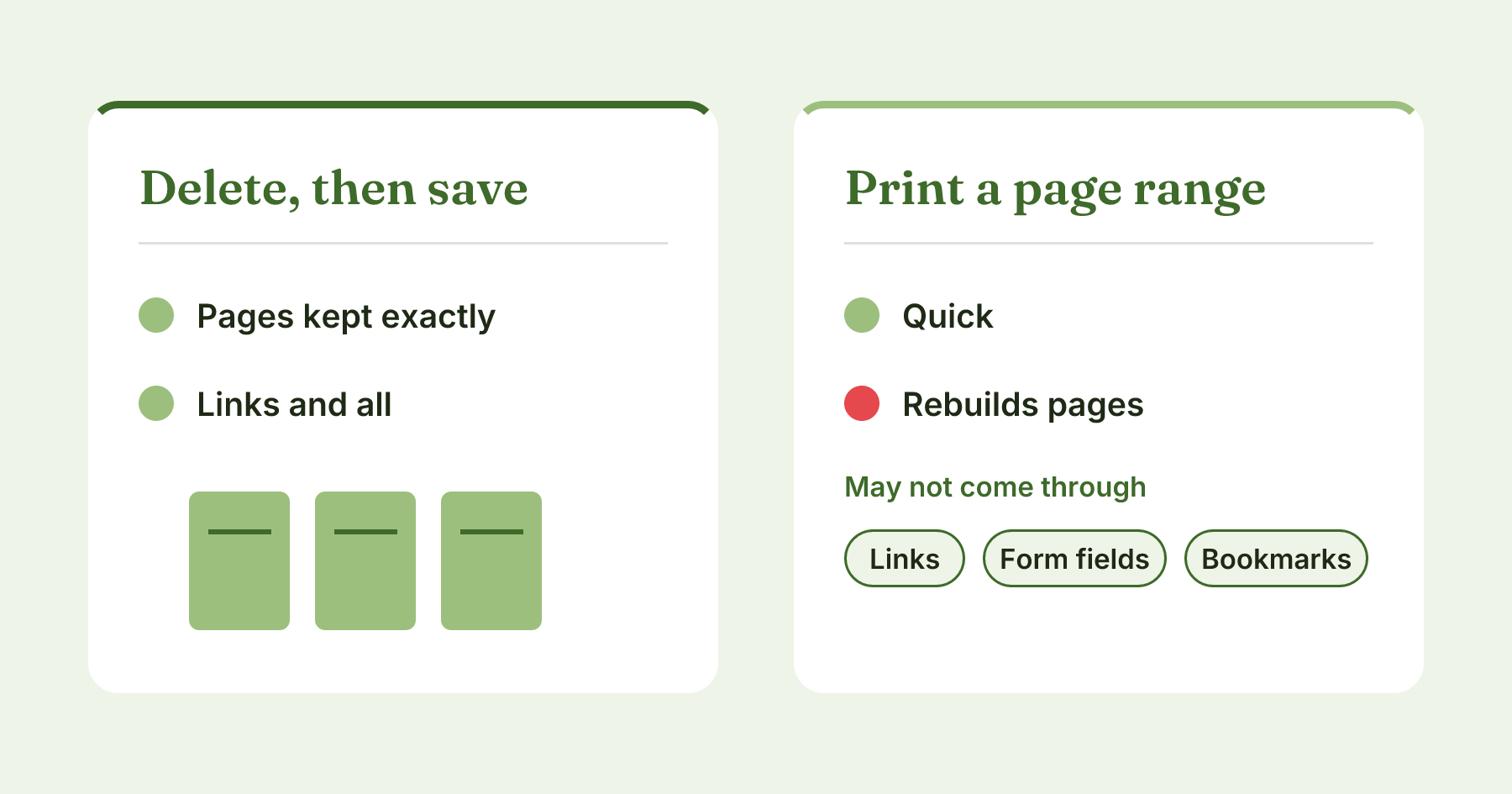
This keeps the pages exactly as they were, links and all:
- Duplicate the original in Finder (⌘D) once for each range you need.
- Open the first copy, show thumbnails, select the pages that don't belong in this range and press Delete. Shift-click selects a run of pages, and ⌘-click picks pages that aren't next to each other.
- Save, then rename the file after its range.
- Do the same with the next copy.
Print a page range to a new PDF
- Open the PDF and choose File › Print.
- Set Pages to a range, such as From 5 to 9.
- Open the PDF menu at the bottom left of the dialog and choose Save as PDF.
It's quick, but watch out: printing rebuilds the pages, so links, fillable form fields and bookmarks may not come through. That's fine for a plain letter. For a form someone still has to fill in, or a long document with a table of contents, use the delete-and-save method instead.
Cutting every N pages
Preview has no setting for "cut every 2 pages", so you have to do it by hand with one of the methods above. If you're comfortable with automation, the Shortcuts app has a Split PDF Into Pages action that you can combine with a Save File step to write each page to a folder. For most people, a dedicated tool is quicker to set up.
Step 3: Split a PDF in Sheaf without uploading it
Sheaf is our PDF app for the Mac, and Split is one of its 21 tools. It splits a PDF three ways: by page ranges, every few pages, or into one file per page. You get all the modes Preview is missing, and it does the whole file in one go.
- Put the PDF on the desk. Drop it on the Sheaf window, click Add Files on Home, or press ⌘O.
- Open Split. Pick it from Home, the sidebar or the Tools menu, or type "Split" in Find a tool.
- Choose how to cut it: ranges, every few pages, or one file per page.
- Save into a folder. When a tool makes several files, Sheaf saves them into a folder you pick. It never writes over the file you started with.
If you only need a few pages pulled into one file, open Organize Pages instead. Select the pages you want (⌘-click or Shift-click for more than one) and choose Save Selected Pages.
Everything runs on your Mac. Nothing gets uploaded, there's no account, and Sheaf doesn't cap file size or the number of files. It needs macOS 14 or later and it's on the Mac App Store. Every tool, saving included, is free for 3 days. After that it's $14.99 once, with no subscription.
Step 4: Name and organise the split files
Rename the files as soon as they're made, before you can lose track of which page is which.
Use numbers with a leading zero so the files stay in order everywhere, not just in Finder:
01 Lease - pages 1-4.pdf
02 Lease - schedule A.pdf
03 Lease - signature page.pdf
To rename a whole batch at once, select the files in Finder, Control-click and choose Rename. Set the format to Name and Index, type a base name, and Finder numbers them for you. Check the order first, because the numbers follow the order the files are sorted in.
Keep the split files in a different folder from the original. That way the full document never ends up attached to an email that was only meant to carry page 3.
What the result should look like (and what to check)
Open the folder and go through it once:
- Count the pages. The pages in all the split files should add up to the original's page count. A gap means a page got missed or dragged twice.
- Open a few files. Check that each one starts and ends on the page you meant.
- Test a link or form field if you used Print, to see whether it still works.
- Search for a word with ⌘F. If nothing turns up on a page full of text, that page is probably a scan (more on that below).
If splitting was the first step of a bigger job, you can put pages back together later. Our guide to merging PDFs on a Mac without uploading them covers that.
Locked, scanned, two-up or huge PDFs
Password-protected. Open the file with its password first. In Sheaf, a locked file shows a lock on the desk. Click it and type the password, and Sheaf keeps it only until you quit. The Unlock tool saves a copy without the password, as long as you know it. If you don't have the password, ask whoever sent you the file.
Scanned. A scan is a picture of a page, and it splits the same way as any other page. Search just won't find words in it. If you need searchable text, run Sheaf's Make Searchable first, then split that copy.
Two pages on one sheet. A "two-up" scan, with two pages side by side on one sheet, is a different problem. Splitting separates whole pages into files. It won't cut one sheet down the middle. That's a cropping job, done on two copies of the page.
Huge files. Very large PDFs are exactly where online splitters tend to cap file size or the number of files. On your Mac, the only limit is your disk. If the split pages are still too big to send, the size almost always comes from scanned images.
Damaged. If a PDF won't open at all, Sheaf's Repair rebuilds what it can into a new copy, and you can split that.
Sensitive pages. Splitting doesn't hide anything that's on a page. If one page has an account number the recipient shouldn't see, redact it properly before you send it.
FAQ
Can I separate PDF pages on a Mac for free?
Yes. In Preview, show thumbnails and drag a page into a Finder folder to save it as its own PDF. For a range, either delete the other pages from a copy and save, or print the range to a new PDF.
Does splitting a PDF change the original file?
Not if you drag pages out or print a range. Deleting pages and saving does change the open file, so do that on a copy. Sheaf always saves new files and leaves the original as it is.
How do I split a PDF into one file per page all at once?
Preview can't do it in one step. You drag pages out one at a time. Sheaf's Split tool has a one-file-per-page option that saves them all into a folder you pick.
Will the split pages lose quality?
Dragging pages out or deleting the ones you don't need keeps them as they were. Printing to PDF rebuilds the page and may drop links, form fields and bookmarks, so check the result if those matter.
Is it safe to use an online PDF splitter?
For a flyer, sure. For a contract, an ID scan or a medical letter, keep in mind that the site receives the whole file, including the pages you're about to throw away. Splitting on your Mac avoids that completely.
Keep reading
How to Redact a PDF on a Mac Without Uploading It
Redact a PDF on a Mac so the text is really gone: Preview's free Redact tool, an on-device app, how to check the result, and why a black box fails.
How to Merge PDFs on a Mac Without Uploading Them
Merge PDFs on a Mac for free with Preview or a Finder Quick Action, put pages in order, and keep the files on your Mac instead of an upload site.
How to Add a Signature With a Date to a PDF on a Mac
Sign a PDF on your Mac and put the date beside it, in Preview or Sheaf. Which date format to use, how to line it up, and why nothing needs uploading.