How to Redact a PDF on a Mac Without Uploading It
Redact a PDF on a Mac so the text is really gone: Preview's free Redact tool, an on-device app, how to check the result, and why a black box fails.
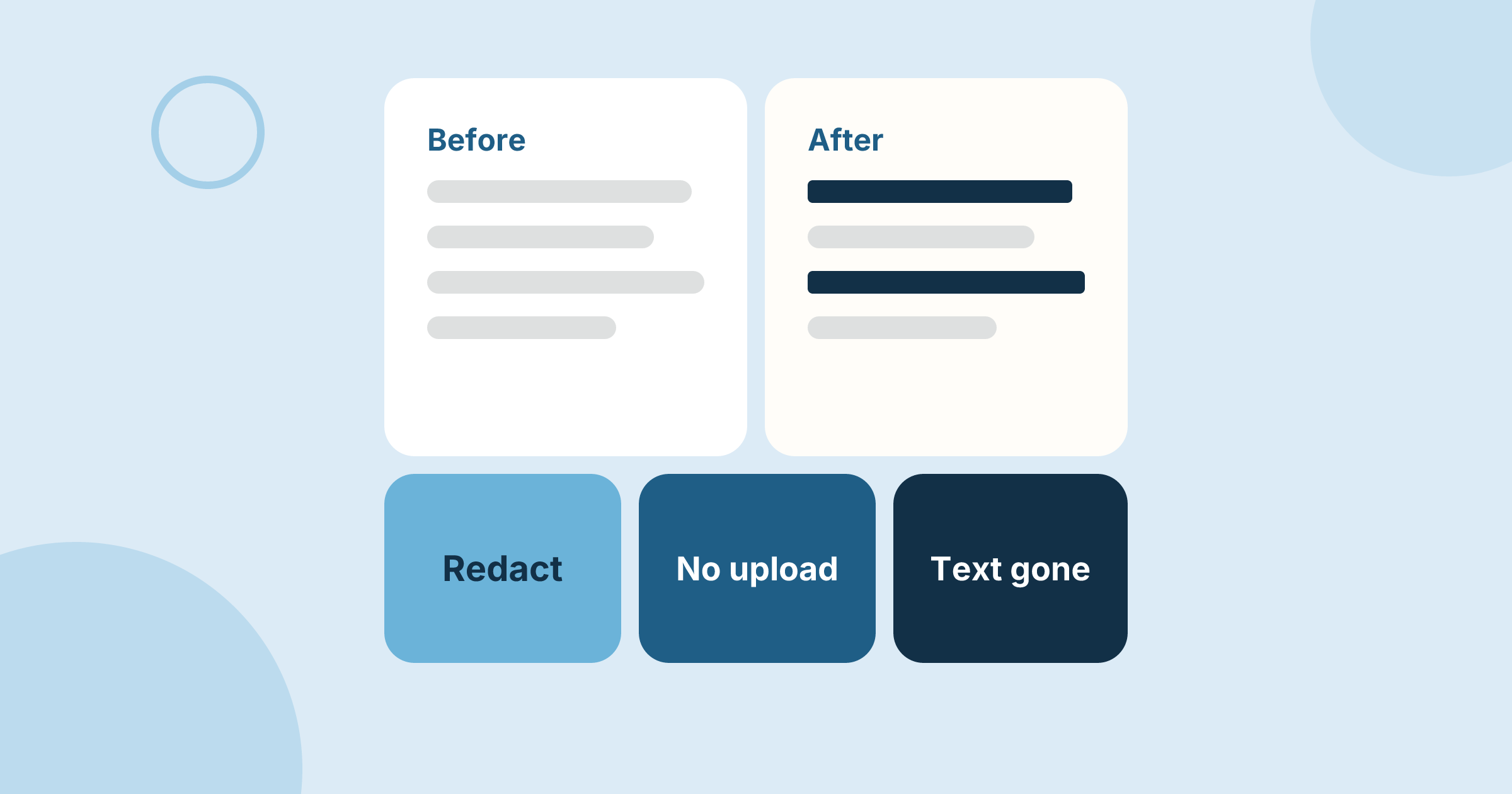
- Use Preview's Redact tool. Duplicate the PDF, choose Tools › Redact, mark the text or areas and save, and the content is deleted from that file.
- A black box only hides text. Shapes drawn on top, blurring or pixelating leave the text in the file or recoverable, so use solid redaction instead.
- Always redact a duplicate. File › Revert To or Time Machine can bring back the unredacted version, so share only a clearly named redacted copy.
- Check the saved copy before sending. Search with ⌘F, copy all text into TextEdit, and check outlines, comments, form fields, metadata and the filename for leftover text.
To redact a PDF on a Mac for free, duplicate the file, open the copy in Preview, choose Tools › Redact, drag over the text you want gone and save. This deletes the text from the file. A black rectangle drawn on top only hides it, and anyone can copy the text out from underneath.
Below you'll find what real redaction does, the steps in Preview, how to check that the text is really gone, and how to handle scans and stacks of documents. Your file never leaves your Mac at any point.
What real redaction means (and why a black box isn't enough)
A PDF stores text as text, not as a picture of it. When you draw a black shape over a line, that line is still in the file. Anyone who selects the area, copies it, searches for a word or opens the file in another app can read it.
Real redaction does two things:
- It removes the text, or the part of the image, from the file.
- It puts a black bar where the content used to be, so readers can see something was taken out.
Preview handles this better than it used to. If you put a Shapes annotation over text, Preview warns you that the content behind it won't be deleted and suggests the Redact tool. Macworld covers both warnings. If you dismiss that warning, you end up with a document that only looks redacted.
Blurring and pixelating don't count either. A security researcher at Bishop Fox showed that pixelated text can be turned back into readable text with a simple tool, as Intego explains. Use solid black redaction, not a blur.
Why redacting a PDF online is risky
Most of the top results for "redact pdf" are websites. You upload the file, mark it up and download the result. Think about what people usually redact:
- bank statements sent to a landlord, with the account number removed
- ID scans with the document number blacked out
- contracts, medical letters or HR files with names taken out before sharing
If you upload one of these, the unredacted original sits on a server you don't control, for as long as that service keeps it. Promises about encryption and automatic deletion may well be true, but you can't check them. Redacting also isn't heavy work. Your Mac can do it in seconds, so you gain nothing by sending the whole sensitive file somewhere just to remove a few lines.
How to redact text and areas in a PDF on a Mac
With Preview (free, built in)
Apple added the Redact tool to Preview in macOS Big Sur, in 2020 (Macworld). If you're on an older version of macOS, you won't find it, and you'll need to update or use another app.
- Duplicate the file first. Select the PDF in Finder, press ⌘D and open the copy. More on why below.
- Open the Redact tool. Choose Tools › Redact, or click the Markup button and then the Redact button. Preview warns that whatever you mark will be deleted permanently.
- Mark the text. Drag across the words you want removed. They turn into black bars with a hatched pattern.
- Mark areas. Drag a box over a photo, a signature or a block of a scanned page.
- Review before saving. Until you save, hovering over a redaction still shows the text underneath, and dragging over it again removes the mark (Intego). Go through every page and check that each mark covers what it should, with nothing extra.
- Save. Choose File › Save, or close the document. The marked content is then deleted from that file.
Why you redact a duplicate: once you save, the text can't be recovered from that file. But macOS keeps earlier versions of a document. File › Revert To or Time Machine can bring back the unredacted version on your Mac. Redact a clearly named copy (for example Statement – redacted.pdf), share only that copy, and keep the original somewhere private.
With Sheaf (on-device, no upload)
Sheaf is our PDF app for the Mac. Redact is one of its 21 tools, alongside compress, merge, split, convert, sign and edit. It helps most when you redact often, or when redaction is one step in a bigger job, such as merging a year of statements, redacting them and splitting them up again.
The same habits apply as in Preview. Work on a copy, mark everything you want gone, and review every page before you save. Then run the checks below on the saved file.
Everything runs on your Mac. Nothing is uploaded and you don't need an account. Sheaf is on the Mac App Store. It's free for 3 days, then $14.99 once, with no subscription. The Sheaf help page covers each tool in detail.
Checking that redacted text can't be copied or searched
The top results almost never cover this step. Do it every time, on the saved copy, before you send anything:
- Search for it. Open the redacted file, press ⌘F and type a word or number you removed, such as the last four digits of the account. You should get no matches.
- Copy and paste it. Press ⌘A to select all the text, copy it, and paste it into TextEdit. Read through it. Removed text shouldn't appear anywhere.
- Select the bar itself. Drag across a black bar and copy. You should get nothing, or only the text around it.
- Open it in a different app. A web browser works. If it looks the same there and nothing shows under the bars, that's a good sign.
- Look beyond the page. Redacting removes what's on the page. Check the other places a PDF can carry text:
- the outline (View › Table of Contents in Preview), which may have chapter names that mention what you removed
- comments and notes someone added earlier
- form fields that still hold typed values
- the document's title and author information
- the filename itself
If the stakes are high, you can also flatten the result: convert the redacted copy's pages to images, then turn those images back into a PDF. The new PDF holds only pictures of the pages, so no hidden text layer is left. The cost is that nobody can select or search the text any more.
Scanned PDFs need extra care
A scan is a picture of a page. Its words are pixels, not text. That changes two things:
- Search can miss them. Search can only find text the file knows about. On a scan, mark each area by hand with a dragged box, and look at every page yourself.
- Some scans carry a hidden text layer. Scanner apps often run text recognition and put invisible, searchable text behind the image. Redacting the visible area should deal with both. Check anyway: search for a removed word in the saved copy (step 1 above).
If you want search to work on a scan, run text recognition on it first, on your Mac. Then redact that copy and check the result the same way.
Redacting several pages or documents at once
Many pages, one file. Search is the reliable way to do this. Clicking through 40 pages to find an account number is how one instance gets missed. Search for the number, mark every match, then run the ⌘F check on the saved file.
Many files. Preview handles one document at a time. With a pile of files, such as a year of monthly statements, one approach is:
- Merge them into one PDF. Our guide to merging PDFs on a Mac without uploading them shows the free ways, and Sheaf has a Merge tool.
- Redact the merged file once, using search.
- Check it.
- If the recipient wants separate files, split it back up, for example with Sheaf's Split tool.
Whatever you use, keep your file names straight. Have one folder for originals and one for redacted copies that are ready to share, so the wrong file never ends up attached to an email.
FAQ: redacting PDFs on a Mac
Can I redact a PDF on a Mac for free? Yes. Preview has had a Redact tool since macOS Big Sur. Choose Tools › Redact, mark the text or areas, and save.
Can a redaction be undone? Before you save, yes: drag over a mark again to remove it. After you save, the text is gone from that file. Earlier versions can still come back through File › Revert To or Time Machine, so redact a duplicate and share only that.
Is drawing a black box in Preview the same as redacting? No. A shape from the Markup toolbar sits on top of the text, and the text stays in the file. Preview warns you about this. Use the Redact tool.
Why can I still see the text when I hover over a redaction in Preview? The redaction isn't applied until you save or close the file. Save, reopen the file and check again.
How do I redact a scanned PDF? Drag a box over each area by hand. Search can't find words that are only pixels. Or make the scan searchable first so search works, then check the saved copy.
Do I need to upload my PDF to redact it? No. Preview and Sheaf both redact on your Mac, and the file never leaves it.
Keep reading
How to Separate PDF Pages on a Mac (Without Uploading)
Split a PDF into separate pages on a Mac: one file per page, by range or in chunks, using Preview or Sheaf. No upload, no account, originals kept.
How to Merge PDFs on a Mac Without Uploading Them
Merge PDFs on a Mac for free with Preview or a Finder Quick Action, put pages in order, and keep the files on your Mac instead of an upload site.
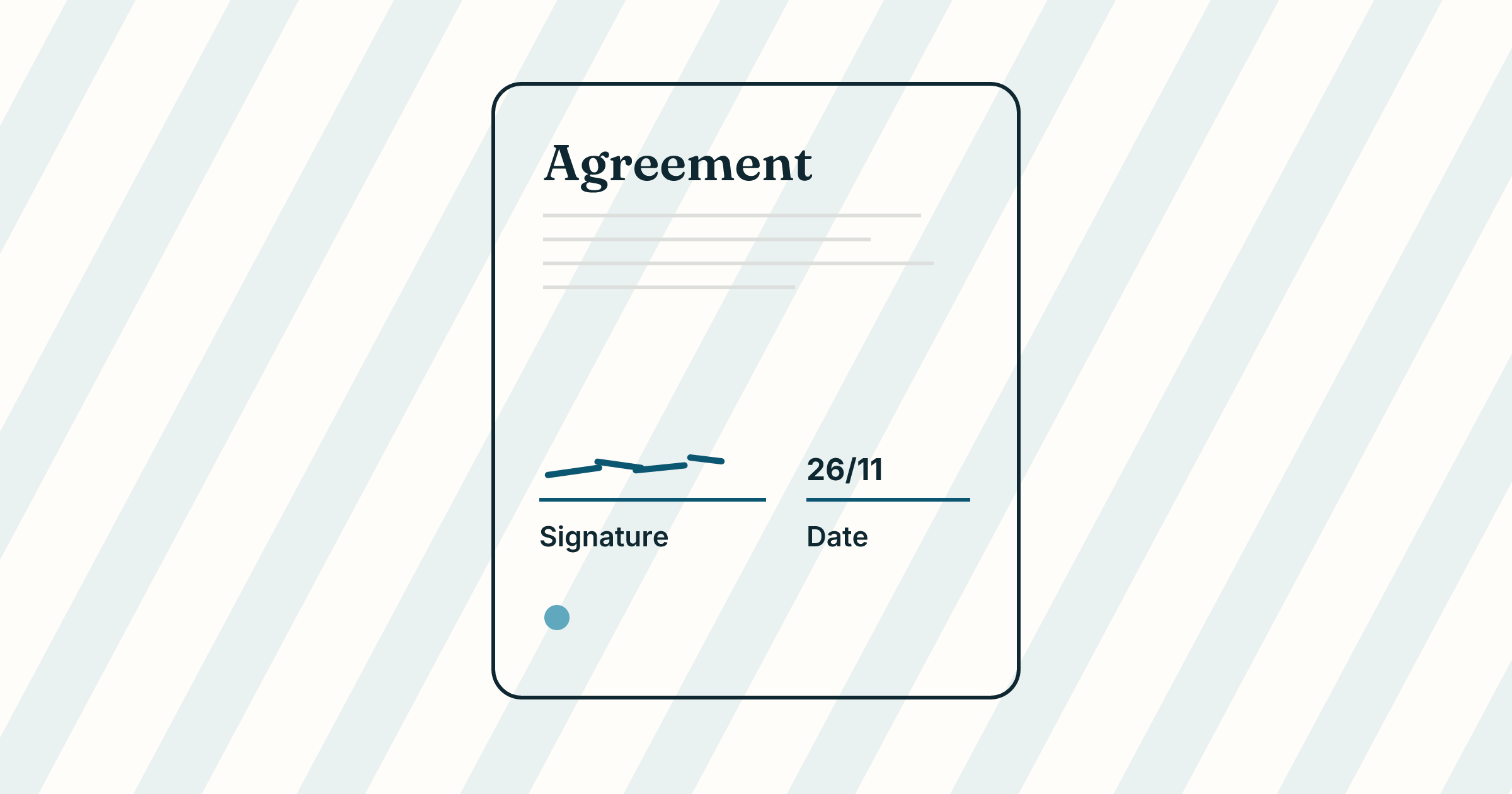
How to Add a Signature With a Date to a PDF on a Mac
Sign a PDF on your Mac and put the date beside it, in Preview or Sheaf. Which date format to use, how to line it up, and why nothing needs uploading.