Remove pages from a PDF on your Mac, without uploading
To remove pages from a PDF on a Mac, open it in Sheaf’s Organize Pages, select the pages you don’t want and press Delete. Sheaf saves the result as a new PDF, and the file never leaves your Mac.
How to remove pages from a PDF in Sheaf
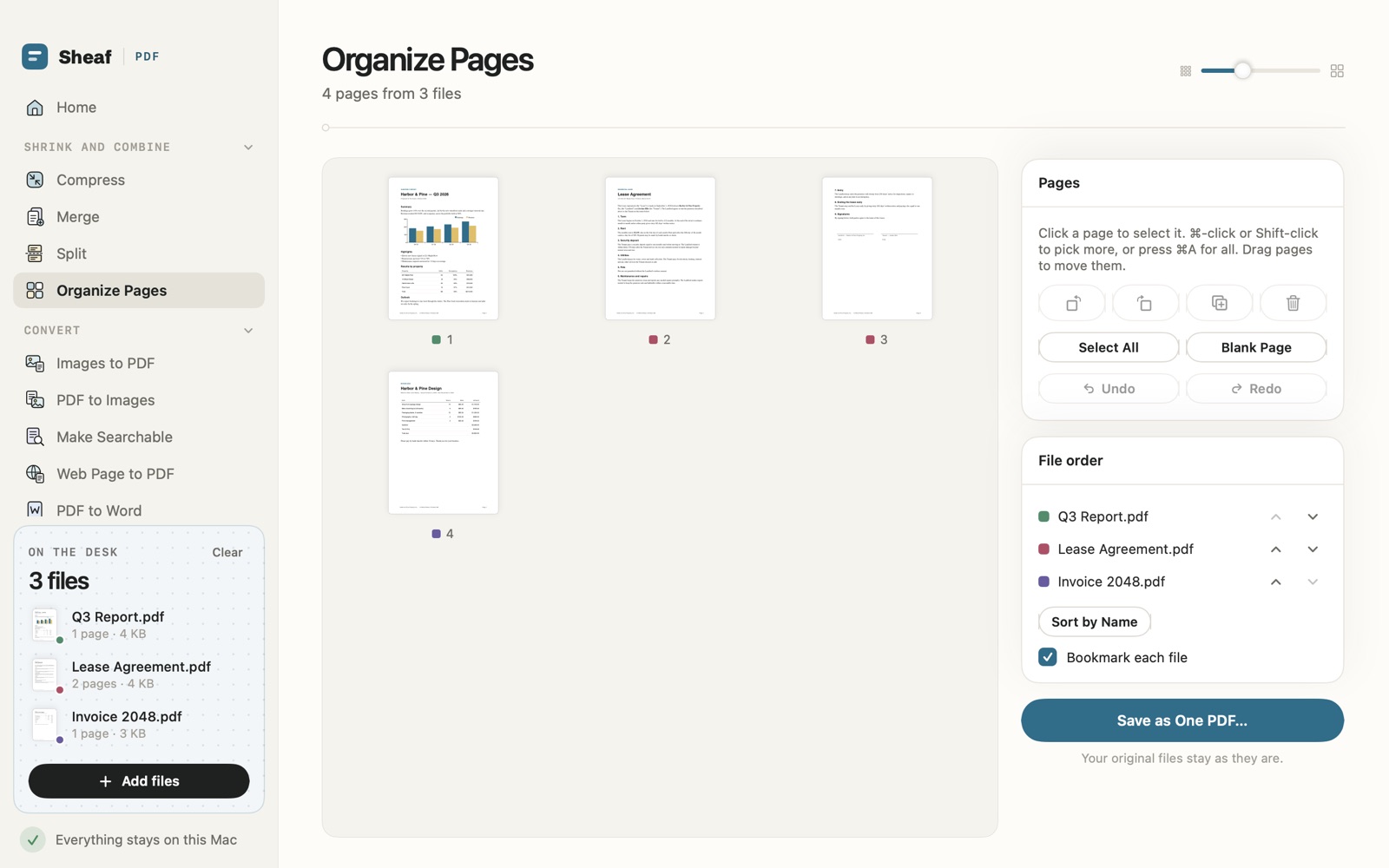
- Add the PDF. Drop it on the Sheaf window and open Organize Pages. Every page appears as a thumbnail, and a slider makes them larger if you need to read them.
- Select and delete. Click a page to select it, then press the Delete key or the bin button. The page leaves the grid straight away.
- Save. Click Save Copy. Sheaf writes a new PDF without those pages. Your original stays as it is.
One page, a range, or every other page
- One page: click it and press Delete.
- A range: click the first page, Shift-click the last, and press Delete.
- Pages here and there: ⌘-click each one. This is how you take out every other page, such as the blank backs of a two-sided scan.
- Keep only a few: select the pages you want and choose Save Selected Pages. That is quicker than deleting everything else.
You can put several PDFs on the desk at once. Their pages share one grid, so you can delete from all of them and save the rest as a single PDF.
Why local beats uploading
The PDFs people trim are often the private ones: a signed contract, a copy of an ID, a bank statement, a medical report. An online tool has to receive the whole file before it can remove a page, including the pages you were trying to get rid of. Sheaf does the work on your Mac, so there is no upload, no account and no copy left on anyone else’s server.
Sheaf and online page removers
- Where the file goes: an online tool works on a copy you upload. With Sheaf the file stays on your Mac.
- Limits: many free online tools cap the file size or the number of files a day. Sheaf has no caps, and it works offline.
- Watermarks: some free plans stamp the result. Sheaf never adds anything to your pages.
- Retention: each online service has its own rule for how long it keeps uploads. With Sheaf there is nothing to delete afterwards.
Get Sheaf
Sheaf is free for 3 days with every tool, saving included. After that it is $14.99 once, with no subscription. It needs macOS 14 or later. Download Sheaf on the Mac App Store, or see everything Sheaf does.
Other Sheaf tools
- PDF to PNG
- PNG to PDF
- The best PDF editor for Mac
- Compress, merge, split, sign, redact and edit, with 21 tools in all
Questions
- Can I undo a page I deleted by mistake?
- Yes. Press ⌘Z, or click Undo, and the page comes back where it was. Redo is there too. Nothing is written to disk until you save.
- Does Sheaf change my original PDF?
- No. Save Copy writes a new PDF without the pages you removed, and the file you started with stays as it is.
- Does it work on scanned PDFs?
- Yes. A scanned page is removed like any other page. The scan doesn't need to be searchable first.
- Can't Preview already delete pages?
- It can: show the thumbnails, select a page and press Delete. Preview saves the change into the same file, so make a duplicate first if you want to keep the original. Sheaf always saves a new copy, shows every page in one grid, and can take pages out of several PDFs at once.
- What about a PDF with a password?
- Sheaf asks for the password and then shows the pages. It can't open a file whose password you don't know.
- Is my PDF uploaded anywhere?
- No. Sheaf does the work on your Mac. The file is never sent to a server, and no account is needed.