
Mac memory cleaner: see what is using your RAM with Almanac
If you are looking for a memory cleaner for Mac, the useful first step is to see where the RAM went. Almanac is a Mac activity monitor that shows which apps and processes are using your memory, whether the Mac is really short of it, and lets you quit the heavy ones safely. It has no magic Clean button, and this page explains why you rarely need one.
What “cleaning” Mac memory really means
macOS manages memory by itself. It keeps recently used files in spare RAM so they open faster next time, and gives that memory back the moment an app asks for it. That is why a healthy Mac often shows very little free memory: empty RAM does nothing for you.
So a low free figure is not a problem to clean away. Memory becomes a problem only when apps ask for more than the Mac has. Then macOS compresses memory, moves some of it to swap on the disk, and the Mac starts to feel slow. When that happens the fix is plain: find the app holding the memory, then quit it or restart it. Its memory is returned the moment it closes.
See which apps and processes use the most RAM
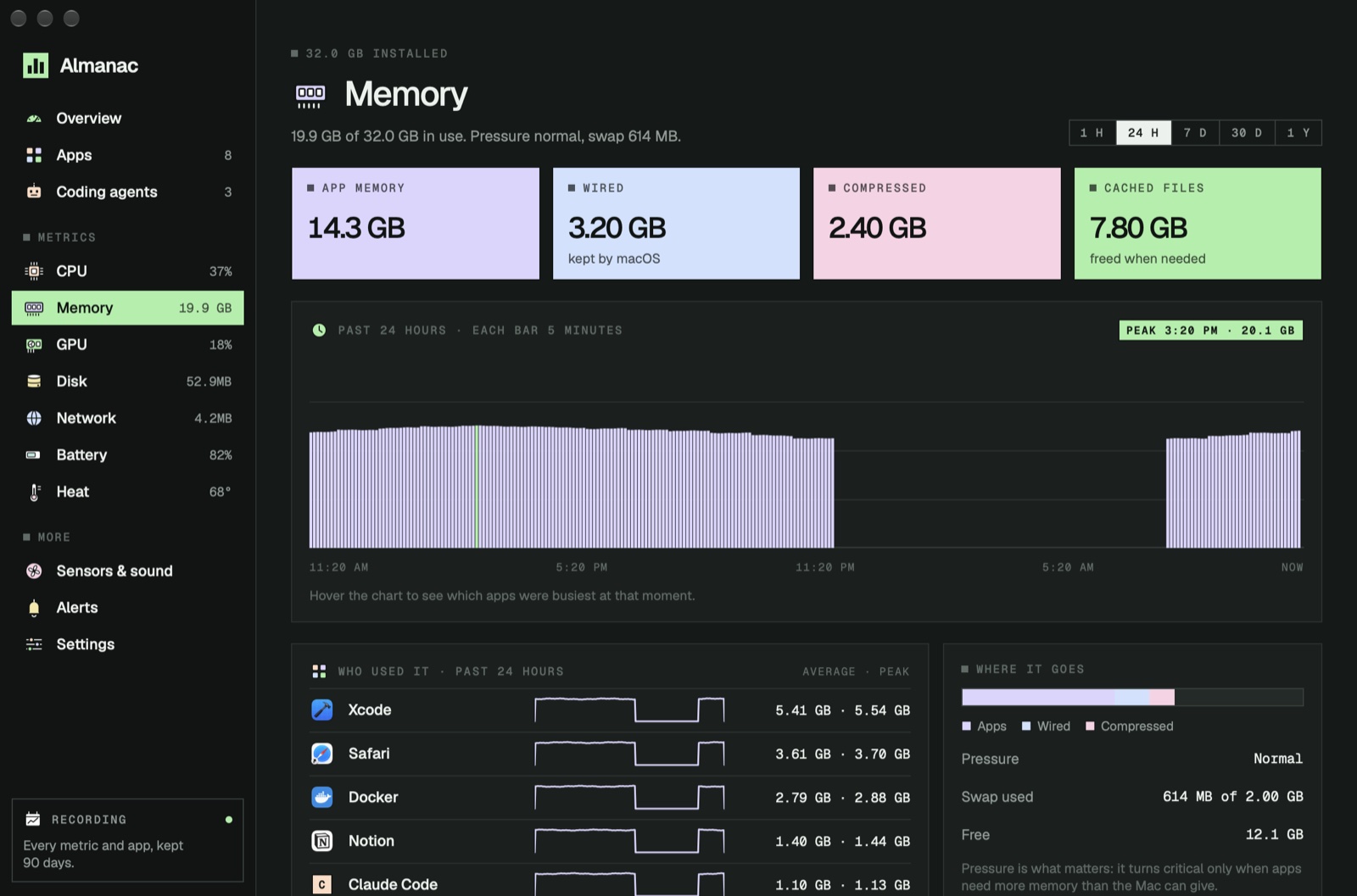
Almanac's Memory page shows how much is in use out of what is installed, split into app memory, wired memory kept by macOS, compressed memory and cached files that are freed when needed, with swap used and free memory beside them.
- Apps, with their helpers counted in. In Apps, each row adds up an app's helper processes, so a browser is one figure. Sort by memory and the heaviest app is at the top.
- Every process. The Processes view lists each process, macOS's own services and kernel_task included, with memory and real memory as columns sorted either way.
- Who used it, over time. The Memory page lists the apps that used the most over the past hour, 24 hours, 7, 30 or 90 days, with each one's average and peak. Hover the chart to see which apps were busiest at that moment.
- Memory that keeps growing. Almanac can alert you when an app's memory has grown by 1.5 GB over an hour, which is how a leak usually shows itself.
Quit or restart the heavy ones safely
- Open Apps and sort by memory.
- Choose Quit… in the row of the app at the top. Almanac asks first and lists what will close.
- Pick Quit to close it as if you chose Quit from its own menu, so it can ask you to save. Force quit closes it at once and loses anything unsaved, so keep it for apps that have stopped responding.
- Open the app again if you still need it. An app that had grown over days starts again small.
Almanac never quits anything by itself. Services that belong to macOS, like WindowServer, are marked Part of macOS and can't be quit from Almanac; if one of them is stuck, restarting the Mac usually settles it.
Memory pressure, in plain words
Memory pressure is the one figure worth watching. It is macOS's own measure of how hard it is working to give apps the memory they ask for.
- Normal. There is room. Nothing needs cleaning, however little memory is free.
- Above normal. The Mac is compressing memory and using swap to keep up. The figure turns terracotta in Almanac's sidebar and on Overview. Closing an app or two you aren't using helps.
- Critical. Apps need more memory than the Mac can give. Almanac alerts you, and the Memory page shows which apps to quit.
If pressure is high every day with only the apps you need open, no cleaner will change that: the work needs more memory than the Mac has. Almanac keeps up to 90 days of history, so you can see how often it really happens before deciding.
Runs on your Mac, bought once
Almanac reads everything from macOS on your Mac and keeps its record in a file there; the readings are never sent anywhere. There is no account, no ads and no tracking. It is free for 3 days with every feature, then $9.99 once for one Mac or $19.99 for up to three, with every future update and no subscription. Almanac is sold directly, outside the Mac App Store, with a licence key, because apps in the Mac App Store can't see other apps' memory. The download is signed and notarized by Apple and needs macOS 15 or later, on Apple silicon or Intel. See everything Almanac does, or read the help pages.
Questions
- Is Almanac a memory cleaner for Mac?
- Not in the one-button sense. Almanac has no Clean button and never frees memory by itself. It shows which apps and processes are using your RAM, how that changed over the past hours and days, and whether the Mac is actually short of memory, and it lets you quit the heavy ones with a confirmation. Quitting the app that holds the memory is what gives it back.
- Do I need a RAM cleaner for my Mac?
- Usually not. macOS fills spare memory with cached files on purpose and hands it back the moment an app needs it, so a Mac with little free memory is not a slow Mac. What matters is memory pressure. If it stays normal there is nothing to clean; if it is high, one or two apps are normally behind it, and closing or restarting them is what helps.
- How do I see which app is using the most memory?
- In Almanac, open Apps and sort by the memory column: each app's row adds up its helpers, so a browser shows as one figure with its tabs and extensions counted in. The Memory page lists who used the most over the past hour, day, week or longer, with each app's average and peak.
- What is memory pressure?
- macOS's own measure of how hard it is working to give apps the memory they ask for. Normal means there is room. Above normal means the Mac is compressing memory and using swap on the disk to keep up. Critical means apps need more memory than the Mac can give, and that is when things slow down. Almanac shows the pressure beside the amount in use, and can alert you when it turns critical.
- Is it safe to quit apps to free memory?
- Quit asks the app to close as if you chose Quit from its menu, so it can ask you to save. Force quit closes it at once and anything unsaved is lost. Almanac asks first and lists what will close, it never quits anything by itself, and it can't quit macOS's own services at all.
- Can Almanac tell me when an app's memory keeps growing?
- Yes. By default it alerts you when an app's memory has kept growing for an hour by 1.5 GB, and when memory pressure turns critical. You can set the growth limit anywhere from 1 to 6 GB, or switch either rule off.
- Do the memory numbers match Activity Monitor?
- Yes. Almanac's readings are checked against Activity Monitor and top, for every process, macOS's own services and kernel_task included. In the Apps view a row adds up an app's helpers; the Processes view lists each process the way Activity Monitor does.
- How much does Almanac cost, and where do I get it?
- Almanac is free for 3 days with every feature. Then it is $9.99 once for one Mac, or $19.99 for up to three, with every future update and no subscription. It is downloaded from papermint.studio, signed and notarized by Apple, and unlocked with a licence key. It needs macOS 15 or later, on Apple silicon or Intel.