
Baton
Draw on Your Screen as You Present.
Point at what you mean, in any app on your Mac.
- Arrows, boxes and numbered steps
- Cursor highlight, spotlight and zoom
- Whiteboards you can keep
Try it here
Baton, right on this page
A made-up Mac with a slide on it. Pick a tool and a colour, then draw on the screen.
Draw over any app
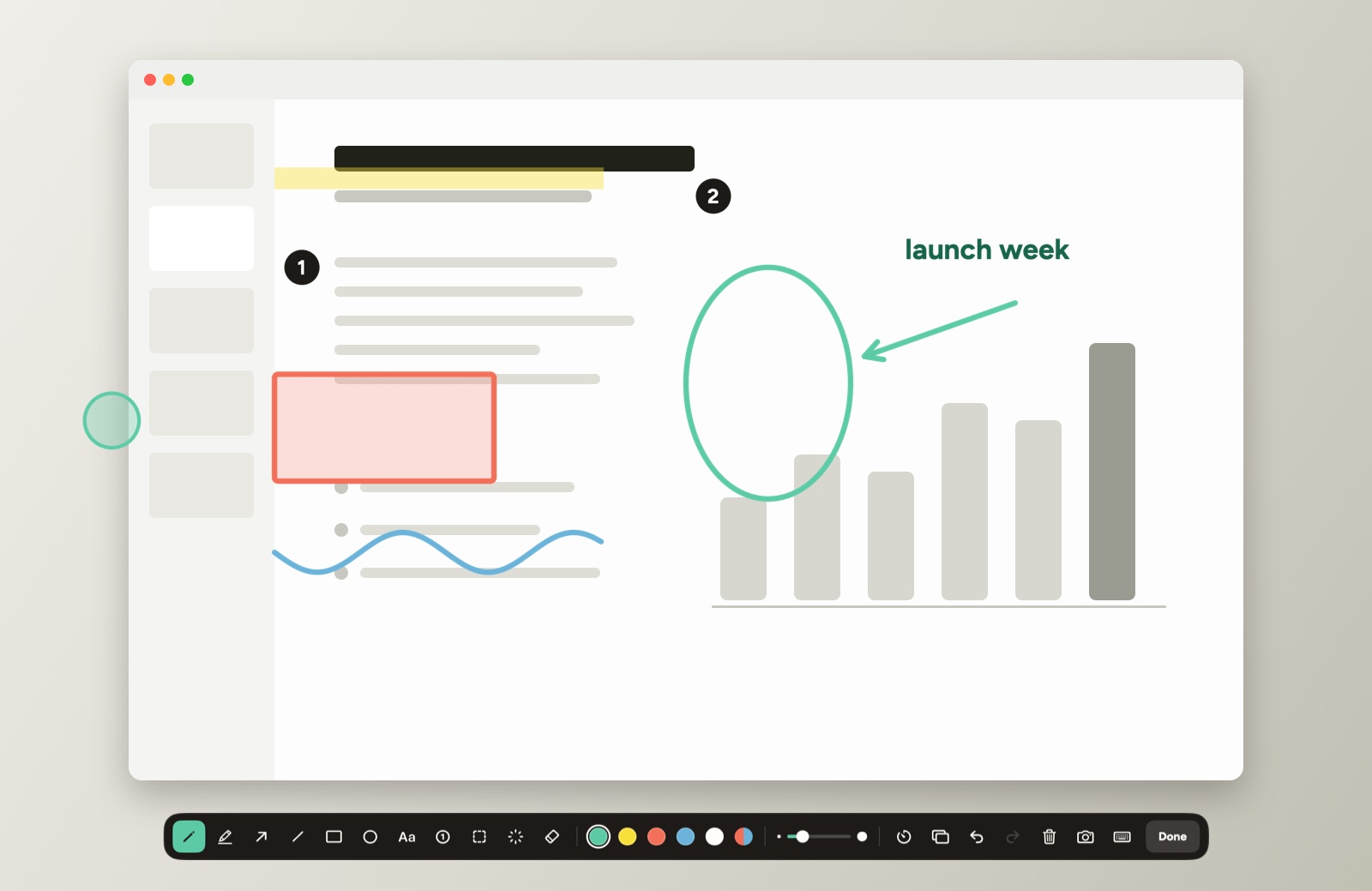
Drag on the slide to draw. Pick the pen, the arrow or the box, and one of five colours. On your Mac, ⌃⌥A starts drawing in any app and Esc clears it away.
Draw
Draw over any app
Press ⌃⌥A and the screen is yours to mark up. Press Esc and it is clean again.
Pen and highlighter
Circle the thing you mean, or run a highlighter over a line. Hold ⇧ for a straight stroke.
Arrows, lines and shapes
Arrow, line, rectangle and ellipse. ⇧ keeps them square or level, ⌥ fills a shape.
Text and numbered steps
Type a label anywhere, or click to drop 1, 2, 3 on the steps of a demo.
Five colours, one key each
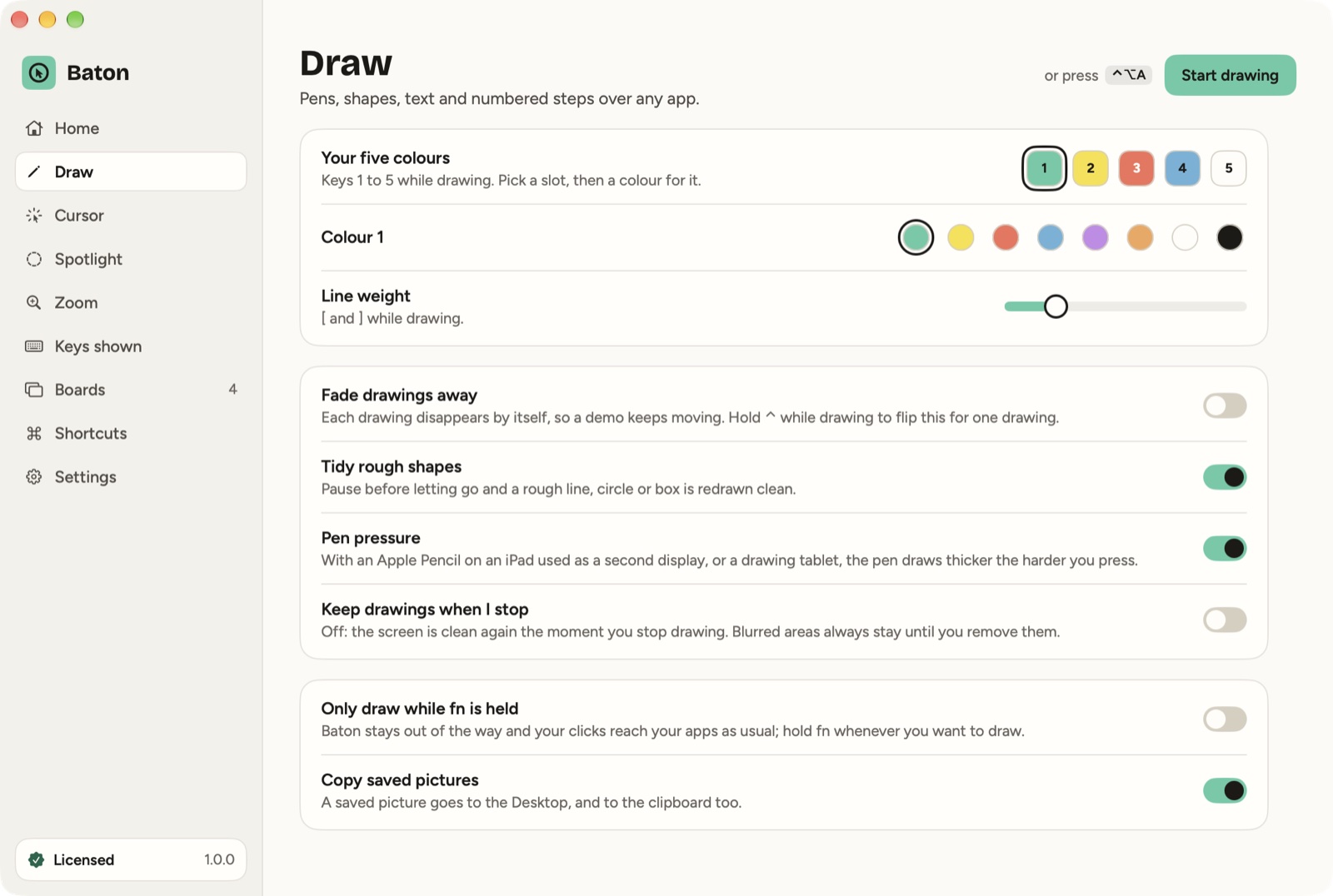
Keys 1 to 5 switch colour, 6 draws in two colours, and [ and ] change the line weight.
Rough shapes tidied
Draw a rough circle, box or line, pause before letting go, and Baton redraws it clean.
Undo, move, erase
⌘Z and ⇧⌘Z, an eraser, and ⌘ drag to move a drawing. ⌫ clears the screen.
Stay in the flow
Keep clicking while you draw
A demo doesn't stop for the pen. Your apps stay in reach the whole time.
Hold fn to click through
While drawing, hold fn and your clicks reach the app underneath. Let go and you're drawing again.
Only draw while fn is held
Turn this on and Baton stays out of the way until you hold fn.
Fade away
Drawings disappear by themselves after 3, 5 or 10 seconds, so a demo keeps moving.
Laser pointer
A bright dot with a short trail that leaves nothing behind.
Blur an area
Drag over an email address or a key and it stays blurred until you remove it.
Save a picture
S saves the screen with your drawings to the Desktop, and copies it too.
The cursor
Make the pointer easy to follow
On a shared screen or a recording, people lose a small arrow. Give them something to watch.
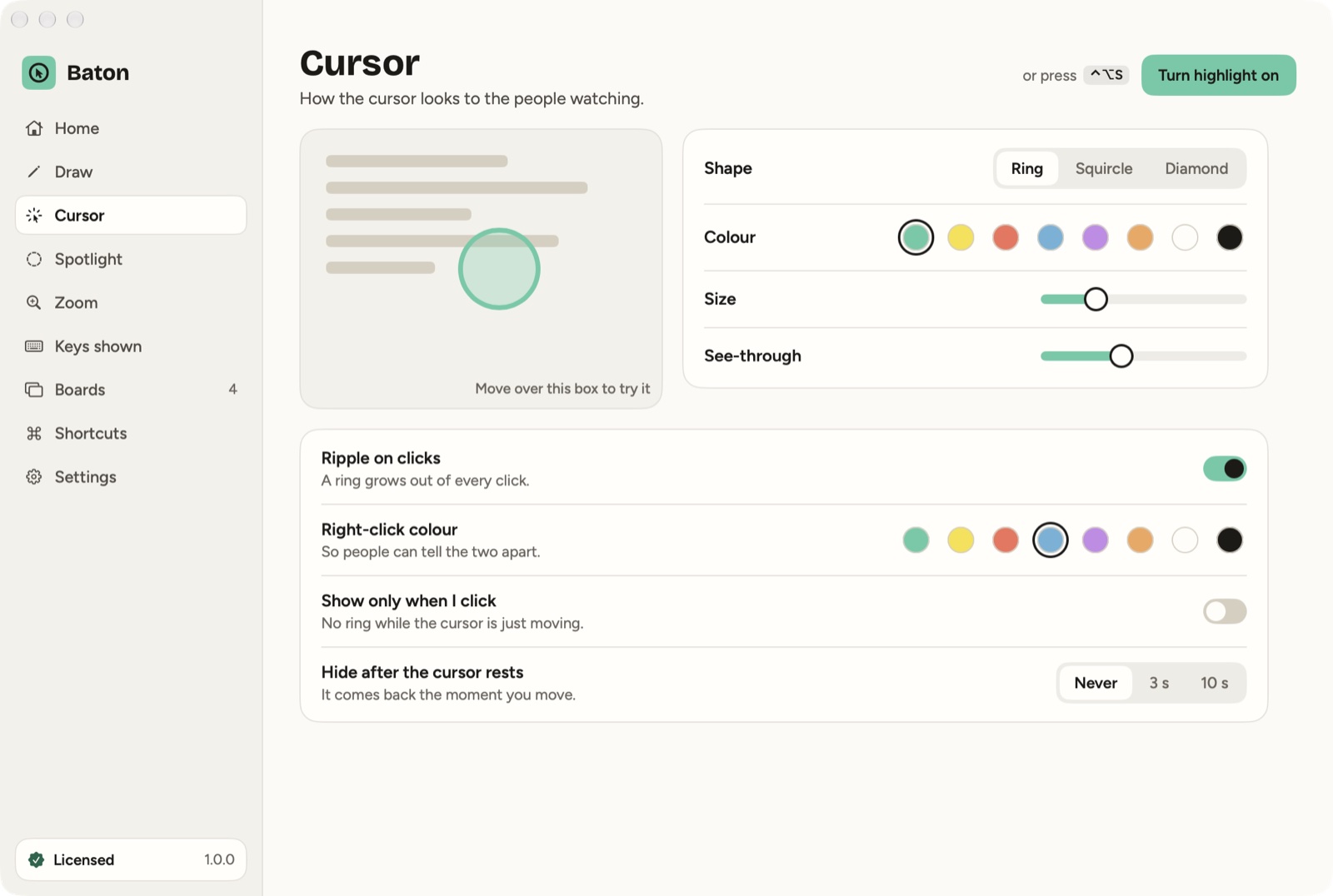
Cursor highlight
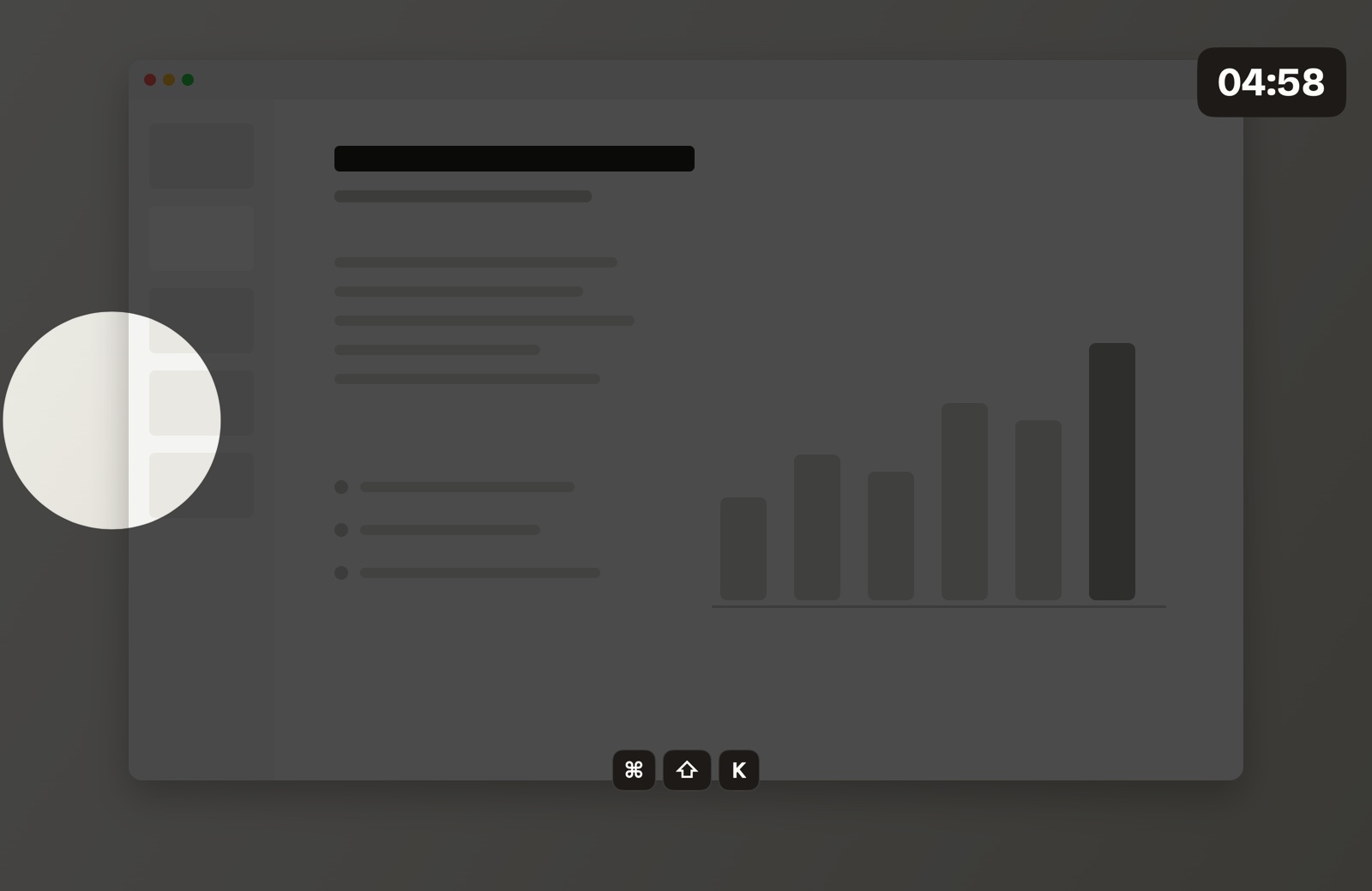
A ring, squircle or diamond around the pointer, in your colour and size. ⌃⌥S.
Clicks you can see
Each click sends out a ripple, so viewers know when you pressed.
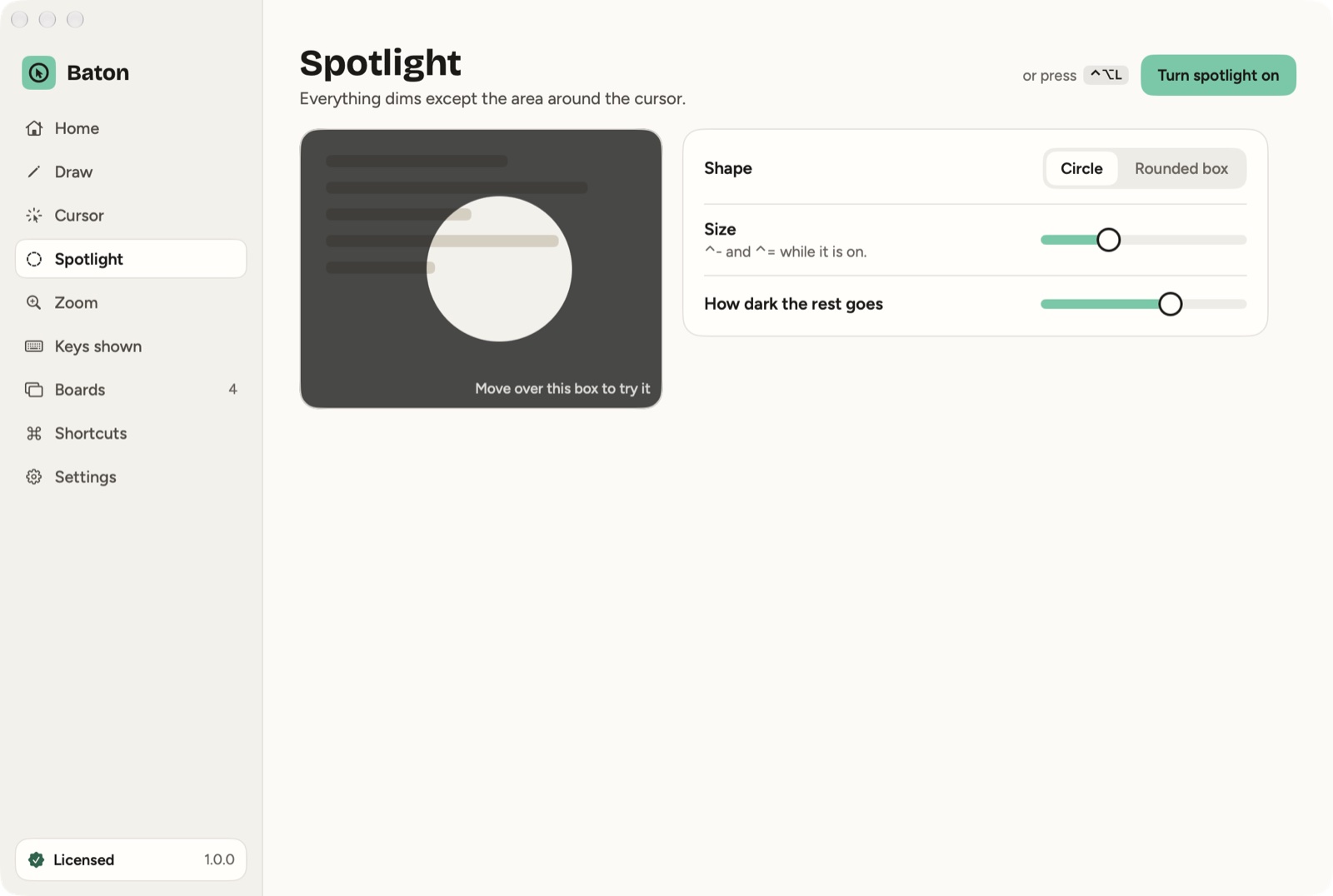
Spotlight
Dim everything except a circle around the pointer. ⌃⌥L.
Zoom
A lens that follows the pointer, or the whole screen zoomed. ⌃⌥M.
Keys shown
The shortcut you just pressed appears on screen, so nobody has to ask what you did. ⌃⌥K.
Resize from the keyboard
While a cursor tool is on, ⌃- and ⌃= make the ring, spotlight or lens smaller and bigger.
Whiteboards
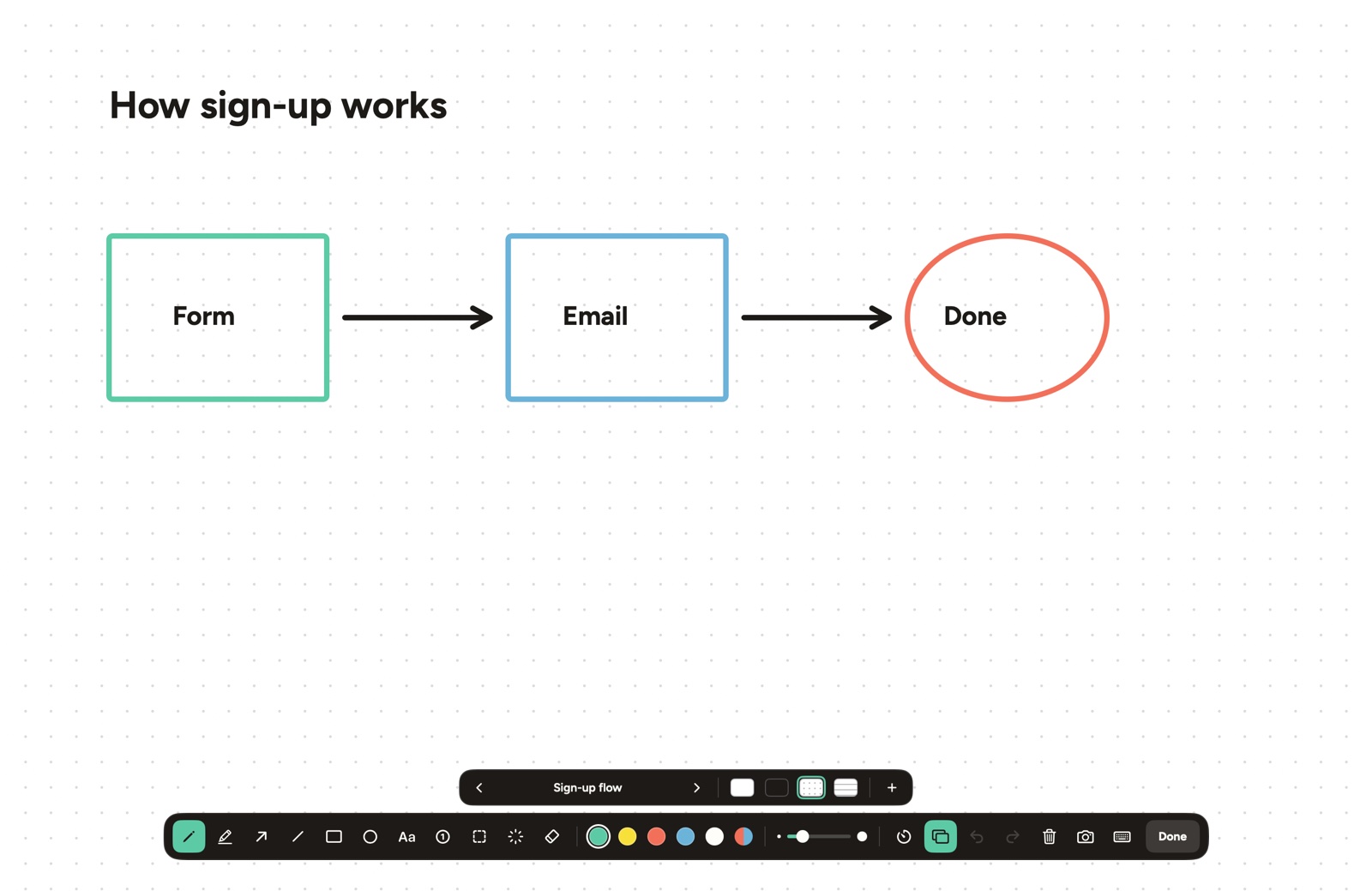
A whiteboard over the screen
Press ⌃⌥W for a clean page. What you draw on it is kept as a board.
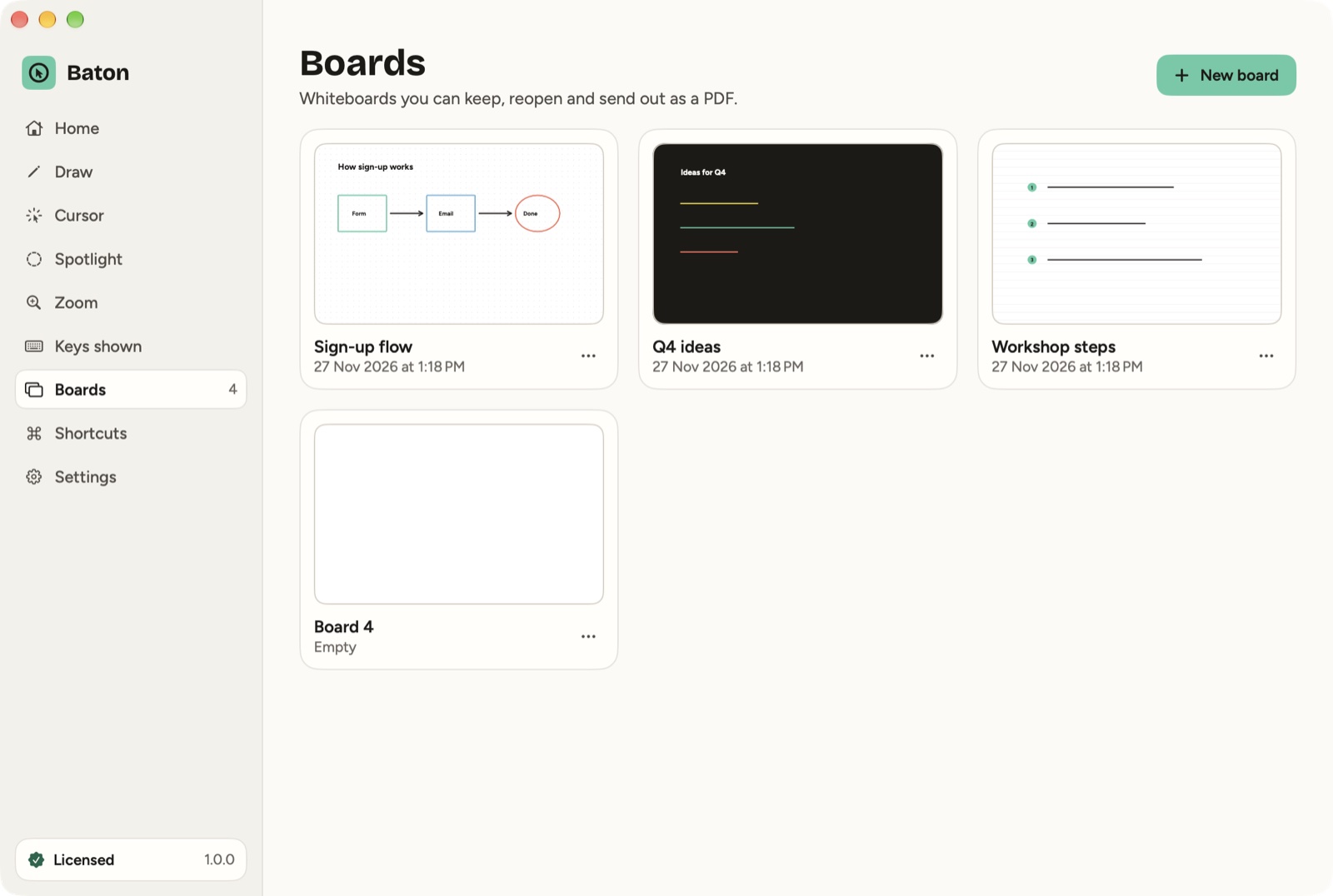
Boards are kept
Every whiteboard is saved by itself. Open one again from the Boards page and carry on.
Choose the paper
White, black, dotted or lined.
Save as PDF or PNG
Send a board to the people who were in the room.
Step between boards
Move to the next or previous board, or start a new one, without leaving the screen.
The same tools
Everything you draw with on the screen works on a board.
Undo on every board
Each board keeps its own undo and redo while it is open.
And also
And the details
The small things that make it calm to use in front of people.
A countdown
Put a countdown in a corner of the screen for a break or a talk slot, with a line under it such as Back at 11:15. ⌃⌥T.
A curtain
Cover the screen while you find the right window, then lift it. ⌃⌥C.
Every shortcut is yours
Record different keys for any tool, and for the single keys used while drawing.
In the menu bar
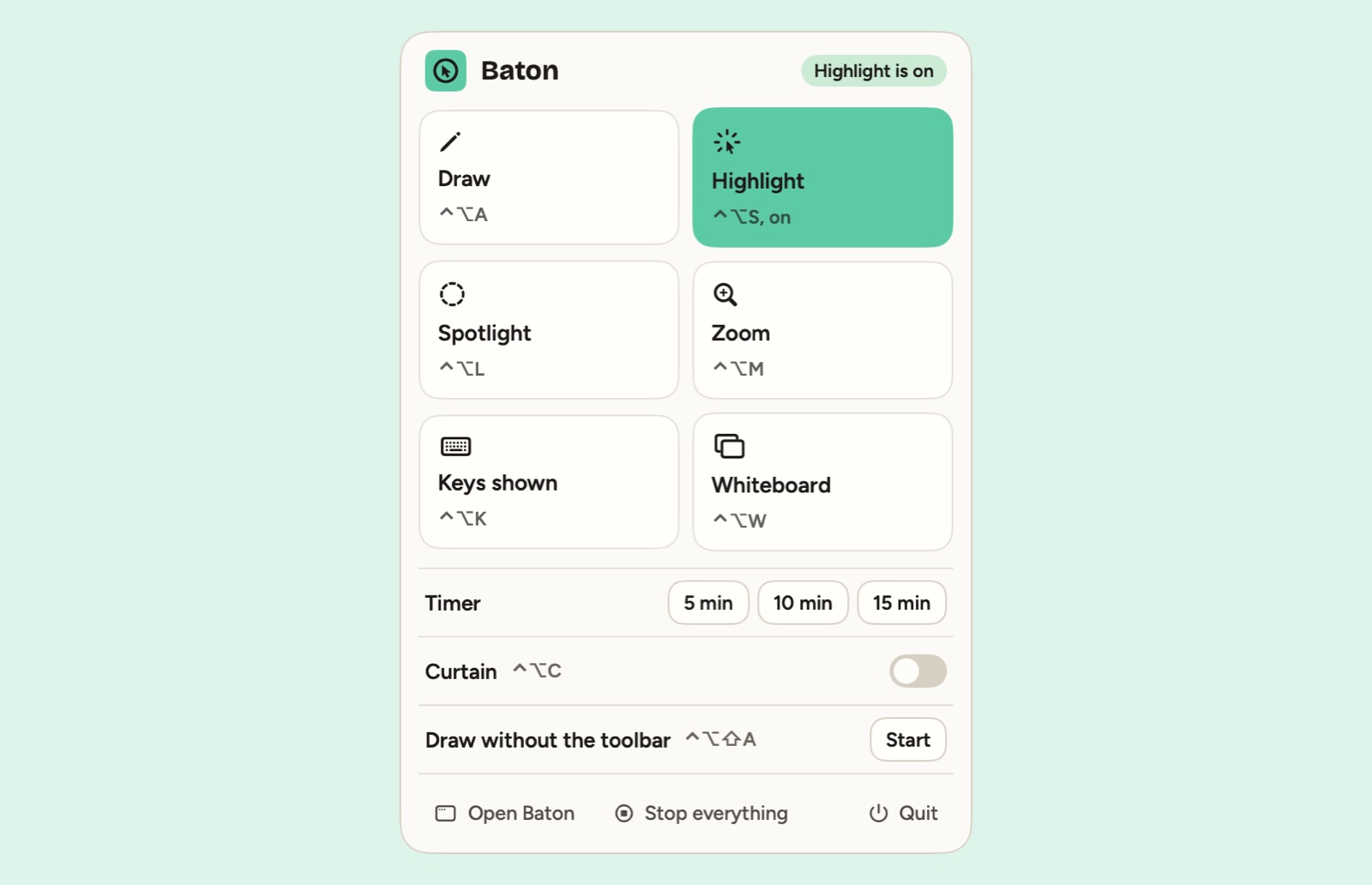
Six tiles turn the tools on and off, with the timer and the curtain under them.
Shortcuts and links
Actions for the Shortcuts app, and baton:// links for a Stream Deck or a clicker.
Trackpad and stylus
Draw with a finger on the trackpad. A drawing tablet or an Apple Pencil over Sidecar draws thicker as you press.
Every display
Each screen gets its own drawings; the keys shown and the timer follow the pointer.
Draw without the toolbar
⌃⌥⇧A starts drawing with nothing else on screen. The single keys still work.
A five-step welcome
What it does, how to draw, the cursor tools and the two optional permissions. See it again from Settings.
Light and dark
Baton's window follows your Mac's appearance.
Updates built in
Baton checks for a new version by itself and installs it inside the app. Every update is signed.
Apple silicon and Intel
macOS 14.4 or later, signed and notarized by Apple.
How it works
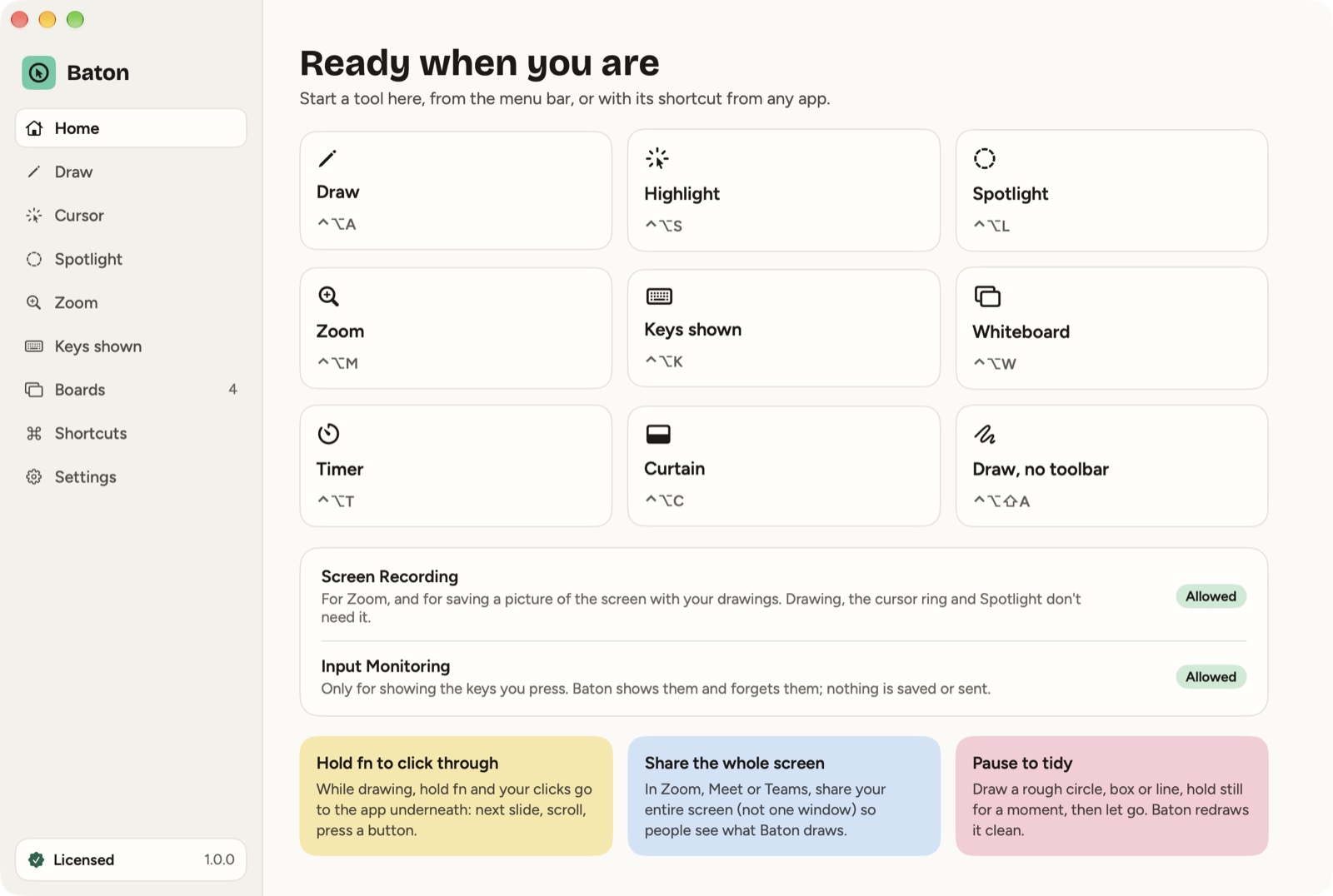
Ready in a minute.
Drawing needs no permission at all.
Press ⌃⌥A
The toolbar appears along the bottom and the pointer becomes a pen.
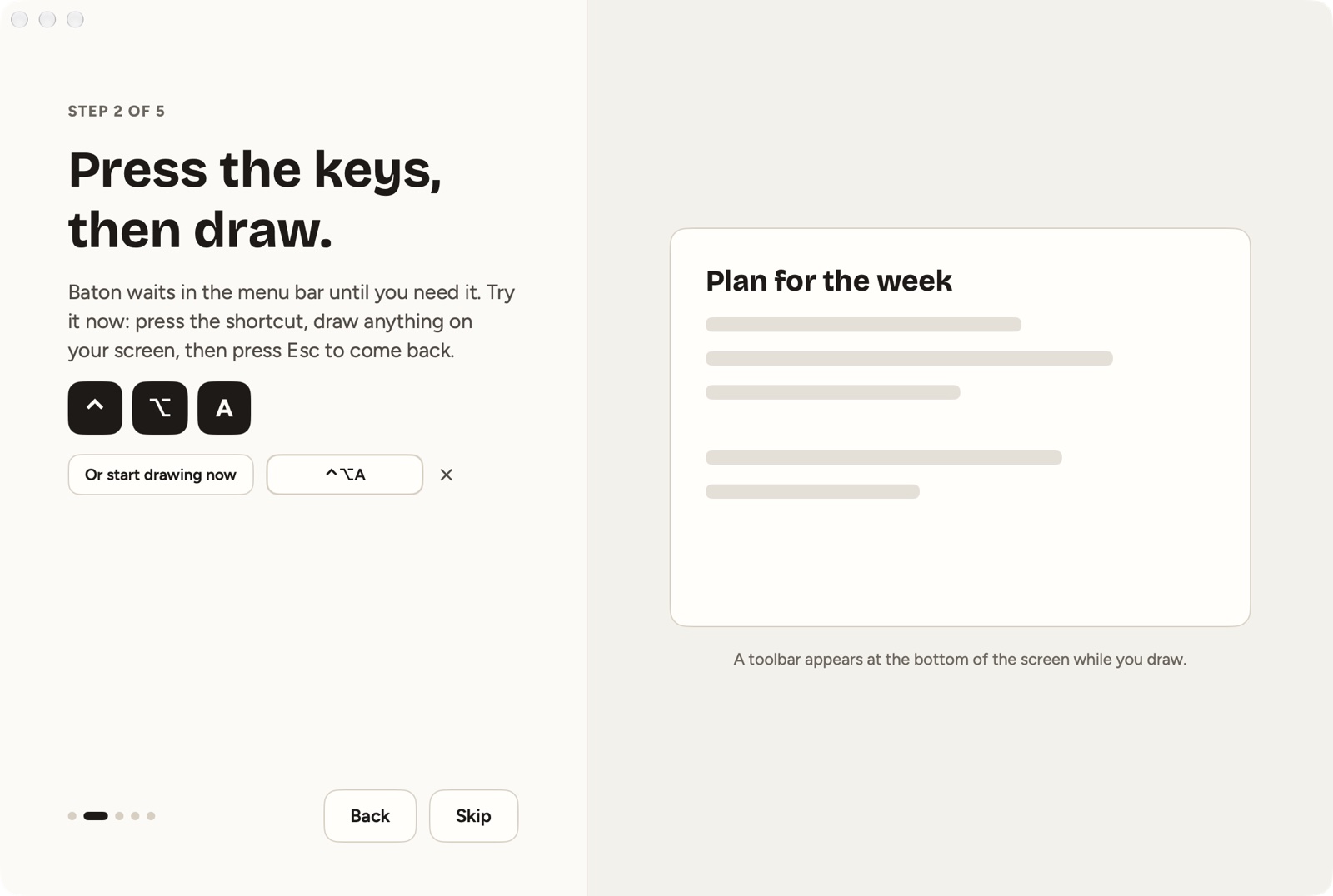
Draw, then press Esc
Mark up what you're showing. Esc stops, and the screen is clean again.
Add the cursor tools
Turn on the highlight, spotlight, zoom or keys shown from the menu bar.
Private by design
Your screen, only on your Mac.
Nothing leaves your Mac
Drawings, boards and settings are kept on your Mac. Baton has no server to send them to.
Zoom frames are never kept
Zoom reads the screen to magnify it, as it happens. No frame is saved or sent.
Keys are shown, not stored
The keys you press appear on screen for a moment and are gone. They are never written down or sent.
No analytics, no account
It fetches only our update feed, and checks your licence with us.
Price
Try everything for 7 days. Then pay once.
Free trial
7days
- Every feature, nothing held back
- Boards and settings kept after
- No account
Baton
$9.99once
- One Mac, every future update
- $19.99 for up to three Macs
- No subscription
Questions
Asked before you download
How do I draw on my Mac's screen during a presentation?
Open Baton and press ⌃⌥A in any app. A toolbar appears along the bottom and the pointer becomes a pen: draw arrows, boxes, text or numbered steps over whatever is on screen. Press Esc to stop, and the screen is clean again.
Does it work in Zoom, Google Meet, Teams and Keynote?
Baton draws on the Mac's screen itself, above every app, so the drawings appear in anything that shares or records the whole screen or display. If you share a single window, the meeting app sends only that window, and drawings on top of it are not included.
Can I still click things while drawing is on?
Yes. Hold fn and your clicks and scrolling reach the app underneath; let go and you're drawing again. You can also turn on Only draw while fn is held, and Baton then stays out of the way until you hold fn.
Which permissions does Baton need?
None for drawing, the cursor highlight, the spotlight, whiteboards, the timer or the curtain. Zoom and saving a picture of the screen need Screen Recording, because they read what is on screen. Keys shown needs Input Monitoring, because it reads the keys you press. Both are optional, and nothing is saved or sent.
Does Baton record my screen or my typing?
No. Zoom magnifies the screen as it happens and keeps no frame. Keys shown puts each key on screen for a moment and never writes it down. Nothing is sent anywhere.
Can I use an iPad and Apple Pencil?
Yes, with Sidecar. Use the iPad as a second display, start drawing there, and the Pencil draws thicker the harder you press. A drawing tablet works the same way, and you can also draw with a finger on the trackpad.
Can I change the shortcuts?
Yes, all of them. The Shortcuts page has a recorder for every tool and for the single keys used while drawing. Any shortcut can be cleared.
Do my drawings stay on the screen?
Only as long as you want. By default the screen is clean the moment you stop drawing; Keep drawings when I stop leaves them for next time. Fade makes each drawing disappear after a few seconds. Whiteboards are always kept as boards.
What does it cost?
Every feature is free for 7 days. Then it's $9.99 once for one Mac, or $19.99 for up to three, with every future update and no subscription. After the trial the tools stop starting until you buy; your boards and settings are kept. Your keys and Macs are at console.papermint.studio.
Why isn't it on the Mac App Store?
Baton is downloaded from us instead, signed and notarized by Apple, so updates reach you the day they are ready and one key can cover up to three Macs.
Draw on your screen as you present.
Free for 7 days, then $9.99 once. Apple silicon and Intel, macOS 14.4 or later.
DownloadmacOS 14.4+ · Apple silicon & IntelMore from Papermint
Other apps, same promise.
 WrenTalk, and it types
 TacetEvery copy kept, keys kept quiet
 MezzoA volume slider for every app
 OrielScreenshots and recordings, kept local
 LumenA photo viewer for the Mac
 SheafEvery PDF tool, on your Mac
 PennyBookA private expense tracker
 AlmanacSee which app is behind it
 RoostWindows back where they belong
 WinnowClear your Mac, keep a way back
 WhittleVoice notes that write themselves
 KeepersA photo cleaner you swipe
 SketchyColoring pages for kids
 LanternEvery device on your network
 BalmMedicine reminders for the family
 UnfurlA journal that fills itself in