How to Edit the Hosts File on a Mac for localhost
Find and edit the Mac hosts file at /etc/hosts, point a name at 127.0.0.1, flush the DNS cache, and fix entries that don't take effect.
- Edit
/etc/hostswith sudo. Runsudo nano /etc/hosts, add lines like127.0.0.1 myapp.testand::1 myapp.test, then flush withsudo killall -HUP mDNSResponder. - Use .test, not .local or .dev.
.testis reserved and safe,.localgoes through multicast DNS and behaves inconsistently, and.devforces HTTPS. - Test with
ping, notdig.digandnslookupskip the hosts file, so usedscacheutil -q host -a name myapp.testorpinginstead. - No ports, wildcards or HTTPS. Hosts entries map names to IPs only, so removing
:5173from URLs needs a reverse proxy on ports 80 and 443.
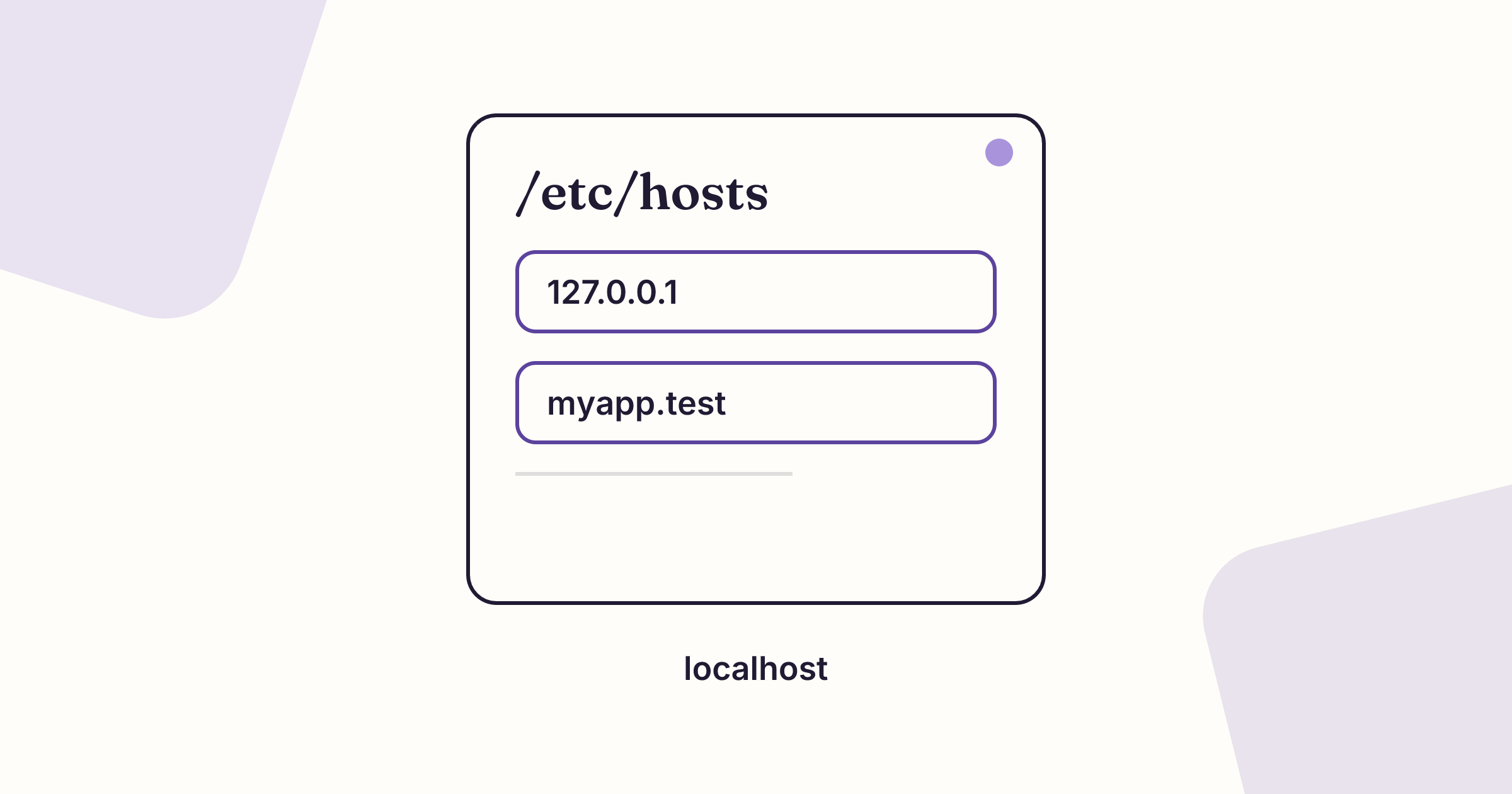
The Mac's hosts file is at /etc/hosts. Open it with sudo nano /etc/hosts, add a line such as 127.0.0.1 myapp.test, save, then run sudo killall -HUP mDNSResponder so the change takes effect. That name now points to your own Mac. It can't include a port, though, and it doesn't give you HTTPS.
Below are the full steps, how to check that the change worked, the mistakes that stop an entry from working, and how to put the file back the way it was.
Where the hosts file lives on macOS
The path is /etc/hosts. On a Mac, /etc is a link to /private/etc, so /private/etc/hosts is the same file. It's a plain text file owned by the system, so you need an administrator password to change it.
A fresh macOS hosts file looks like this:
##
# Host Database
#
# localhost is used to configure the loopback interface
# when the system is booting.  Do not change this entry.
##
127.0.0.1	localhost
255.255.255.255	broadcasthost
::1             localhost
Leave those three lines alone. 127.0.0.1 and ::1 are your Mac's own address in IPv4 and IPv6. broadcasthost is a special address the system uses. Anything you add goes below them.
Back it up, then open it in Terminal
Make a copy before you change anything:
sudo cp /etc/hosts /etc/hosts.backupThen open the file in nano, the text editor that runs inside Terminal:
sudo nano /etc/hostsType your Mac's login password when asked. Nothing appears on screen while you type it, which is normal. Use the arrow keys to move to the bottom of the file.
Point a custom name at 127.0.0.1
Each line is an IP address, then a space or tab, then one or more names:
127.0.0.1   myapp.test api.myapp.test
::1         myapp.test api.myapp.test
The ::1 line matters more than it looks. Some apps look up the IPv6 address first. If a name has an IPv4 line and no IPv6 line, lookups can be slow or behave oddly. Adding both covers both cases.
To save in nano, press Control-O, then Return to keep the filename, then Control-X to quit. A line that starts with # is a comment. Putting # in front of an entry turns it off without deleting it, which is handy when you're testing.
Which ending to use
Choose the ending for your dev names carefully:
- .test is reserved. Under RFC 6761, registries must not hand out .test names, so a real website can never take yours. It's the safest choice for the hosts file.
- .localhost is reserved too, and is meant to always point to your own machine. Some browsers already send any
.localhostname to your Mac without a hosts entry, but tools that use the Mac's own resolver may still need the line. - .local is a bad fit for the hosts file. It's reserved for multicast DNS, also called Bonjour, which your Mac uses to find printers and other Macs on the network (RFC 6762). macOS sends
.locallookups through that system, so a hosts entry for.localcan be slow or inconsistent. - .dev is a real top-level domain, and browsers force HTTPS on all of it. Avoid it for local work.
- Made-up endings like
.dev2or.lanaren't reserved, so one could become a real domain later. IANA's Special-Use Domain Names registry lists the endings that are set aside, includingtest.,localhost.,local.andexample..
Flush the DNS cache so changes apply
macOS caches name lookups. Clear the cache after every edit:
sudo dscacheutil -flushcache; sudo killall -HUP mDNSResponderYou don't need to restart. Browsers keep their own short-lived cache and open connections, so quit the browser completely (⌘Q, not just closing the window) and open it again if a name still goes to the old place.
Check that it worked
Test from Terminal before you open a browser:
dscacheutil -q host -a name myapp.test
ping -c 1 myapp.test
Both use the same lookup path as your apps, so they should show 127.0.0.1 (or ::1). Don't test with dig or nslookup. Those query DNS servers directly and skip the hosts file, so they'll tell you your entry doesn't exist even when it works.
Why hosts entries don't handle ports
The hosts file maps names to IP addresses and nothing else. It has no idea what a port is. So this won't work:
127.0.0.1:5173 myapp.test # wrongWith a correct entry, http://myapp.test connects to port 80 on your Mac. If your dev server runs on 5173, you still have to type myapp.test:5173, and the number is back in the URL. Getting rid of it means running a reverse proxy on ports 80 and 443 that forwards each name to the right port. HTTPS means also making certificates, trusting a root certificate, and pointing the proxy at them.
The hosts file also has no wildcards. *.myapp.test doesn't work, so every subdomain needs its own line, in both the 127.0.0.1 and ::1 versions.
Common mistakes and how to undo them
The entry is ignored in one browser. Browsers with a secure DNS setting, VPN apps and network filters can handle lookups their own way. If ping shows the right address but one browser doesn't, try turning off secure DNS in that browser, or disconnect the VPN, to see whether that's the cause. In Chrome you can also clear its own cache at chrome://net-internals/#dns.
A typo in the address or name. Check for 127.0.0.l (a letter l instead of a 1), or a name that differs by one letter from what you typed in the browser.
The file was edited in TextEdit and broke. You can open /private/etc with Finder's Go › Go to Folder, copy hosts to the Desktop, edit it and drag it back. If you do, choose Format › Make Plain Text first, turn off smart quotes and smart dashes in Edit › Substitutions, and make sure it isn't saved as hosts.txt. Terminal and nano avoid all three problems.
Permissions changed. If you replaced the file from the Desktop, make sure it still belongs to the system and is readable:
sudo chown root:wheel /etc/hosts
sudo chmod 644 /etc/hosts
You want the original back. Restore your backup with sudo cp /etc/hosts.backup /etc/hosts. If you have no backup, open the file and leave only the default lines shown at the top of this post. Then flush the cache again.
Other things people use it for
- Testing a site before its DNS changes go live. Point the real domain at the new server's IP address, check the site, then remove the line. Don't forget that last step, or you'll keep seeing the old server's address long after the switch.
- Blocking a site. Point it at
0.0.0.0or127.0.0.1, and the Mac can't reach it. - Local development. One name per project, which is where the port problem above usually starts to hurt.
An easier option for dev servers
If you only need one or two names and you're happy typing the port, the hosts file is fine. Once you have several projects, need HTTPS for service workers or OAuth callbacks, or are tired of editing a system file with sudo for each one, a tool that handles the name, the proxy and the certificate together saves time. We go through the whole setup, and why plain localhost stops being enough, in how to use a custom domain instead of localhost on a Mac.
We built Porter for this. It's a free menu bar app with no account. It lists the dev servers already running on your Mac, such as Vite, Next.js, Astro or uvicorn, and gives each one a name like shop.local. Porter answers on ports 80 and 443 and forwards to the server's port, WebSockets included, so hot reload keeps working.
Porter can use .local safely because it doesn't go through the hosts file. macOS looks up .local names on the machine itself, so the app answers them directly, without touching system files or asking for a password for each name. Turning on HTTPS asks for your password or Touch ID once. After that, every name opens with a padlock, from a certificate authority on your Mac that can only vouch for .local names. Local names work only on that Mac. To show a site to a phone or a colleague, Porter opens a temporary public link instead. It needs macOS 15 or later, on Apple silicon or Intel. The Porter help pages cover every setting.
Questions
Where is the localhost file on a Mac?
The hosts file, which maps names like localhost to addresses, is at /etc/hosts, which is the same file as /private/etc/hosts. Open it with sudo nano /etc/hosts.
Do I need to restart my Mac after editing the hosts file?
No. Run sudo dscacheutil -flushcache; sudo killall -HUP mDNSResponder, then quit and reopen your browser.
Can I add a port number to the hosts file? No. The file only maps names to IP addresses. To reach a server on another port without typing it, you need a reverse proxy on ports 80 and 443 that forwards each name to the right port.
*Can I use a wildcard like .myapp.test? No. The hosts file has no wildcards, so each subdomain needs its own line.
Why does dig say my hosts entry doesn't exist?
dig and nslookup ask DNS servers directly and skip the hosts file. Use dscacheutil -q host -a name yourname.test or ping to test instead.
Should I use .local in the hosts file?
It's better not to. macOS sends .local lookups through multicast DNS, so hosts entries for .local can be slow or unreliable. Use .test in the hosts file, or an app built to answer .local names.
Keep reading

Clipboard Manager for Mac That Hides Passwords and API Keys
How Mac clipboard managers keep passwords out of history, where secrets slip through, and how to test yours. Also covers API keys and shell history.
Mac Keeps Freezing? How to Unfreeze It and Find the Cause
Mac frozen? Force quit the app or force a restart, then use Activity Monitor, Safe Mode and Diagnostics to find out why it keeps freezing.

How to Edit RAW Photos on a Mac Without Lightroom
Edit RAW photos on a Mac without a Lightroom subscription: cull, develop, mask and export, plus how Photos, free editors and one-time apps compare.