
The short answer
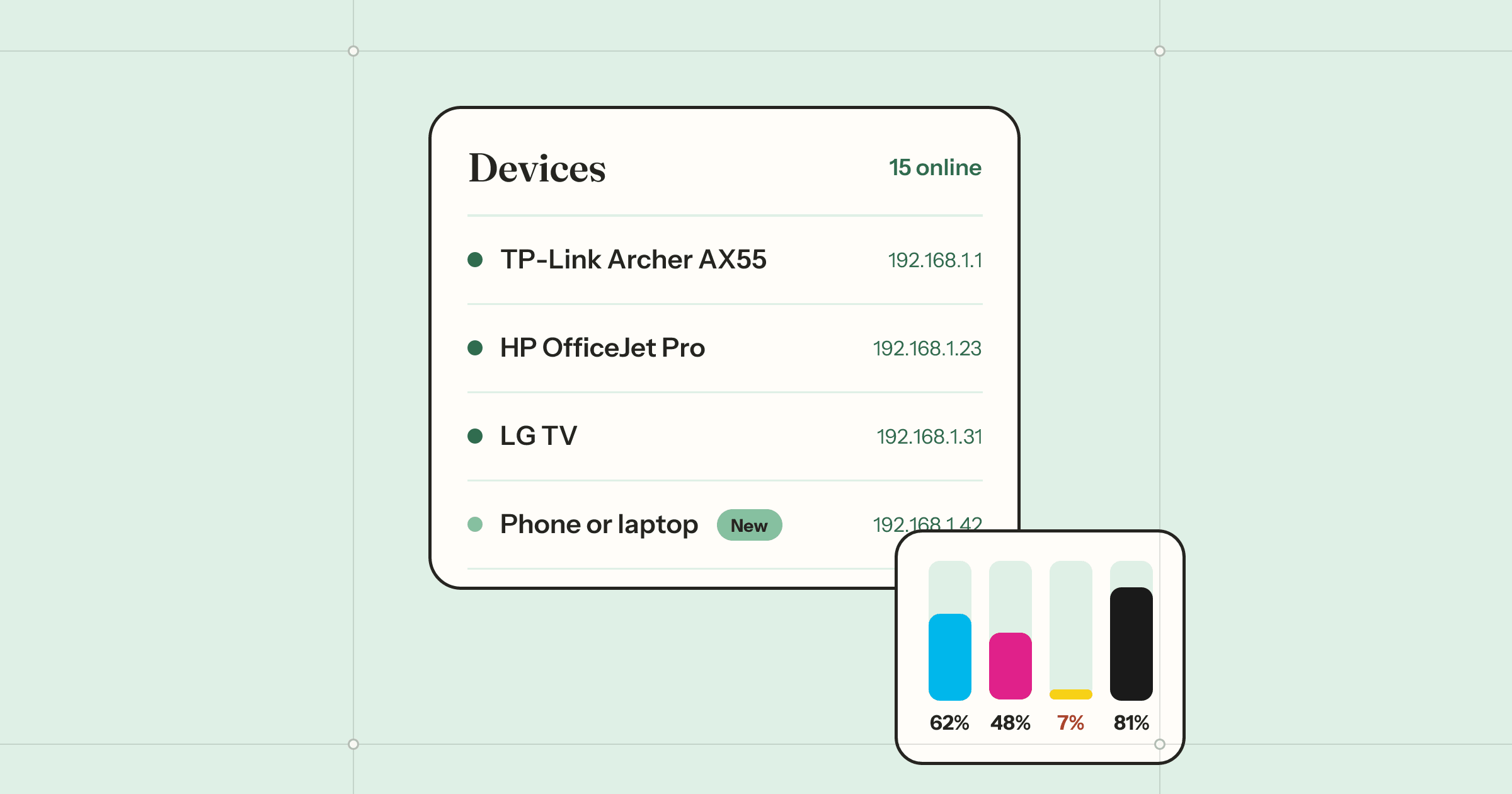
Open your router's settings page (usually http://192.168.1.1 or http://192.168.0.1) and look for a list of connected or DHCP clients. On the Mac itself, arp -a in Terminal lists the addresses it has talked to recently, dns-sd -B _services._dns-sd._udp shows what devices announce, and ippfind finds printers. To see everything at once with names, makers, printer ink and router details, a network scanner such as Lantern ($9.99 once) scans the whole network in a few seconds.
A home network quietly fills up. Two phones each, a laptop or three, the TV and the box under it, a printer, a speaker, a doorbell, a plug for the lamp. Most of them never tell you they’re there, so when the Wi-Fi feels slow, or the router lists a name you don’t recognise, it helps to see the whole list.
Below are the free ways to do that from a Mac, from easiest to most thorough. At the end is Lantern, the network scanner we made to do it in one go.
Ask your router
Your router hands out every address on the network, so it keeps a list.
- Find its address: on your Mac, open System Settings › Wi-Fi, click Details… next to your network, then TCP/IP. The Router line is the address, often
192.168.1.1or192.168.0.1. - Open that address in a browser and sign in with the router’s admin password (often printed on its label).
- Look for Connected devices, DHCP clients or Attached devices.
List addresses from Terminal
The Mac keeps a table of every device it has talked to on the network, with its hardware address:
arp -aEach line is an IP address and a hardware (MAC) address. The first half of a hardware address names who made the network card, which you can look up in the IEEE’s public list. A device the Mac hasn’t talked to lately won’t be in the table, so this is a start, not the full list.
Work out what each device is
- Bonjour names. AirPlay TVs and speakers, Chromecasts, printers, Macs and many smart-home gadgets announce themselves.
dns-sd -B _services._dns-sd._udplists the kinds of services on your network; thendns-sd -B _airplay._tcp(or_googlecast._tcp,_ipp._tcp) lists the devices behind one. Press Control-C to stop. - A private address. Phones, tablets and laptops make up a hardware address for each network, so the maker is hidden. If the second character of the address is 2, 6, A or E, it’s one of those.
- Its web page. Routers, printers, cameras and NAS boxes often have one: try the IP address in a browser.
Check a printer’s ink from a Mac
If the printer is added on your Mac, open System Settings › Printers & Scanners, pick it, then Options & Supplies › Supply Levels. For any AirPrint printer on the network, even one you haven’t added, Terminal can ask it directly:
ippfind
ipptool -tv ipp://PRINTER-ADDRESS/ipp/print get-printer-attributes.test | grep marker
ippfind lists the printers it hears; in the second command, use one of their addresses. The marker-levels line is the ink or toner left, in the order of marker-names.
All of it at once, with Lantern
Lantern is a network scanner for the Mac that we made to put all of this in one window. In about seven seconds it finds every device on your network (by ping, a knock on common ports and the Mac’s ARP table, so quiet devices show up too) and asks each one what it is: Bonjour, UPnP, NetBIOS, SNMP, IPP and the info pages TVs and speakers serve. Each device gets a name, a kind, its maker and model, its addresses and the services it offers.
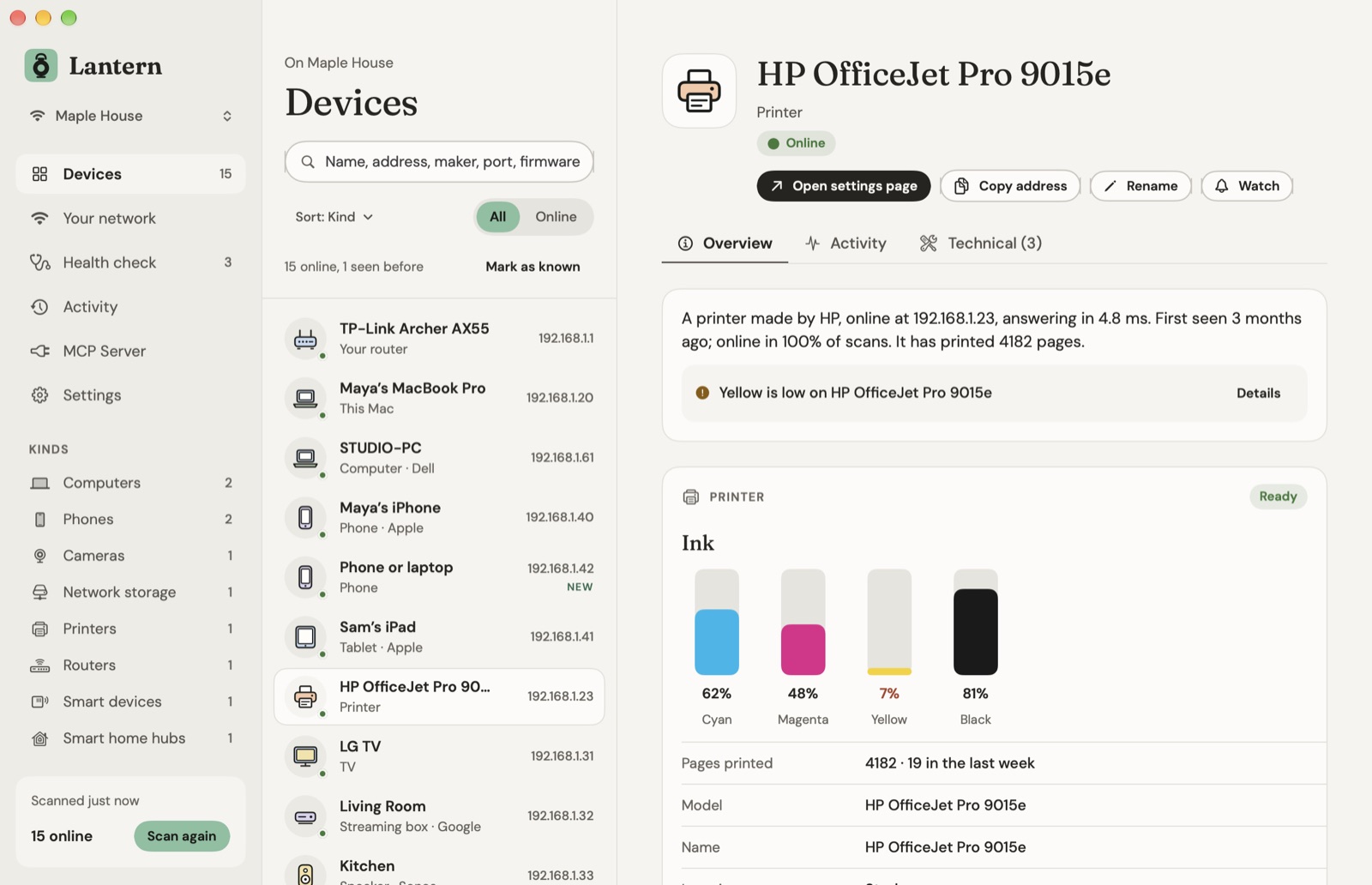
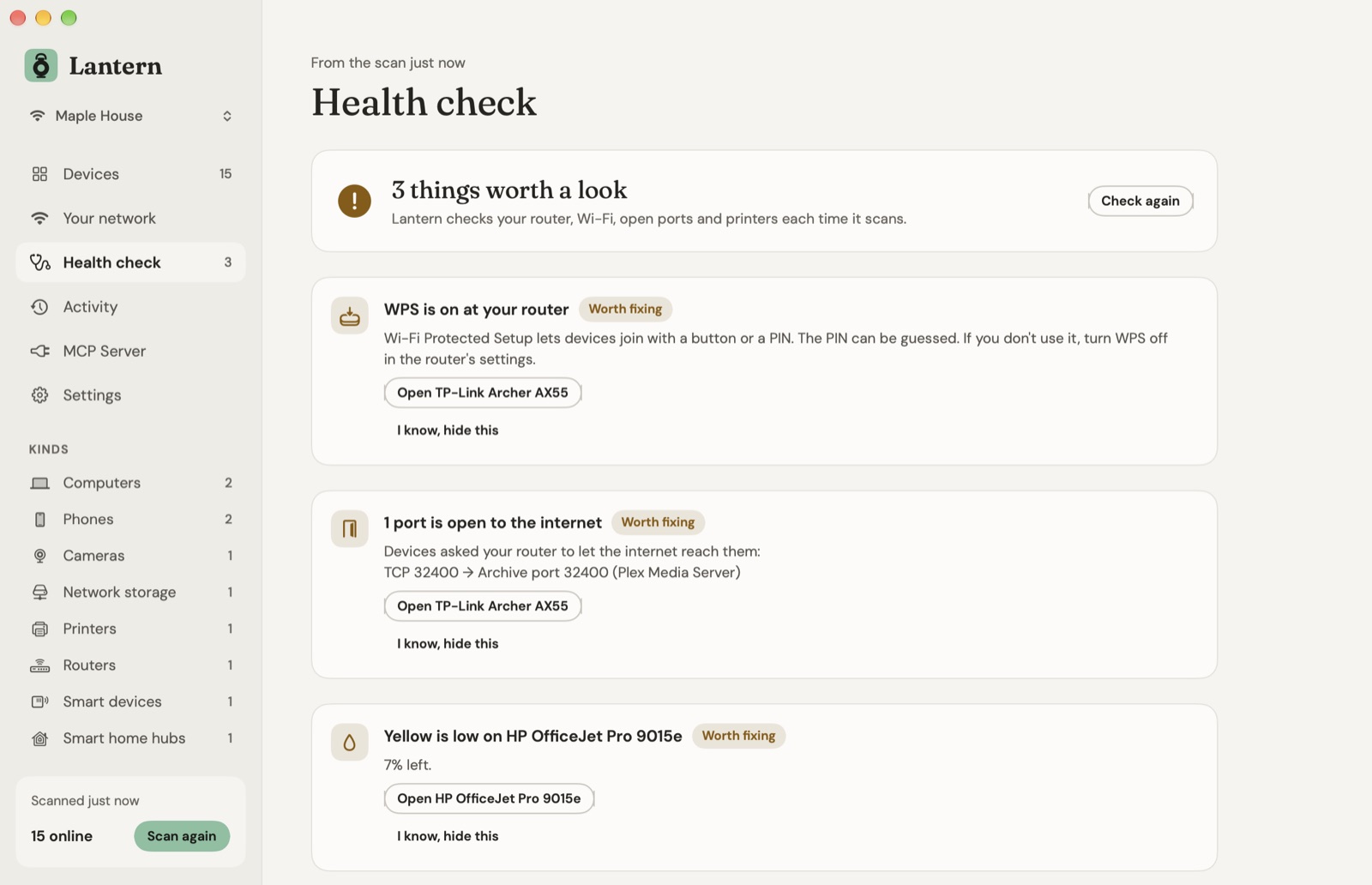
Printers show their ink, pages printed and firmware. Your router shows its model, public address, how long it’s been connected and any ports it forwards to the internet. A health check flags the things worth fixing: double NAT, WPS left on, weak or open Wi-Fi, a crowded channel, Telnet or Remote Desktop left open, low ink.
It can scan by itself every 15 minutes and tell you when a new device joins. Everything stays on your Mac, with no account. It’s free for 7 days, then $9.99 once.
If you find a device you don’t know
- Rule out the obvious. Guests’ phones, a new smart plug, the TV’s second network card. Note when it comes and goes: a phone leaves when its owner does.
- Change the Wi-Fi password if you still can’t place it. Every device has to rejoin, and the stranger can’t.
- Use WPA2 or WPA3 and turn off WPS in the router’s settings if you don’t use it.
Questions
How do I see who is connected to my Wi-Fi on a Mac?
Your router's settings page lists the devices it has given an address to. On the Mac, arp -a in Terminal lists devices it has talked to recently. A network scanner lists every device on the network with its name and maker.
Why does a device show up as an unknown name?
Many devices don't announce a name, and phones and laptops use a private, made-up hardware address on each Wi-Fi network, which hides the maker. Look at when it appears and disappears, then give it your own name.
Can I check printer ink levels from a Mac without the printer's app?
Yes. A printer added in System Settings shows its supply levels under Printers & Scanners, Options & Supplies. Any AirPrint printer on the network also reports ink over IPP, which ipptool or Lantern can read without adding it.
Does Lantern send my network details anywhere?
No. It talks only to the devices on your own network. The only other things it reaches are the licence check and the update check, which include nothing it found.
What does Lantern cost?
It's free for 7 days, then $9.99 once for one Mac, with every future update. It needs macOS 26 Tahoe or later on Apple silicon.
 Oriel
Oriel
 Tacet
Tacet
 Wren
Wren