
The short answer
Press Shift-Command-4 to capture part of the screen, Shift-Command-3 for all of it, and Shift-Command-5 to record. Open the shot in Preview and use the Markup toolbar for arrows, boxes and text; the thumbnail that appears after a recording has a Trim button. All of it stays on the Mac. For scrolling pages, backgrounds, blurring emails automatically, recordings with auto zoom and captions, and a library you can search by the words inside each capture, an app such as Oriel ($19.99 once) does it on the Mac too.
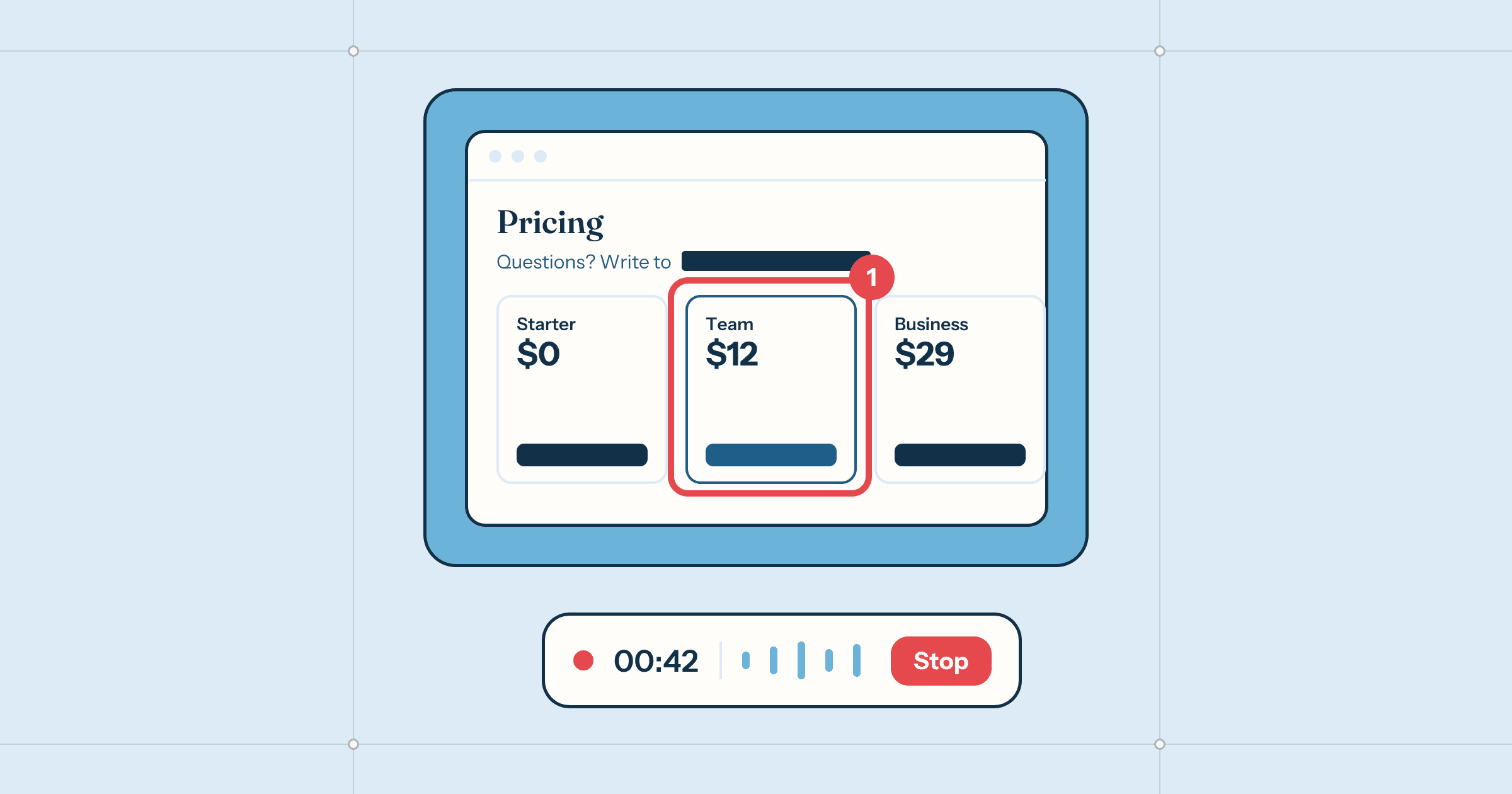
A screenshot is usually a quick thing: a bug for a colleague, a receipt for later, a step in a how-to. A screen recording is a slower one: a walk-through, a demo, a bug that only shows when it moves. Neither needs to leave your Mac, and the Mac can do most of it on its own.
Below is how, from the built-in keys to marking up, hiding private details, recording and finding a shot again. At the end is Oriel, the app we made to do all of it in one place, on the Mac.
Take a screenshot with the Mac’s keys
- ⇧⌘3 captures the whole screen.
- ⇧⌘4 lets you drag over part of it. Press Space after it to pick a window instead; hold ⌥ while clicking to leave out the window’s shadow.
- ⇧⌘5 opens the screenshot toolbar, with a timer, a choice of folder and the recording buttons.
- Add ⌃ to any of them to copy the shot to the clipboard instead of saving a file.
Mark it up in Preview
- Click the thumbnail that appears in the corner after a screenshot, or open the file in Preview.
- Click the Markup button (the pen in a circle) to show the toolbar.
- Use Shapes for arrows, boxes and circles, Text for labels, and the colour and line options beside them.
- Press Done. The marks are saved into the image.
Preview has no numbered steps, blur or background, and its marks are flattened when you save, so keep a copy of the original if you might change your mind.
Keep private details out
Screenshots carry more than you mean to share: an email address in a header, an API key in a terminal, a card number on a receipt, a notification from someone else.
- Turn on Do Not Disturb from Control Centre before you capture, so notifications don’t appear.
- Cover, don’t blur lightly. In Preview, draw a filled rectangle over the text and set its fill to black. A light blur can sometimes be read back.
- Look at the whole picture before you send it: the tab bar, the menu bar and the dock give away more than the window you meant.
Record the screen
- Press ⇧⌘5 and choose Record Entire Screen or Record Selected Portion.
- Under Options, pick your microphone if you want to talk over it.
- Click Record. To stop, click the stop button in the menu bar, or press ⌃⌘⎋.
- Click the thumbnail that appears in the corner, then the Trim button, to cut the start and end.
Find a screenshot later
Give screenshots a name as you save them, or keep them in one folder by month. Spotlight can find some text in images, but searching for an exact email address or error message rarely turns up the right shot. Apps that read the text in every capture on the Mac do this properly.
All of it in one place, with Oriel
Oriel is a Mac app for screenshots and screen recordings that keeps everything on the Mac. It captures an area, a window, the whole screen or a page too long to fit, scrolling it for you. A small card waits in the corner after each one, to copy, save, pin above every window or drag into any app.
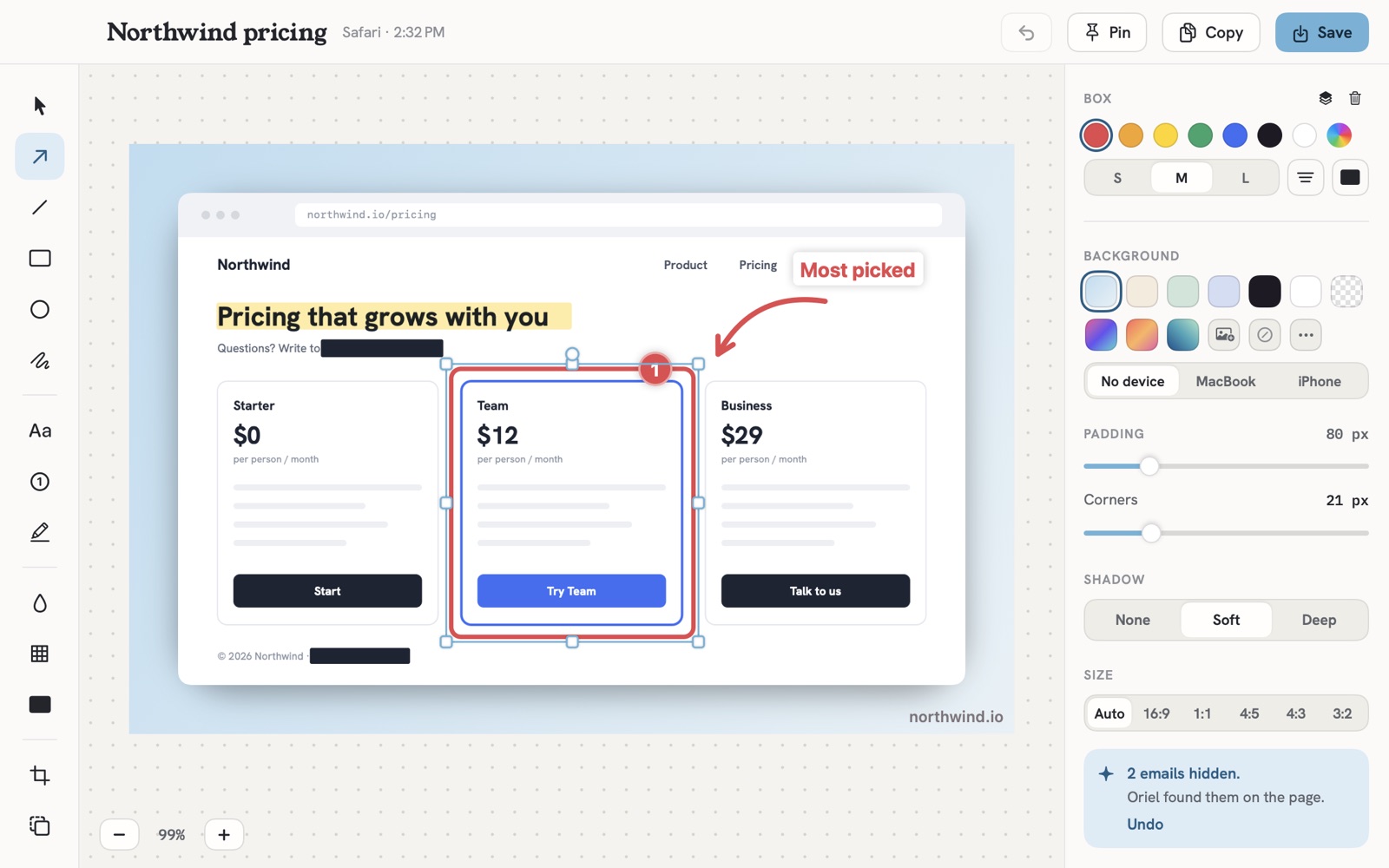
The editor has arrows, boxes, numbered steps, text, highlight, blur, pixelate and redaction, and sets the shot on a background with padding, rounded corners and a shadow, or in a MacBook or iPhone frame. It looks for email addresses, API keys, tokens and card numbers and covers them before you share.
Recordings keep your camera, your voice and the Mac’s sound on their own tracks. Studio then zooms in where you clicked, writes captions from what you said, and lets you cut the video by striking words in its transcript, with the ums and long pauses taken out in a click. It exports MP4 or an animated GIF.
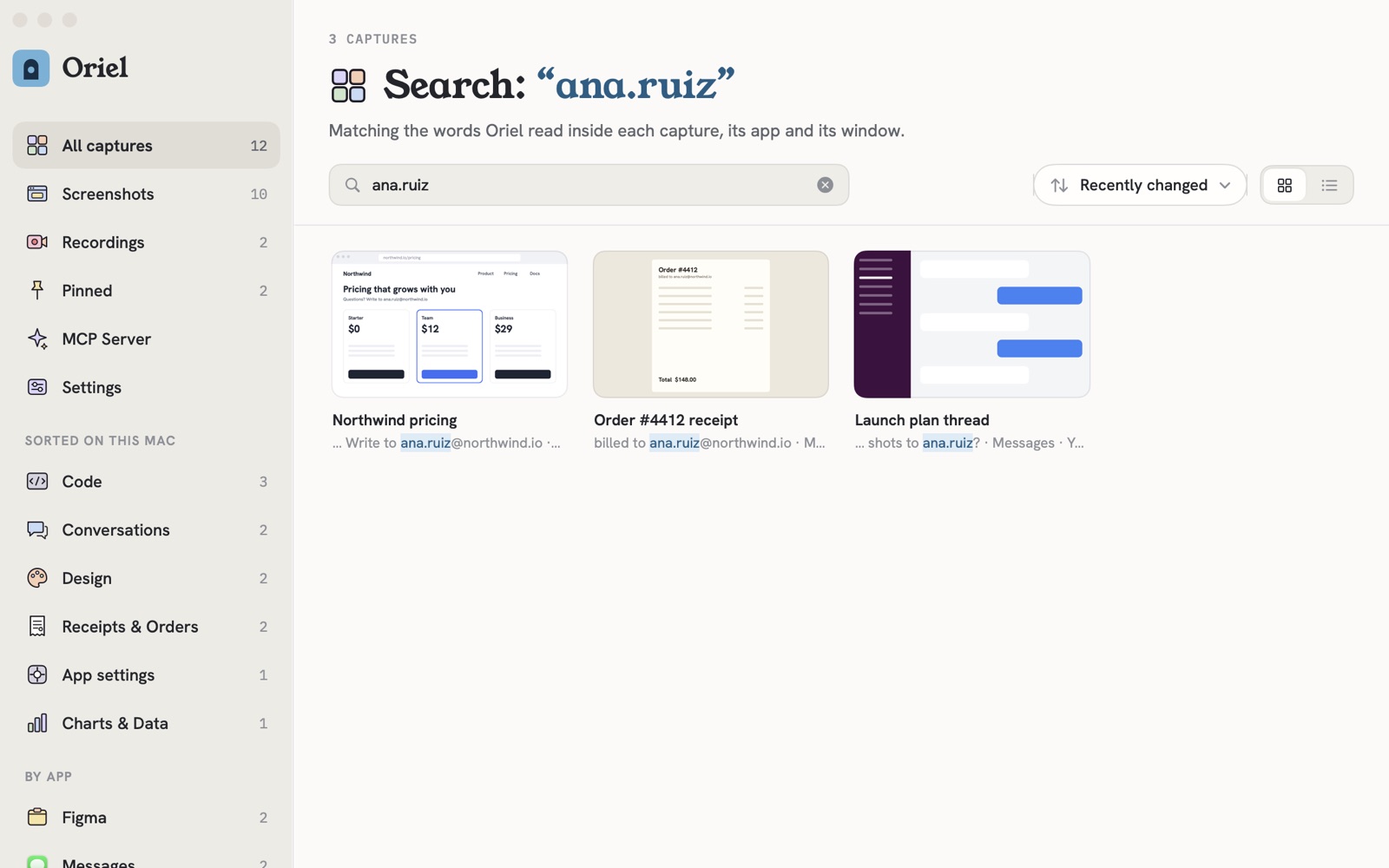
Every capture goes into a Library that reads the text inside it on your Mac, so an email address or an order number finds the shot it’s in. Nothing is uploaded and there’s no account. It’s free for 7 days, then $19.99 once.
Questions
Where do Mac screenshots go?
To the Desktop, unless you changed it. Press Shift-Command-5, click Options, and pick another folder under Save to, or choose Clipboard to paste the shot straight into another app.
How do I record my Mac screen with sound?
Press Shift-Command-5, choose Record Entire Screen or Record Selected Portion, and pick your microphone under Options. To keep your voice and the Mac's own sound on separate tracks, use an app that records them apart.
Can I search for text inside my screenshots?
Spotlight can find some text in images, but not reliably by an exact email or error message. An app that reads every capture on the Mac, such as Oriel, finds the screenshot a word is in.
Does Oriel upload my screenshots?
No. Screenshots, recordings and the text read from them stay on your Mac. Oriel only goes online for its licence check and its update check.
What does Oriel cost?
It's free for 7 days, then $19.99 once for one Mac, with every future update. It needs macOS 26 Tahoe or later on Apple silicon.
 Lantern
 Tacet
Tacet
 Wren
Wren